

The head command in Linux prints the beginning of files or input, letting you quickly preview the first lines or bytes without opening the entire file. By default, head shows the first 10 lines, supports multiple files, and works with pipes. It’s essential for log inspection, data sampling, and shell scripting.
If you regularly manage servers, debug applications, or process datasets, learning the head command in Linux is a must. This beginner friendly guide explains head’s syntax, options, practical use cases, and advanced tips, crafted from 12+ years of hands on hosting and sysadmin experience at YouStable.
What is the head Command in Linux?
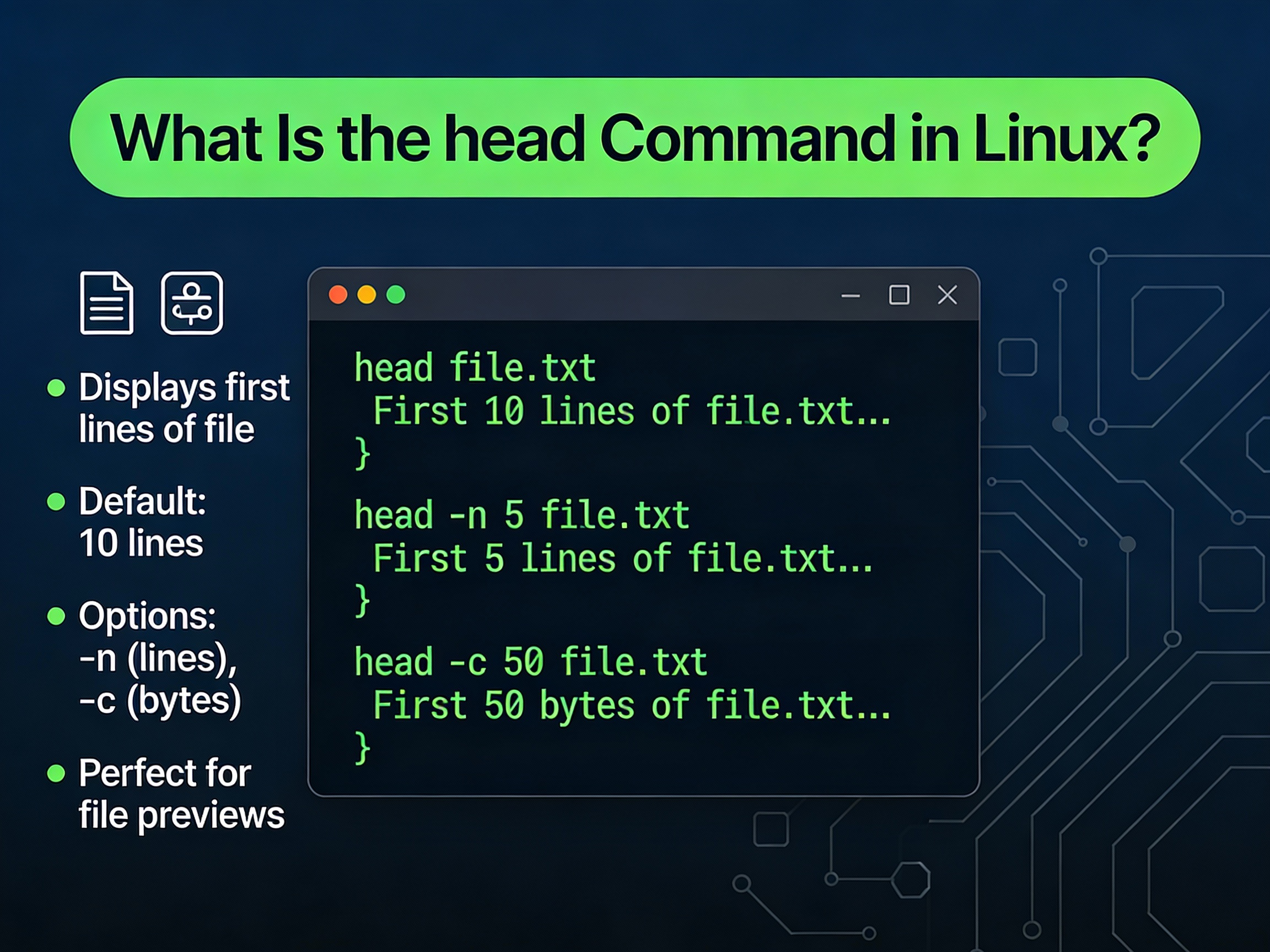
head is a standard Unix/Linux utility (part of GNU coreutils on most distributions) that outputs the start of a file or data stream. It defaults to 10 lines but can output any number of lines or bytes you specify. It supports multiple files, works seamlessly with pipes, and is safe to use on huge files.
Syntax and Basic Usage
At its simplest, head prints the first 10 lines of each file you pass. Use options to change how many lines or bytes you see.
head [OPTION]... [FILE]...Show the First N Lines
Use -n (or –lines) to control line count. Positive numbers print the first N lines. A leading minus excludes the last N lines (see advanced tips below).
# First 10 lines (default)
head /var/log/syslog

# First 20 lines
head -n 20 /var/log/syslog

# First 3 lines of two files
head -n 3 file1.txt file2.txt
Show the First N Bytes
Use -c (or –bytes) when you need byte precise previews, helpful for binary files or tight performance constraints.
# First 100 bytes
head -c 100 image.jpg > sample.bin

# First 4 KiB of a huge log
head -c 4096 /var/log/nginx/access.log
Read from Standard Input (Pipes)
Head works perfectly in pipelines, making it a go to tool for sampling command output.
# Preview the first 10 matches
grep "ERROR" /var/log/app.log | head

# Sample the first 15 lines of a sorted list
sort largefile.txt | head -n 15
Multiple Files and Headers
When you pass multiple files, head prints a header before each file by default. You can quiet or force headers with -q or -v.
# Default: headers shown
head -n 5 file1.txt file2.txt

# Quiet: no headers
head -q -n 5 file1.txt file2.txt

# Verbose: always show headers
head -v file1.txt
Essential Options and Flags
-n, --lines=KPrint the first K lines. If K has a leading minus (e.g., -n -5), head prints all but the last K lines. This is useful for trimming trailers or footers in generated files.
# First 25 lines
head -n 25 report.txt

# Everything except the last 3 lines (GNU head)
head -n -3 report.txt
-c, –bytes=K
Print the first K bytes. With a leading minus, print all but the last K bytes. This helps when dealing with binary footers or when you need a byte limited sample for tooling tests.
# First 1 MB of a file
head -c 1M bigfile.dat

# All but the last 512 bytes (GNU head)
head -c -512 archive.tar
-q, –quiet and -v, –verbose
Control whether headers are printed for multiple files. -q suppresses headers; -v forces them even for a single file. This is helpful in scripts to make outputs deterministic.
-z, –zero-terminated
Treat input lines as NUL terminated instead of newline terminated (GNU extension). Use this for safety with filenames containing newlines, typically when piping from find -print0.
# Safely sample filenames containing special characters
find . -type f -print0 | head -z -n 10 | tr '\0' '\n'
Help and Version
head --help
head --version
Practical Use Cases for head
Quickly Preview Logs
Sampling logs helps you validate rotations, formats, and pipeline stages without loading the entire file.
# Inspect the latest rotated syslog
ls -ltr /var/log | tail -n 5 | head -n 1

# Verify Nginx access log structure
head -n 20 /var/log/nginx/access.log
On YouStable VPS or dedicated servers, this approach saves I/O and reduces CPU usage while you troubleshoot, especially on high traffic web stacks.
Check CSV Headers and Sample Rows
Data teams often need to confirm schema and encoding quickly. head gives you a reliable snapshot.
# View header + first 10 rows
head -n 11 data.csv

# Check if file is actually binary or malformed text
head -c 256 data.csv | hexdump -C
Combine with grep, sed, awk
Head is a great “circuit breaker” to limit volume in pipelines so you can iterate faster.
# First 15 error lines only
grep -i "error" app.log | head -n 15

# Preview first 50 unique domains (case-insensitive)
awk -F, '{print tolower($3)}' access.csv | sort -u | head -n 50

# Sample transformed lines to validate logic
sed 's/foo/bar/g' big.txt | head
Inspect Binary Files Safely
When working with archives or images, read a small byte range instead of opening the whole file. This is safer and faster on production hosts.
# Peek at magic numbers or headers
head -c 64 file.bin | hexdump -C

# Verify TAR header without expanding
head -c 512 backup.tar | hexdump -C
Script-Friendly File Sampling
Use head in CI/CD or cron jobs to provide concise, readable logs and limit noisy output.
# In a script: log top of a build artifact list
ls -lh artifacts/ | head -n 20 > build_summary.txt
Advanced Tips for Power Users
Head vs Tail vs Sed
– head shows the beginning.
- Use
tailto show the end (andtail -fto follow growth). - Use
sedorawkwhen you need pattern based selection or structured field processing. - For performance sampling,
headis the fastest way to preview content before building complex commands.
Exclude Trailing Lines or Bytes
GNU head supports negative counts to exclude data from the end. This is rarely known but extremely handy.
# Drop last 2 lines
head -n -2 file.txt

# Drop last 128 bytes
head -c -128 file.bin
Note: Negative counts are a GNU extension and may not work on all Unix variants (e.g., some BSD/macOS builds). For portability, prefer positive counts or use sed/awk equivalents.
Performance and I/O Safety
On busy servers, avoid cat bigfile | head patterns that add unnecessary processes. Call head directly on the file, or use targeted pipelines. Use -c for byte-capped reads to minimize disk I/O, especially on networked storage or when previewing massive logs.
Preview Remote Files
With SSH, you can preview files on remote hosts without copying them locally.
# Peek at a remote log
ssh user@server "head -n 50 /var/log/app.log"
If you manage multiple environments, a YouStable VPS or Dedicated Server gives you root access and predictable I/O performance, ideal for log inspection, deployments, and secure remote management at scale.
Common Mistakes and How to Avoid Them
- Assuming
-n +Nworks with head: That syntax belongs totail. Use-n Nwith head. - Using head to “follow” files: Use
tail -fto watch logs in real time. - Portability issues: GNU-specific flags like
-zor negative counts may not work on non-GNU systems (some macOS/BSD). Stick to-nand-cfor portability. - Binary surprises: Previewing binary files in a terminal can produce control characters. Prefer
head -ccombined withhexdump -C. - CRLF line endings: Windows-formatted files may display differently. Convert with
dos2unixif line breaks appear odd.
Real World Scenarios from Hosting and DevOps
- Web server triage: Validate new Nginx/Apache logs after a deploy with head /var/log/nginx/access.log to confirm format and rotation.
- Database exports: Check dump headers and initial statements with
head -n 30 backup.sqlto ensure correct schema and encoding. - CI artifact checks: Confirm the top of packaging manifests before pushing to production.
- Security audits: Sample the first lines of auth logs to spot recent anomalies before deeper analysis.
Cheat Sheet: Handy head Patterns
- First 50 lines:
head -n 50 file - First 8 KB:
head -c 8K file - Preview multiple files quietly:
head -q -n 5 f1 f2 f3 - Exclude last 2 lines (GNU):
head -n -2 file - Sample pipeline output:
command | head - Zero terminated safety (GNU):
find . -print0 | head -z -n 10
Also take a look at these commands
• Chocolatey Install Command Explained With Example
• Chown Command in Linux Explained With Examples
• Echo Command in Linux Explained With Examples
• NMAP Command in Linux | Ultimate Network Scanning Guide
FAQs
What does the head command do in Linux?
head prints the beginning of files or streams. By default, it outputs the first 10 lines but can show any number of lines or bytes. It’s ideal for quick previews, scripting, and performance friendly checks on large files.
How do I show the first 20 lines of a file?
Use head -n 20 filename. Replace 20 with any positive number to see that many lines. For bytes instead of lines, use head -c 100 filename.
Can I use head with multiple files?
Yes. Pass multiple filenames: head -n 5 file1 file2. Head adds a header before each file. Suppress headers with -q or force them with -v.
What is the difference between head and tail?
head shows the beginning of a file, while tail shows the end. Use tail -f to follow a growing log file in real time; head doesn’t support “follow.”
How can I preview binary files safely?
Use head -c to limit bytes, then pipe to hexdump for readable output. Example: head -c 64 file.bin | hexdump -C. This avoids sending raw control characters to your terminal.
Why doesn’t head -n -3 work on my Mac?
Negative counts are a GNU extension. Some BSD/macOS versions of head don’t support them. Use portable alternatives like sed or upgrade coreutils (e.g., via Homebrew) to get GNU head.
How do I print only headers of a CSV using head?
If the first line is the header, run head -n 1 data.csv. To preview the header and a few rows, use head -n 11 data.csv.
Conclusion
The head command in Linux is a small but mighty utility for fast file previews, safer pipelines, and smarter troubleshooting. Mastering -n and -c flags, plus headers and zero terminated input, will speed up your daily work across logs, CSVs, and binaries.
If you manage production workloads, pair these CLI skills with reliable infrastructure. YouStable’s high-performance VPS and Dedicated Servers provide the stability, root access, and observability you need to triage issues quickly, so your head and tail sessions stay fast, even under load.




