

To fix FirewallD on a Linux server, start and enable the service, review logs for errors, remove conflicts with other firewalls (UFW, iptables services, nftables), correct zones and rules, then reload and test.
Use systemctl and firewall cmd to diagnose, validate configuration, and apply permanent changes safely without breaking SSH access. If you’re searching for how to fix FirewallD on Linux Server, this guide walks you through quick wins and deep troubleshooting.
We’ll verify the service, check logs, fix zone/rule issues, resolve conflicts, and apply best practices so your Linux firewall protects services without blocking legitimate traffic.
Quick Fix Checklist (Use Safely Over SSH)
Before you go deep, try these safe, common fixes. Keep your console open or ensure SSH is allowed (port 22) to avoid lockouts.
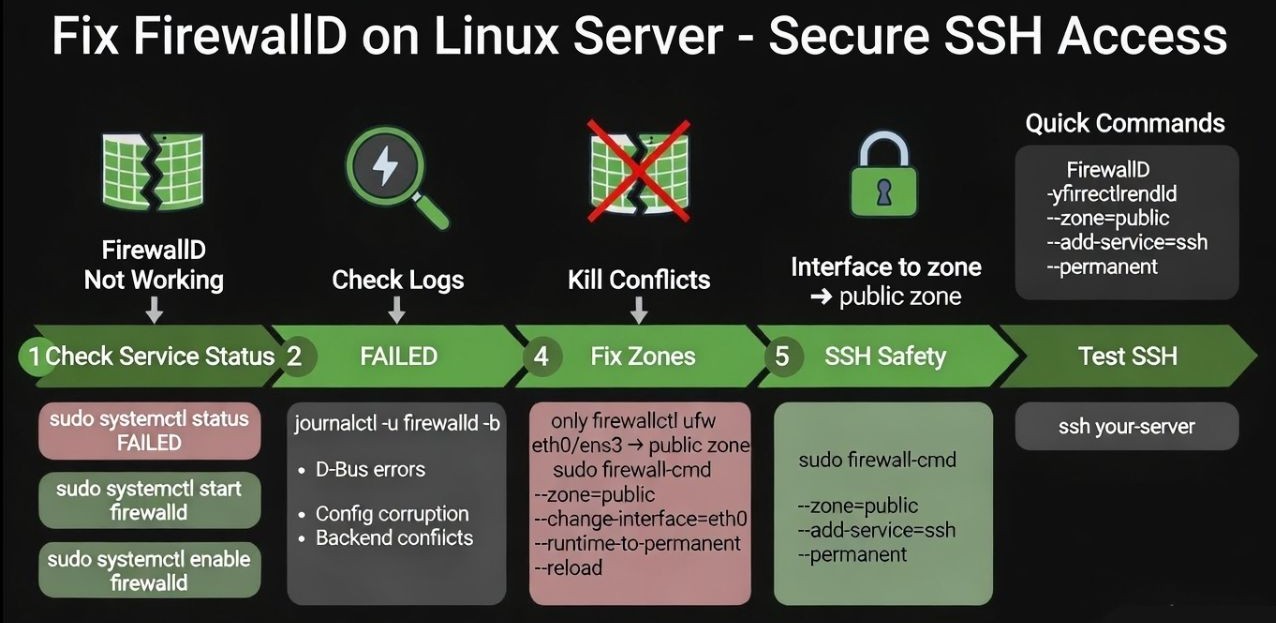
- Confirm service status and start it if needed.
- Check logs for immediate error clues.
- Disable conflicting firewalls (UFW, iptables services, nftables service).
- Validate and reload configuration.
- Ensure your interface is in the correct zone and your ports/services are allowed.
# 1) Service status and start
sudo systemctl status firewalld
sudo systemctl start firewalld
sudo systemctl enable firewalld

# 2) Logs
sudo journalctl -u firewalld -b --no-pager

# 3) Conflicts (example fixes)
sudo systemctl stop ufw 2>/dev/null; sudo systemctl disable ufw 2>/dev/null
sudo systemctl stop iptables ip6tables ebtables 2>/dev/null; sudo systemctl disable iptables ip6tables ebtables 2>/dev/null
sudo systemctl stop nftables 2>/dev/null; sudo systemctl disable nftables 2>/dev/null

# 4) Validate and reload rules
sudo firewall-cmd --check-config
sudo firewall-cmd --reload

# 5) Make sure SSH is allowed
sudo firewall-cmd --zone=public --add-service=ssh --permanent
sudo firewall-cmd --reload
How FirewallD Works (So You Don’t Fix the Wrong Thing)
- Zones: Logical trust levels (public, internal, trusted, dmz). Your interface (eth0, ens3, etc.) must be bound to the correct zone.
- Runtime vs Permanent: Changes without
--permanentlast until the next reboot or reload. Save runtime to disk with--runtime-to-permanent. - Backends: Modern distros use nftables as the backend; older ones may use iptables. Don’t run other firewall managers alongside firewalld.
# Inspect zones and mappings
sudo firewall-cmd --get-default-zone
sudo firewall-cmd --get-active-zones
sudo firewall-cmd --list-all --zone=public

# Make permanent changes persist
sudo firewall-cmd --runtime-to-permanent
Fix FirewallD Not Starting
When firewalld fails to start, it’s usually a conflict, a corrupted config, or D-Bus/back-end issues.
# Check and unmask, then start
sudo systemctl is-enabled firewalld
sudo systemctl is-active firewalld
sudo systemctl unmask firewalld
sudo systemctl daemon-reload
sudo systemctl restart firewalld

# Look for errors (permissions, D-Bus, conflicts)
sudo journalctl -xeu firewalld --no-pager

# Verify D-Bus is healthy (do NOT restart D-Bus on remote production unless you have console access)
systemctl status dbus
If logs mention nft or iptables errors, stop and disable other firewall managers (UFW, iptables services, nftables) so firewalld has exclusive control. If configuration looks corrupted, validate and reset to defaults (see below).
Fix Zone and Rule Problems
1) Put the interface in the correct zone
# See interfaces active in zones
sudo firewall-cmd --get-active-zones

# Move your interface (e.g., eth0) to "public"
sudo firewall-cmd --zone=public --change-interface=eth0
sudo firewall-cmd --runtime-to-permanent
sudo firewall-cmd --reload

# NetworkManager users can bind zones to connections:
nmcli connection show
sudo nmcli connection modify <CONNECTION_NAME> connection.zone public
sudo nmcli connection up <CONNECTION_NAME>
2) Open the right ports/services
- Services: Friendly bundles (ssh, http, https, dns, smtp).
- Ports: Raw protocol/port (e.g., tcp/8080).
# Allow common services
sudo firewall-cmd --zone=public --add-service=http --permanent
sudo firewall-cmd --zone=public --add-service=https --permanent

# Or open explicit ports
sudo firewall-cmd --zone=public --add-port=8080/tcp --permanent

# Apply
sudo firewall-cmd --reload

# Check
sudo firewall-cmd --zone=public --list-all
3) Fix runtime vs permanent confusion
Rules added without --permanent vanish after a reload or reboot. Either use --permanent from the start or save runtime rules to disk:
sudo firewall-cmd --runtime-to-permanent
sudo firewall-cmd --reload
4) Validate and reset configuration
# Validate
sudo firewall-cmd --check-config

# Reset to distribution defaults (back up first)
sudo cp -a /etc/firewalld /etc/firewalld.backup.$(date +%F)
sudo rm -rf /etc/firewalld
sudo dnf reinstall -y firewalld || sudo apt-get install --reinstall -y firewalld
sudo systemctl restart firewalld
Alternatively, use the offline tool when the service won’t start:
sudo firewall-offline-cmd --set-default-zone=public
sudo firewall-offline-cmd --add-service=ssh
sudo systemctl restart firewalld
Resolve Conflicts with Other Firewalls
- UFW (Ubuntu/Debian)
- iptables services (RHEL/CentOS 7)
- nftables service (RHEL 8+/Alma/Rocky/Debian/Ubuntu)
# Stop/disable other managers so firewalld is authoritative
sudo systemctl stop ufw nftables iptables ip6tables ebtables
sudo systemctl disable ufw nftables iptables ip6tables ebtables

# Ensure firewalld takes control
sudo systemctl restart firewalld
sudo firewall-cmd --state
Note: Cloud security groups (AWS, Azure, GCP, DigitalOcean) can still block traffic even if firewalld is correct. Check your provider’s inbound rules.
Advanced Troubleshooting
Check SELinux denials
# Look for AVC denials related to firewalld or services
sudo ausearch -m avc -ts recent 2>/dev/null | tail -n 50
sudo journalctl -t setroubleshoot --no-pager | tail -n 50
If you see SELinux denials for a service port, use the approved type or add it via semanage port (not by disabling SELinux).
Confirm a service is actually listening
# Is the application listening on the expected port?
sudo ss -tulpen | grep -E ':80|:443|:22|:8080'

# Test connectivity from local and remote
curl -I http://127.0.0.1/
nc -vz your.server.ip 80
Increase firewalld logging temporarily
# Run with debug in foreground (for testing sessions)
sudo systemctl stop firewalld
sudo firewalld --debug
# Ctrl+C to stop, then:
sudo systemctl start firewalld
Practical Examples You Can Reuse
Allow a web server (HTTP/HTTPS)
sudo firewall-cmd --zone=public --add-service=http --permanent
sudo firewall-cmd --zone=public --add-service=https --permanent
sudo firewall-cmd --reload
Lock down SSH to a trusted IP
# Allow SSH only from 203.0.113.10
sudo firewall-cmd --permanent --zone=public \
  --add-rich-rule='rule family="ipv4" source address="203.0.113.10" service name="ssh" accept'
# Drop others (ensure you have console access first!)
sudo firewall-cmd --permanent --zone=public \
  --add-rich-rule='rule family="ipv4" service name="ssh" drop'
sudo firewall-cmd --reload
Port forwarding and masquerading (NAT)
# Enable masquerade in the public zone
sudo firewall-cmd --permanent --zone=public --add-masquerade

# Forward external 8080 -> internal 10.0.0.5:80
sudo firewall-cmd --permanent --zone=public \
  --add-forward-port=port=8080:proto=tcp:toaddr=10.0.0.5:toport=80

sudo firewall-cmd --reload
Best Practices for Stability and Security
- Always allow SSH before making changes. Test from a second session.
- Use zones to separate WAN facing and internal interfaces.
- Prefer services over raw ports when available; they track protocol changes.
- Make permanent changes and back up
/etc/firewalldbefore upgrades. - Avoid running multiple firewall managers. Firewalld should be authoritative.
- Document rules and use version control for
/etc/firewalld/*.xml.
Need a hand? On YouStable’s managed VPS and dedicated servers, our support team can audit your FirewallD, fix conflicts, and align rules with your stack and cloud security groups without downtime.
When to Contact Your Host
- Firewalld won’t start even after disabling conflicts and validating config.
- You’re locked out or worried about losing SSH access.
- Complex needs: multi-NIC zone design, NAT/forwarding, or compliance.
- You want 24/7 monitoring and incident response (recommended for production).
If you’re hosted with YouStable, open a ticket and we’ll review your logs, rules, interfaces, and provider firewalls end to end. We fix the root cause, not just the symptoms.
FAQs
Why is FirewallD not starting on my server?
Most often due to conflicts with UFW/iptables/nftables services, corrupted configs, or backend/D-Bus errors. Check logs with journalctl -xeu firewalld, disable other firewall managers, validate with firewall-cmd --check-config, and restart. If configs are broken, reset to defaults and reapply rules.
How do I open a port in FirewallD permanently?
Use --permanent with your zone, then reload. Example: firewall-cmd --zone=public --add-port=8080/tcp --permanent followed by firewall-cmd --reload. Prefer services (like http/https) when available.
How can I reset FirewallD to factory defaults?
Back up /etc/firewalld, then reinstall or restore default configs: cp -a /etc/firewalld /etc/firewalld.backup.$(date +%F), remove the directory, reinstall firewalld, and restart the service. Recreate rules carefully and test SSH access.
What’s the difference between runtime and permanent rules?
Runtime rules apply immediately but vanish after a reload or reboot. Permanent rules persist on disk and load at boot. Either use --permanent when adding rules or run firewall-cmd --runtime-to-permanent to save what’s currently active.
How do I check which zone my interface is using?
Run firewall-cmd --get-active-zones to see interfaces by zone. If the interface is in the wrong zone, change it with firewall-cmd --zone=public --change-interface=eth0 (replace eth0 as appropriate), make it permanent, and reload.



