

To fix DirectAdmin on a Linux server, verify the service is running, confirm port 2222 is open, read logs for errors, and repair the web stack if needed. Start with systemctl and firewall checks, then rebuild configs via CustomBuild. Address SSL/hostname, license, and time sync issues. Below is a step-by-step DirectAdmin troubleshooting guide.
DirectAdmin is a lightweight, reliable hosting control panel, but misconfigurations, firewall rules, service conflicts, or expired licenses can cause downtime.
This guide explains how to fix DirectAdmin on a Linux server quickly and safely, covering the most common root causes and the exact commands to bring your panel and websites back online.
What Usually Breaks DirectAdmin?
From real-world experience across CentOS, AlmaLinux, Rocky Linux, Debian, and Ubuntu, DirectAdmin problems typically trace to:
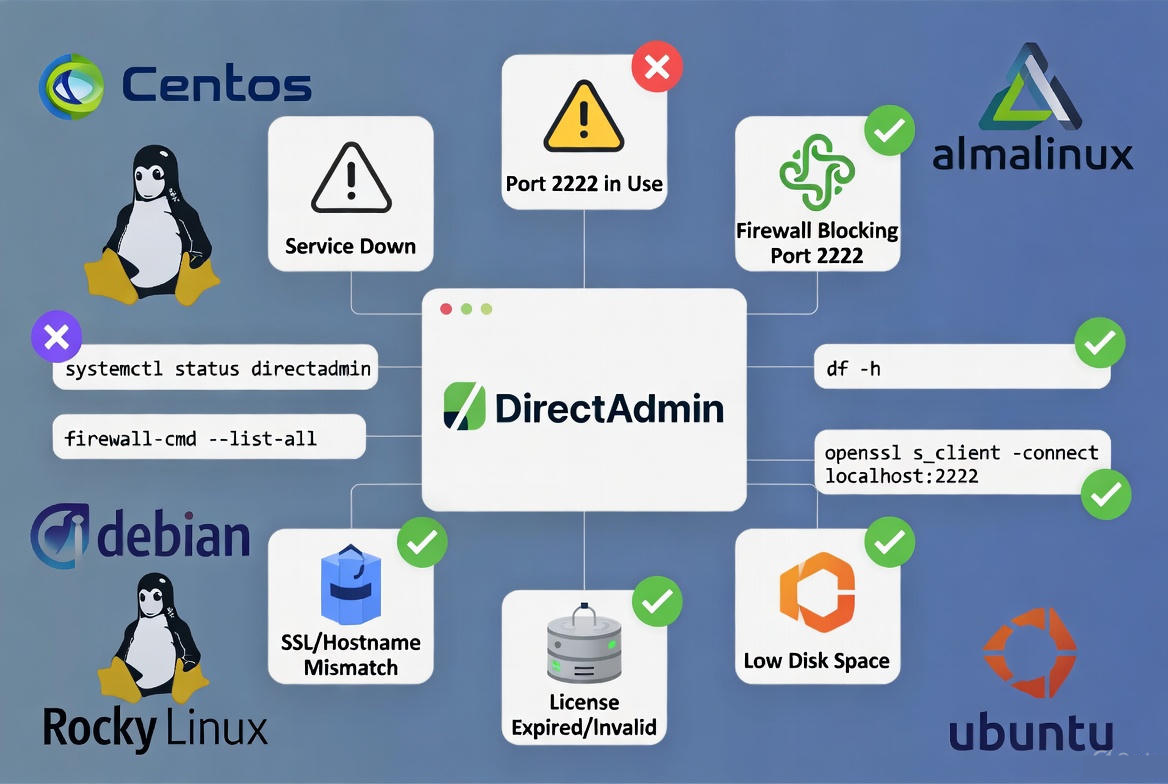
- Service down or port conflict on 2222
- Firewall or cloud security groups blocking access
- Corrupted configs after upgrades or manual edits
- SSL/hostname mismatch causing browser errors
- License invalid or system time skewed
- Disk space or inode exhaustion
- Web stack (Nginx/Apache, PHP-FPM) or mail stack (Exim/Dovecot) failures
Quick Diagnosis Checklist (5 Minutes)
Run these fast checks first. They narrow the issue before you make changes:
# 1) Is DirectAdmin running?
systemctl status directadmin --no-pager

# 2) Is DA listening on port 2222?
ss -ltnp | grep :2222

# 3) Any obvious DA errors?
tail -n 100 /var/log/directadmin/error.log

# 4) Firewall/NAT problem?
firewall-cmd --state 2>/dev/null || ufw status 2>/dev/null || csf -l 2>/dev/null
# Also check your cloud provider's security group/NAT settings.

# 5) Disk full?
df -h; df -i

# 6) Time & DNS resolvers?
timedatectl status; cat /etc/resolv.conf
Fix 1: Bring Back the DirectAdmin Service
Restart the Service and Read the Logs
If DirectAdmin isn’t accessible at https://your-hostname:2222, restart the service and immediately read logs for clues. This is core to DirectAdmin troubleshooting.
systemctl restart directadmin
journalctl -u directadmin -n 200 --no-pager
tail -n 200 /var/log/directadmin/error.log
Common errors include permission problems, port binding failures, or SSL certificate load errors. Fix the underlying issue and restart again.
Free the Port or Change It (Port 2222)
If another process is using port 2222, DA won’t start. Identify and stop the conflicting service or change DA’s port.
# Find the process using 2222
ss -ltnp | grep :2222
# or
lsof -i :2222

# Stop the conflicting service (example)
systemctl stop <service-name>

# Change DirectAdmin port (if needed)
grep -i '^port=' /usr/local/directadmin/conf/directadmin.conf
# Edit the config:
nano /usr/local/directadmin/conf/directadmin.conf
# Set, for example: port=2443

systemctl restart directadmin
Fix Permissions Quickly
Incorrect permissions after manual changes or restores can break DA. Use CustomBuild’s permission fixer.
cd /usr/local/directadmin/custombuild
./build update
./build set_permissions
systemctl restart directadmin
Fix 2: Open the Right Ports (Firewall and Cloud)
DirectAdmin requires several ports. At minimum, ensure 2222 (panel), 80/443 (web), and your mail ports are open. Also verify your cloud security group or provider firewall isn’t blocking them.
- Panel: 2222/tcp
- Web: 80/tcp, 443/tcp
- Mail: 25, 465, 587/tcp (SMTP), 110/tcp (POP3), 143/tcp (IMAP), 993/995 (secure POP/IMAP)
- DNS (if running): 53/tcp and 53/udp
firewalld (CentOS/AlmaLinux/Rocky)
firewall-cmd --permanent --add-port=2222/tcp
firewall-cmd --permanent --add-service=http
firewall-cmd --permanent --add-service=https
firewall-cmd --reload
firewall-cmd --list-all
UFW (Ubuntu/Debian)
ufw allow 2222/tcp
ufw allow http
ufw allow https
ufw reload
ufw status
CSF/LFD (if installed)
CSF/LFD is common on hosting servers. Verify it isn’t blocking you.
# Check if your IP is blocked
csf -g <your-public-ip>

# Temporarily allow your IP
csf -a <your-public-ip>
csf -r
Also open required ports in CSF’s configuration file if necessary (usually at /etc/csf/csf.conf) and reload CSF.
Cloud Security Groups and NAT
On AWS, GCP, Azure, or other clouds, allow inbound TCP 2222, 80, and 443 in the instance security group/firewall. If you’re behind NAT, forward external 2222 to the internal server IP.
Fix 3: Repair the Web Stack (Nginx/Apache, PHP-FPM)
DirectAdmin can be up, but sites show 403/500 errors. That’s typically Nginx/Apache or PHP-FPM. Rebuild configs and restart.
# On RHEL family
systemctl restart nginx 2>/dev/null || systemctl restart httpd
systemctl restart php-fpm 2>/dev/null || true

# On Debian/Ubuntu
systemctl restart nginx 2>/dev/null || systemctl restart apache2
systemctl restart php*-fpm 2>/dev/null || true
Then rewrite configs using CustomBuild:
cd /usr/local/directadmin/custombuild
./build update
./build rewrite_confs
./build php n  # rebuild PHP handlers (non-interactive)
./build nginx_apache 2>/dev/null || ./build apache
systemctl restart directadmin
If you run multiple PHP versions, ensure the correct PHP-FPM services are running and not failing due to memory limits. Increase memory or process managers as needed.
Fix 4: SSL and Hostname Problems on :2222
Browser warnings, failed handshakes, or redirects often come from an invalid hostname or expired SSL on the panel.
Point the Hostname to the Server
Use a fully qualified domain name (FQDN) such as server.example.com. Create an A record to your server’s IP, verify DNS propagation, and ensure the system hostname matches.
# Set hostname
hostnamectl set-hostname server.example.com

# Ensure /etc/hosts contains the mapping
echo "<server-ip> server.example.com server" >> /etc/hosts

# Verify DNS resolution works
dig +short server.example.com @8.8.8.8
Regenerate the Panel SSL Certificate
Once the hostname resolves correctly, issue or renew a valid certificate for the DirectAdmin panel. You can use the DirectAdmin interface to enable Let’s Encrypt for the server hostname, or use your preferred ACME client to install a cert at the DirectAdmin paths. Restart DA after applying the new cert.
systemctl restart directadmin
# Test again:
curl -I https://server.example.com:2222
Fix 5: License, Time Sync, and DNS Resolvers
Check DirectAdmin License Status
If you see “License Invalid/Expired” in logs or the panel, confirm the server IP matches the licensed IP and the server date/time is correct. Ensure the server can reach DirectAdmin licensing servers (no outbound firewall block, working DNS).
Fix Time and Resolvers
# Enable time sync
timedatectl set-ntp true
timedatectl status

# Make sure resolvers are present (example)
cat /etc/resolv.conf
# If empty/broken, add public resolvers temporarily
printf "nameserver 1.1.1.1\nnameserver 8.8.8.8\n" > /etc/resolv.conf

# Test DNS & outbound
curl -s https://www.google.com >/dev/null && echo "OK"
Incorrect time or broken DNS can prevent license validation, Let’s Encrypt issuance, and package updates.
Fix 6: Disk, Mail, and Database Side-Effects
Free Disk Space and Inodes
Full disks stop services and corrupt writes. Clear logs, rotate journals, and delete old backups.
df -h; df -i
journalctl --vacuum-time=7d
find /var/log -type f -name "*.log" -size +200M -exec truncate -s 0 {} \;
# Remove or offload old backups in /home/*/backups and /backup
Restart Mail and Database Services
If email or sites misbehave after fixing DA, restart Exim/Dovecot and MariaDB/MySQL. Then rebuild mail configs if necessary.
systemctl restart exim 2>/dev/null || systemctl restart exim4
systemctl restart dovecot
systemctl restart mariadb 2>/dev/null || systemctl restart mysql

cd /usr/local/directadmin/custombuild
./build exim
./build dovecot
./build rewrite_confs
Safely Repair or Update DirectAdmin with CustomBuild
CustomBuild is the supported way to repair services and keep stacks consistent. Avoid manual package mixing that causes dependency hell. Use these safe, high-impact commands:
cd /usr/local/directadmin/custombuild
./build update
./build versions       # review pending upgrades
./build rewrite_confs  # rebuild all service configs
./build all d          # rebuild stack (non-interactive defaults)
./build clean          # optional cleanup
systemctl restart directadmin
If a particular component is broken, target it specifically (e.g., ./build nginx_apache, ./build php n). Always back up configs and data before major upgrades.
Security and Prevention Best Practices
- Use a stable OS (AlmaLinux/Rocky for RHEL-based, or recent Ubuntu LTS) and keep it patched.
- Enable automatic updates for critical security patches and monitor with alerts.
- Lock panel access: restrict 2222 by IP, enable 2FA in DirectAdmin, and use strong passwords/keys.
- Backups: schedule offsite backups and test restores regularly.
- Logging and monitoring: centralize logs and set up service health checks.
- Change management: document changes; avoid editing configs directly unless necessary—prefer CustomBuild.
When to Contact Support (and How YouStable Helps)
If you’ve run through the checks and DirectAdmin is still not working—especially with license, panel SSL, or complex multi-PHP stacks—open a support ticket with your hosting provider and include logs and recent changes.
At YouStable, our managed VPS and Dedicated Servers ship with proactive monitoring, hardened firewalls, and DirectAdmin-optimized stacks. We handle stack rebuilds, SSL/hostname fixes, and license validation so your panel stays online and fast. If you’re migrating or recovering from a failed upgrade, our team can perform a zero-downtime cutover and post-migration tune-up.
Common Errors and Quick Fixes
- DirectAdmin not loading: Restart DA, open 2222/tcp, check cloud firewall, verify hostname SSL.
- 502/500 on sites: Restart Nginx/Apache and PHP-FPM, run ./build rewrite_confs and ./build php n.
- License error: Fix time sync and DNS, verify licensed IP, ensure outbound access.
- FTP/email failing: Rebuild and restart Exim/Dovecot, open mail ports, check CSF blocks.
- After reboot nothing works: Confirm services enabled, fix firewall, check disk usage and SELinux.
FAQ’s
1. Why is my DirectAdmin port 2222 not accessible?
Either the DirectAdmin service isn’t running, the port is blocked by a firewall/cloud security group, or another process is using 2222. Check systemctl status, open 2222/tcp in firewalld/UFW/CSF, and use ss -ltnp to detect conflicts. Change the DA port in directadmin.conf if needed.
2. How do I restart and check DirectAdmin logs?
Use systemctl restart directadmin to restart. Then run journalctl -u directadmin -n 200 and tail -n 200 /var/log/directadmin/error.log to review recent errors. Fix the reported issue (permissions, SSL, port) and restart again.
3. How can I fix 500/403 errors on websites after a DirectAdmin update?
Rebuild configs and PHP handlers with CustomBuild: ./build update, ./build rewrite_confs, ./build php n, and restart Nginx/Apache and PHP-FPM. Also check file permissions and the .htaccess rules if using Apache.
4. What should I do if the DirectAdmin license shows as invalid?
Verify the server’s public IP matches the licensed IP, ensure system time is correct (timedatectl set-ntp true), and confirm DNS and outbound connectivity. Outbound or DNS issues can block license validation and updates.
5. How do I regenerate the SSL certificate for the DirectAdmin panel?
Point your server hostname (e.g., server.example.com) to the server IP with a valid A record, enable or renew Let’s Encrypt for the hostname in the DirectAdmin panel, and restart the DA service. Ensure ports 80/443 are open for HTTP-01 validation.




