

The cat command in Linux reads, concatenates, and writes file content to standard output. Use cat file to print a file, cat file1 file2 > merged.txt to combine files, cat -n to number lines, and cat >> notes.txt to append interactively.
It’s a fast, essential utility for viewing logs, quick edits, and scripting. If you’re learning Linux essentials, the cat command in Linux is one of the first tools worth mastering.
It’s simple, fast, and available on every distribution. In this guide, you’ll learn what cat does, how it works, and practical examples you can use daily, whether on your local machine or an SSH session to a production server.
What is the cat Command in Linux?
The cat (concatenate) command reads files and writes their contents to standard output (your terminal).
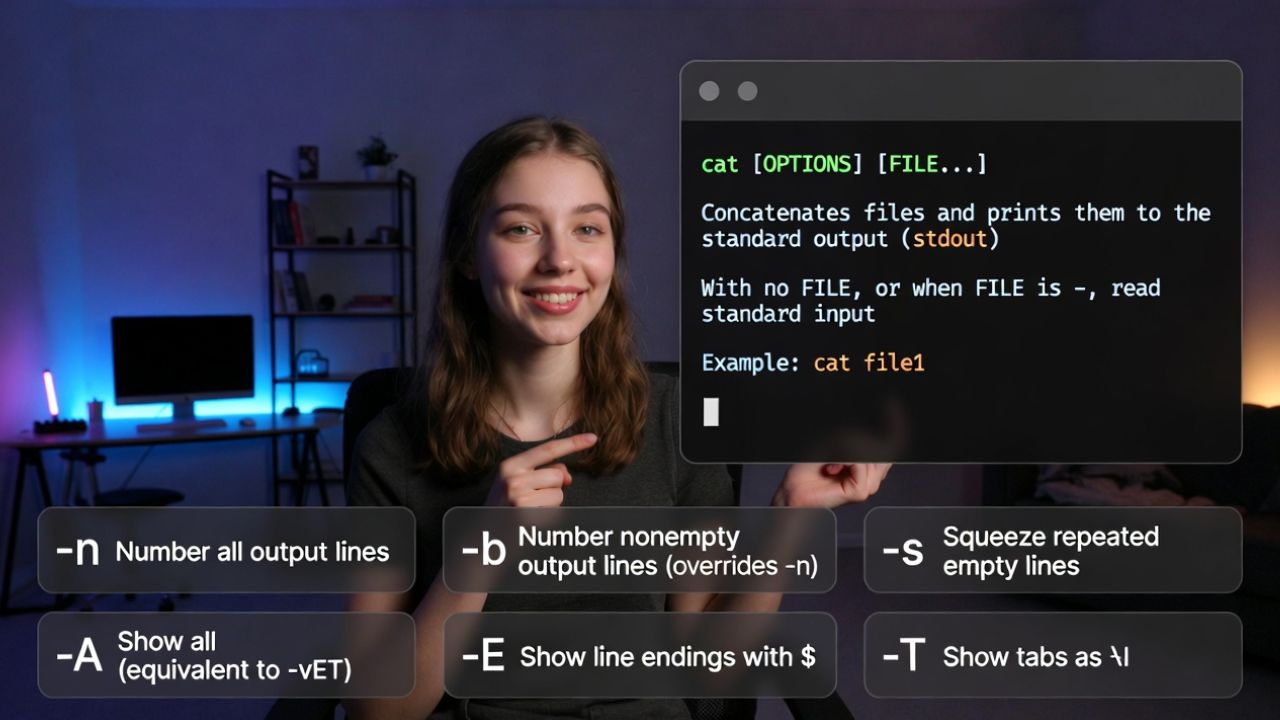
It can also merge files, create new files from input, append content, and reveal hidden characters. Because cat is fast and ubiquitous, it’s often used in scripts, pipelines, and quick inspections.
Basic syntax:
cat [OPTIONS] [FILE...]
# If no FILE or FILE is -, cat reads from standard input (stdin)
Common options you’ll use regularly:
- -n: Number all output lines.
- -b: Number non empty output lines only.
- -s: Squeeze (merge) repeated empty lines.
- -A: Show all non printing characters (equivalent to -vET).
- -E: Show line ends with a $ character.
- -T: Show tab characters as ^I.
Essential cat Command Examples
1) View a file’s content
Print the content of a file to your terminal:
cat /etc/os-releaseFor multiple files, cat prints them sequentially:
cat intro.txt chapter1.txt chapter2.txt2) Concatenate files into a new file
Merge files in order and write to a new file using shell redirection (>):
cat part1.log part2.log > full.logBe careful: single > overwrites the destination. Use >> to append.
3) Append to a file interactively
Start a simple text append session. Press Ctrl+D (EOF) when you’re done:
cat >> notes.txt
Add a quick line to my notes.
Press Ctrl+D to save
4) Number lines
Number every line (-n) or only non empty lines (-b):
# Number all lines
cat -n config.yaml

# Number non-empty lines
cat -b config.yaml
5) Squeeze empty lines and show hidden characters
Useful for cleaning up output and debugging formatting issues:
# Collapse multiple blank lines into a single blank line
cat -s README.md

# Show line endings ($) and tabs (^I)
cat -E Makefile
cat -T Makefile

# Show everything non-printing (tabs, EOL, special bytes)
cat -A somefile.txt
6) Create a file from stdin (keyboard) or pipelines
Create a file from typed text:
cat > todo.txt
- Patch security updates
- Restart services
Ctrl+D
Create a file from the output of another command:
dmesg | grep -i nvme | cat > nvme-boot.log7) Copy a file (simple cases)
While cp is preferred, cat works for quick copies and streams:
cat source.conf > backup.conf
cat access.log.* | cat > all-access.log
For large files or preserving attributes, use cp or rsync instead.
Using cat with Pipes: Practical Scenarios
Pipelines connect cat to other commands to filter, search, or transform output. This is crucial when you don’t read from files directly (e.g., network streams, process substitutions).
Search logs quickly with grep
When you already have a stream, pipe to grep. If you’re reading directly from a file, call grep on the file without cat to avoid the “useless use of cat.”
# Streamed input - cat is fine
journalctl -u nginx | cat | grep -i "error"

# Direct file - skip cat for efficiency
grep -i "error" /var/log/nginx/error.log
Preview long files with head, tail, less
Head and tail give quick snippets. less is best for interactive browsing.
# First 50 lines
cat bigfile.txt | head -n 50

# Last 100 lines, follow updates (great for logs)
tail -n 100 -f /var/log/syslog

# Interactive pager (prefer calling less directly)
less bigfile.txt
Count, sort, and deduplicate
Combine commands to analyze data quickly:
# Count lines, words, and bytes
cat hosts.txt | wc

# Sort and remove duplicates
cat emails.txt | sort | uniq > unique-emails.txt
Safer Redirection: Avoid Accidental Overwrites
Using > overwrites files immediately. A small typo can destroy data. To stay safe:
- Prefer >> when appending, not overwriting.
- Enable noclobber in your shell to block overwrites: set -o noclobber (Bash).
- Use tee -a with sudo to append safely to root owned files.
# Safer edits to root-owned files via sudo
echo "include /etc/nginx/conf.d/*.conf;" | sudo tee -a /etc/nginx/nginx.conf
Show Endings, Tabs, and Non Printable Characters
If a script fails due to formatting, invisible characters may be the culprit. Use cat to visualize them:
# Carriage returns (Windows CRLF) appear as ^M when using -A
cat -A script.sh

# Tabs and end-of-line markers
cat -T -E Makefile
If you find CRLF issues, convert with dos2unix or tr:
tr -d '\r' < script.sh > script_fixed.shReal World Server Use Cases
For administrators and developers, the cat command in Linux is a daily driver. Here are real scenarios from production environments:
- Log triage: cat /var/log/nginx/access.log | grep 500 to spot server errors fast.
- Config snapshots: cat /etc/nginx/nginx.conf > nginx.conf.bak before changes.
- Release notes: cat VERSION CHANGELOG.md to print version and latest changes to CI logs.
- Secret handling: cat .env | grep -v “SECRET=” to avoid printing sensitive lines in pipelines.
- Container debugging: kubectl logs pod | cat -n to number lines for reference in tickets.
On a YouStable Linux VPS or Dedicated Server, SSH access comes standard, so you can use cat to review logs, verify configuration, and automate deployments. If you’re scaling a WordPress or SaaS stack, our engineers can help you harden and monitor your environment where simple tools like cat remain invaluable.
cat vs less, more, and tac: When to Use What
- cat: Fast output to stdout; best for small/medium files, pipelines, concatenation, and scripting.
- less: Interactive paging for large files; search, scroll, and jump efficiently.
- more: Legacy pager with fewer features; less is generally preferred.
- tac: Like cat but prints files in reverse line order, useful for logs or newest first views.
# Reverse lines (newest first)
tac system.log | head -n 50
Common Mistakes and Best Practices
- Avoid useless use of cat: prefer grep “term” file instead of cat file | grep “term” when reading files directly.
- Be cautious with redirects: > overwrites; use >> to append, tee -a for root files.
- Binary files: cat can spew binary noise to your terminal; consider hexdump -C or strings.
- Large files: cat huge.log can flood your terminal and hurt performance; use less, head, or tail -f.
- Permissions: “Permission denied” indicates insufficient rights; try sudo or check file ACLs.
Exit Codes, Errors, and Performance
cat returns 0 on success, non zero on errors (e.g., missing files, permission issues). When mixing multiple files, it prints errors to stderr but continues processing the rest, which is handy in scripts.
# Example: continue even if one file is missing
cat present.txt missing.txt another.txt > combined.txt
echo $?
For performance, cat is fast and streaming by default. Still, prefer less for massive files, and avoid printing binary blobs to terminals. If you need progress on large streams, use pv in pipelines.
# Show progress while concatenating big data
pv huge.iso.part* | cat > huge.iso
Advanced Patterns: Here Documents and Process Substitution
Here docs make it easy to generate files with structured content directly from your shell:
cat > docker-compose.yml <<'EOF'
version: "3.9"
services:
  web:
    image: nginx:alpine
    ports:
      - "80:80"
EOF
Process substitution lets you treat command output like files and then combine them with cat:
cat <(curl -s https://example.com/api/status) /etc/hosts > merged.txtFAQ’s
1. What does the cat command do in Linux?
cat reads files and writes their contents to standard output. It can also concatenate multiple files, create new files from input, append to existing files, and display non printing characters for debugging formatting issues.
2. How do I use cat to create or append to a file?
Use cat > file to create or overwrite, then type content and press Ctrl+D to save. Use cat >> file to append without overwriting. For root owned files, prefer echo “line” | sudo tee -a file.
3. How can I number lines with cat?
Use cat -n to number every line, or cat -b to number only non empty lines. This helps when referencing specific lines in logs or config files.
4. Why do people say “don’t use cat with grep”?
When reading directly from a file, grep “term” file is more efficient than cat file | grep “term”. However, cat is appropriate when the input is a stream, when combining multiple streams, or when readability matters in complex pipelines.
5. How do I show hidden characters like tabs or CRLF?
Use cat -A to reveal non printing characters, cat -T to show tabs as ^I, and cat -E to mark line endings with $. If you see ^M, convert CRLF using dos2unix or tr -d ‘\r’.
Conclusion
The cat command in Linux is a foundation of shell productivity. From quick file views and merges to safe redirection, debugging invisible characters, and powering pipelines, cat helps you work faster with fewer tools. Practice the examples above, and you’ll handle logs, configs, and scripts confidently across any Linux server.




