

Can’t upload files to your website? It usually happens due to server limits (upload_max_filesize, post_max_size), incorrect file permissions/ownership, disk quota, blocked MIME types, a missing temporary folder, or a firewall/WAF rule.
Fix it by increasing PHP/NGINX/Apache limits, correcting permissions, allowing file types, freeing space, and checking security tools and error logs.
If you can’t upload files to your website, don’t panic this is one of the most common site issues across WordPress, custom PHP apps, and other CMSs.
In this guide, I’ll show you the exact reasons uploads fail and how to fix them step by step, using real hosting experience and safe best practices.
Quick Diagnosis Checklist
Before deep diving, use this short checklist to pinpoint the problem quickly.
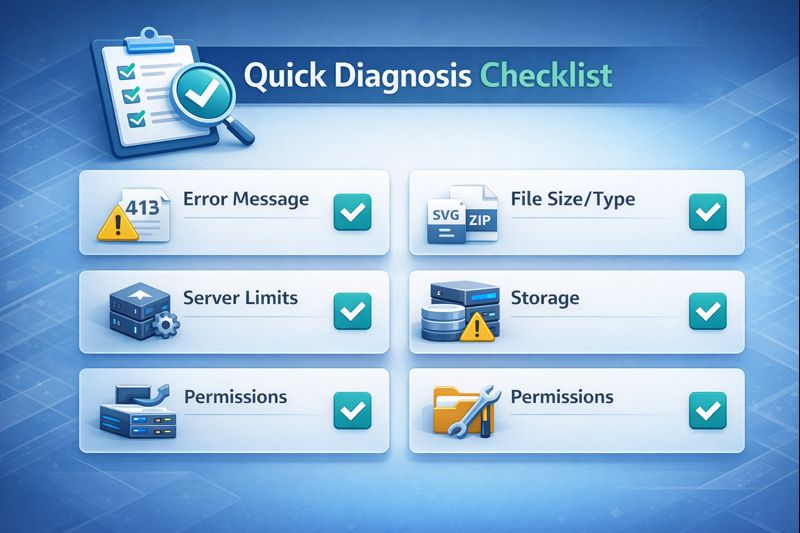
- Error message: Do you see “413 Payload Too Large,” “HTTP error,” “Exceeded upload_max_filesize,” “Failed to write file to disk,” or “Sorry, this file type is not permitted”?
- File size/type: Is the file too large or a restricted type (e.g., SVG, ZIP, JSON)?
- Server limits: Have you set adequate upload_max_filesize, post_max_size, and client_max_body_size?
- Storage: Is your disk or inode quota full?
- Permissions/ownership: Are upload folders writable by the web server user?
- Temporary folder: Does the PHP temp directory exist and is it writable?
- Security: Is ModSecurity, a WAF, CDN, or antivirus blocking uploads?
- Connection: Are you on a slow or unstable network or through a proxy/VPN?
Top Reasons You Can’t Upload Files (and Fixes)
1. File Size Limits: upload_max_filesize, post_max_size, and client_max_body_size
Symptoms: Large uploads fail with HTTP 413, timeouts, or “The uploaded file exceeds the upload_max_filesize directive in php.ini.”
Fix for PHP (php.ini or .user.ini):
; php.ini or .user.ini (use values larger than your file size)
upload_max_filesize = 128M
post_max_size = 128M
memory_limit = 256M
max_file_uploads = 50
max_execution_time = 300
max_input_time = 300

; Optional: set a writable temp folder
; upload_tmp_dir = "/path/to/tmp"
Fix for Apache (.htaccess — only works with mod_php; not PHP-FPM):
<IfModule mod_php.c>
  php_value upload_max_filesize 128M
  php_value post_max_size 128M
  php_value memory_limit 256M
  php_value max_execution_time 300
  php_value max_input_time 300
</IfModule>
Fix for Nginx (server or http block):
client_max_body_size 128M;Fix for Apache request body cap (optional):
LimitRequestBody 134217728 # 128 MBAfter changes, reload/restart services and clear any opcode cache. In managed environments (like cPanel), you can adjust PHP settings in “Select PHP Version” or “MultiPHP INI Editor.”
2. Disk Space or Inode Quota is Full
Symptoms: “Failed to write file to disk,” sudden upload failures, or zero-byte files.
How to check via SSH:
df -h       # disk space usage
df -i       # inode (file count) usage
Fix: Remove old backups, cache, or log files; empty trash; or upgrade storage. On shared hosting, check cPanel “Disk Usage.”
3. Wrong File Permissions or Ownership
Symptoms: Uploads fail silently or with permission-denied errors. Common on migrations or after manual file moves.
Safe defaults:
- Directories: 755
- Files: 644
- Owner/Group: Your user and web server group (e.g., www-data, apache, nginx)
Fix via SSH (WordPress example):
# From your site's root
find wp-content/uploads -type d -exec chmod 755 {} \;
find wp-content/uploads -type f -exec chmod 644 {} \;

# Adjust ownership (replace user and group accordingly)
chown -R user:www-data /path/to/public_html
If SELinux is enforced, ensure proper context (consult your host or sysadmin).
4. Temporary Folder Missing or Not Writable
Symptoms: “Missing a temporary folder” in WordPress or generic “Could not write file” errors.
Fix in php.ini or .user.ini:
upload_tmp_dir = "/path/to/tmp"Make sure the directory exists and is writable by PHP. Example:
mkdir -p /path/to/tmp
chown -R user:www-data /path/to/tmp
chmod 750 /path/to/tmp
5) File Type (MIME) Restrictions
Symptoms: “Sorry, this file type is not permitted” in WordPress or your CMS refuses specific extensions like SVG, JSON, or ZIP.
WordPress: Allow specific MIME types via a theme/plugin or custom code:
// functions.php or a site-specific plugin
add_filter('upload_mimes', function($mimes) {
  $mimes['json'] = 'application/json';
  $mimes['csv']  = 'text/csv';
  // Be careful with SVG; sanitize before allowing in production
  // $mimes['svg'] = 'image/svg+xml';
  return $mimes;
});
Security tip: Some file types (e.g., SVG) can carry scripts. Use a sanitizer plugin/service or convert to a safer format when possible.
6. Web Application Firewall (WAF), ModSecurity, or CDN Blocking
Symptoms: Uploads fail with 403/406/413 or succeed only when security is disabled.
- ModSecurity: In cPanel, try toggling ModSecurity off temporarily for the domain. If uploads work, ask your host to whitelist the triggered rule ID.
- CDN/WAF (e.g., Cloudflare): Check the firewall/events log. Whitelist your IP or create a rule to allow uploads to the admin/upload endpoints.
- Antivirus/Malware scanner: Large or encrypted ZIPs can be flagged; verify and whitelist where appropriate.
7. HTTP/HTTPS Mismatch, Proxies, or Timeouts
Symptoms: Uploads stall, take too long, or fail intermittently.
- Ensure your site uses consistent HTTPS in the app and reverse proxy.
- Increase timeouts: PHP max_execution_time, web server proxy_read_timeout, and upstream timeouts.
- Avoid VPNs/proxies during large uploads or test from another network.
8. Application-Specific Bugs or Conflicts (Plugins/Extensions)
Symptoms: Uploads fail only when certain plugins or themes are active.
- WordPress: Temporarily disable all plugins except the core uploader. Switch to a default theme. Re-test, then re-enable plugins one by one.
- Magento/Drupal/Joomla: Disable upload-related modules and test minimal configs.
- Check your app’s error log for stack traces and deprecations.
How to Fix Upload Errors in WordPress (Step-by-Step)
Here is a practical, ordered approach for WordPress sites, which also applies to many PHP CMSs.
- Increase upload size limits: Set upload_max_filesize and post_max_size (and client_max_body_size on Nginx) to comfortably exceed your file size.
- Check storage: Free up disk space and inodes; remove old backups and cache files.
- Fix permissions/ownership: Ensure wp-content/uploads has 755 directories, 644 files, and correct owner/group.
- Verify temp folder: Define a valid upload_tmp_dir and ensure it’s writable.
- Allow the file type: Use upload_mimes filter or a well-reviewed plugin to permit needed MIME types.
- Disable conflicting plugins temporarily: Especially image optimization, security/WAF, and CDN plugins. Re-enable one by one.
- Review logs: Check wp-content/debug.log (enable WP_DEBUG_LOG), PHP-FPM logs, and web server error logs for precise errors.
- Try a different method: Use Media Library, block editor, classic uploader, or SFTP to isolate the issue.
Useful WordPress Config Snippets
Enable WordPress debug logging (wp-config.php):
define('WP_DEBUG', true);
define('WP_DEBUG_LOG', true);
define('WP_DEBUG_DISPLAY', false);
Raise WordPress memory limit (wp-config.php):
define('WP_MEMORY_LIMIT', '256M');Note: Avoid global ALLOW_UNFILTERED_UPLOADS on production. Prefer granular MIME allowances and security scanning.
Server-Level Troubleshooting: What to Check in Logs
- PHP-FPM error log: Find memory, timeout, and upload_tmp_dir errors.
- Web server error log: Identify 403/413/500 and upstream timing issues.
- ModSecurity/WAF logs: Look for specific rule IDs blocking multipart/form-data.
- CDN logs: Check firewall events and rate limiting.
If you’re on shared hosting without SSH, your control panel may expose logs under “Errors,” “Metrics,” or “ModSecurity.” Your hosting provider’s support can also pull specific rule hits for you.
When the Problem Isn’t Technical: File Integrity and Naming
- Corrupted archives: Re-compress the ZIP/RAR and re-upload.
- Illegal characters: Use simple alphanumeric names with hyphens or underscores; avoid spaces and special characters.
- Oversized images: Compress images before upload to reduce server strain.
Pro Tips from Hosting Experience
- Set limits with headroom: If you upload 50 MB files, set limits to 128 MB to accommodate encoding overhead and metadata.
- Prefer SFTP for very large files: Upload via SFTP, then import from the server path within your CMS if supported.
- Keep caches off during testing: Disable full-page cache while troubleshooting uploads to avoid stale errors.
- Document your baseline: Keep a small PHP info page (phpinfo) to confirm active configs and loaded ini files.
Soft Recommendation: Managed Hosting Helps
If you’re spending hours chasing upload errors, consider managed hosting. At YouStable, we tune PHP-FPM, Nginx/Apache limits, storage, and security policies for you, and we proactively whitelist false-positive WAF rules. Our team can audit logs, right-size limits, and fix permissions so your uploads work reliably without guesswork.
FAQ’s- Fixing File Upload Errors
Why do I get “The uploaded file exceeds the upload_max_filesize directive in php.ini”?
Your file is larger than PHP’s upload_max_filesize or post_max_size. Increase both values (and client_max_body_size on Nginx), then reload services. In cPanel, use MultiPHP INI Editor. Set limits comfortably above your largest file.
How do I fix HTTP 413 “Payload Too Large” on uploads?
Raise web server and PHP limits: client_max_body_size (Nginx), LimitRequestBody (Apache, optional), upload_max_filesize, and post_max_size (PHP). Purge caches and try again. On Cloudflare, increase plan limits or use their upload endpoints when applicable.
What are safe permissions for the uploads folder?
Use 755 for directories and 644 for files. Ensure the owner/group matches your system (e.g., user:www-data). Avoid 777; it’s unsafe and often unnecessary. Apply recursively only where needed (typically wp-content/uploads for WordPress).
How can I increase the WordPress upload limit without breaking PHP-FPM?
Prefer php.ini or .user.ini over .htaccess on PHP-FPM. Set upload_max_filesize and post_max_size, then check phpinfo to confirm. If using Nginx, set client_max_body_size. Update WP_MEMORY_LIMIT as needed and reload services.
Is it safe to allow SVG or other restricted file types?
Only if you sanitize and trust the source. SVGs can contain scripts. Use a sanitizer plugin or convert to PNG when possible. For other types (JSON, CSV), add MIME allowances carefully and scan uploads for malware.
Conclusion
Most “can’t upload files to your website” issues boil down to limits, permissions, storage, or security rules. Tackle them systematically: raise limits, free space, fix ownership, verify temp directories, allow safe MIME types, and review logs. If you’d rather not wrestle with server configs, a managed host like YouStable can handle it end-to-end.



