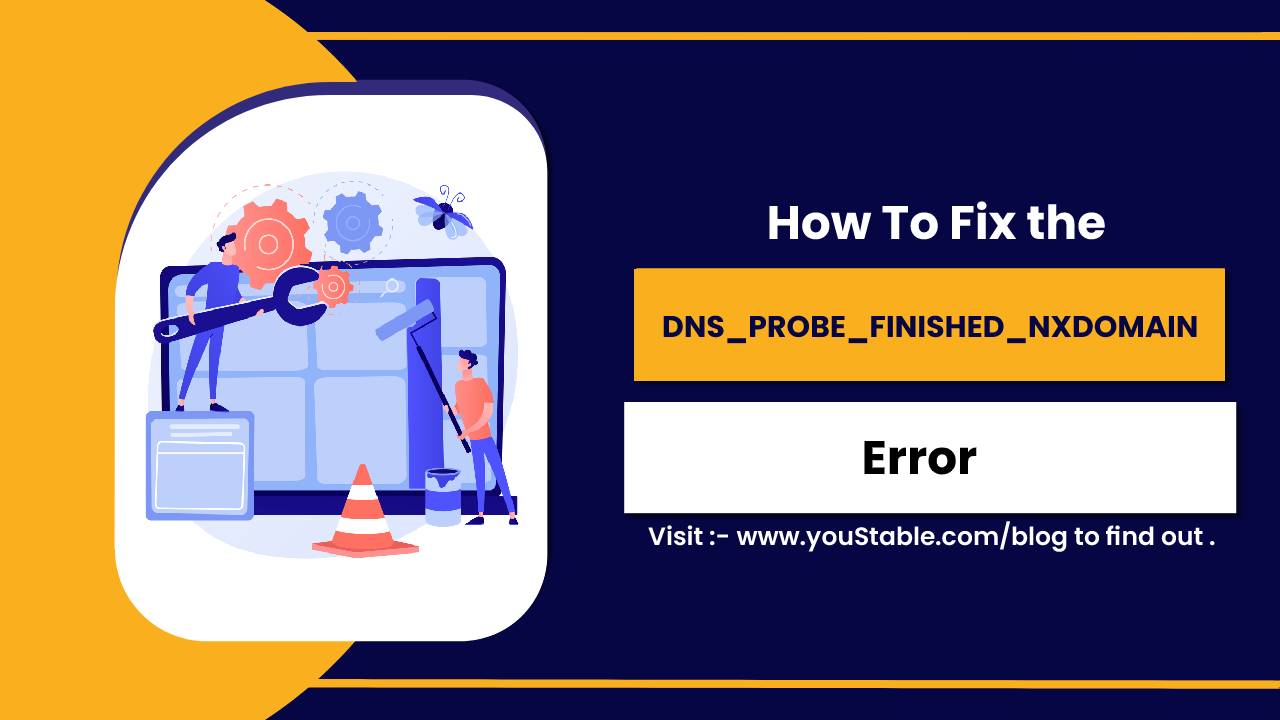
The DNS_PROBE_FINISHED_NXDOMAIN error means your browser could not resolve a website's domain name to an IP address, usually because of a DNS cache, network adapter or hosts file issue on your own computer. It almost always has nothing to do with the website itself. Clearing your DNS cache or switching to a public DNS server fixes it in most cases.
This guide walks through six fixes for the DNS_PROBE_FINISHED_NXDOMAIN error on Windows, then covers Mac and other browsers at the end.
What Is the DNS_PROBE_FINISHED_NXDOMAIN Error?
So what is this DNS_PROBE_FINISHED_NXDOMAIN error? You might have seen it while going through the website, saying that the site can't be reached. This is pretty common and there is nothing to worry about as most of the time it is not your website's but the computer's problem.
This error occurs when the browser is not able to find the website or is unable to access it. In such situations, the DNS is not able to find the IP address. Therefore your browsers assume that the website is non-existent and shows NXDOMAIN.
But you do not always have to worry if it happens to your website as most of the time the problem is with the computer, which can be fixed easily.
Read: How to Remove Date on your WordPress URL
How to Fix the DNS_PROBE_FINISHED_NXDOMAIN Error?
Now let us look at some ways to fix this DNS PROBE FINISHED NXDOMAIN error. In this article, we have included six ways to improve the DNS PROBE FINISHED NXDOMAIN error.
These are beginner-friendly and can be performed by almost anyone who has little knowledge of computers.
Always keeping a backup ready is a must as you may not know what will happen. So do not take any chances with your precious content. Also, it is okay to seek professional help in case none of these work or if you are unable to perform these by yourself.
Because not everyone is an expert, and it does not have to be that way.
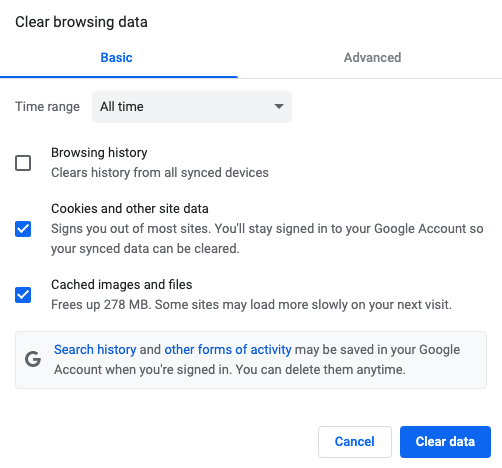
Clear Your Browser's Cache
- To start with this method, go to your browser and, in Chrome's case, go to page chrome://settings/clearBrowserData, which will open a window to help you clear the cache.
- Put the time range as All-Time and then put a tick mark on the cached images and files.
- Click on Clear data. And you are done!
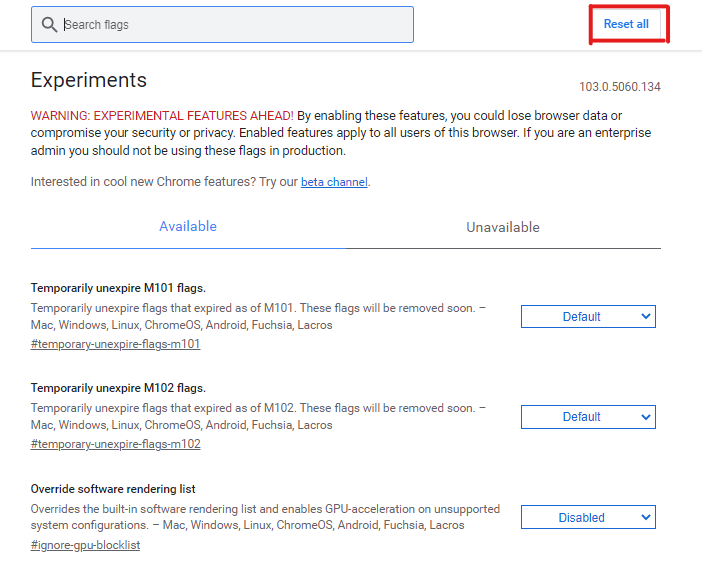
Turn Off Experimental Chrome Features
- To do so, go to chrome://flags/ in your browser and select Reset all.
- To do, you are done
Read: How to Perform a WordPress Search and Replace
Flush Your Computer's DNS Cache
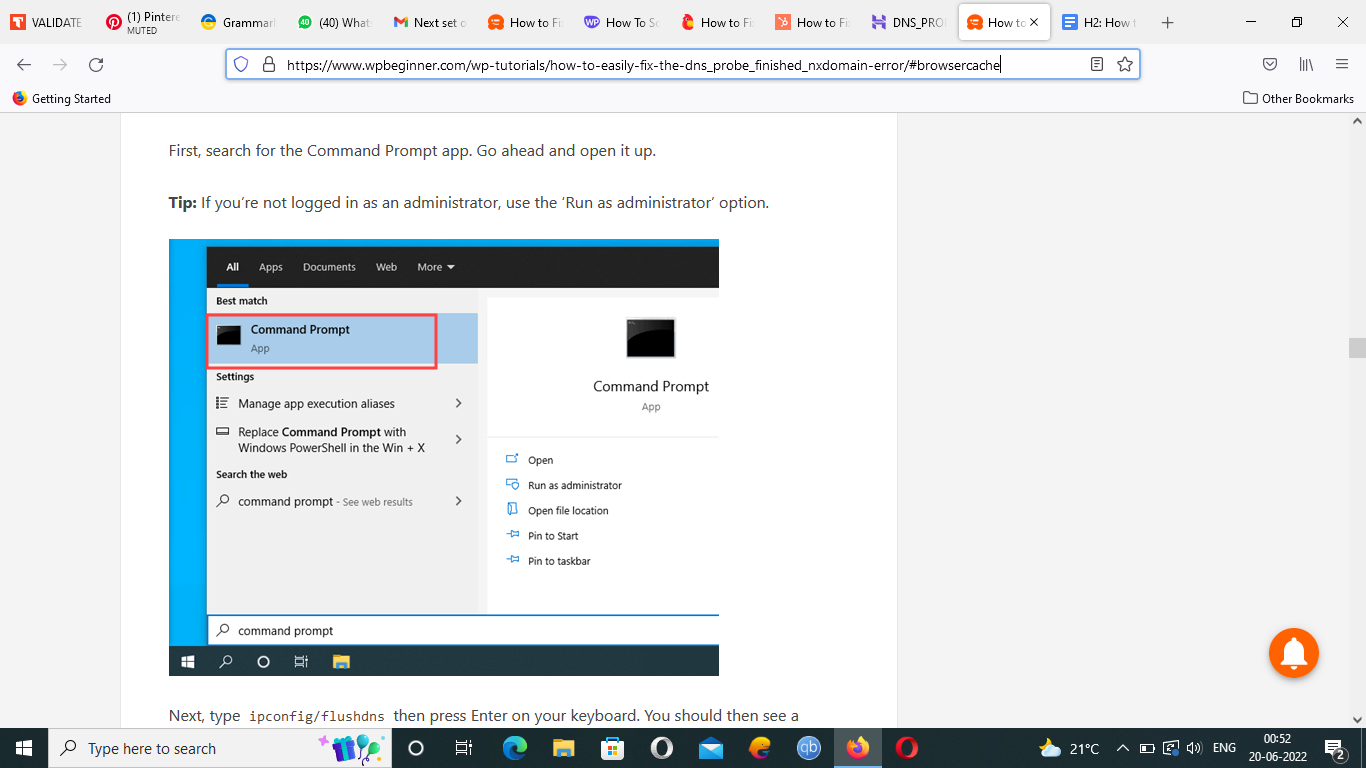
- Open the Command Prompt application (search for it in the Start menu) and select Run as administrator if you are not already logged in as one.
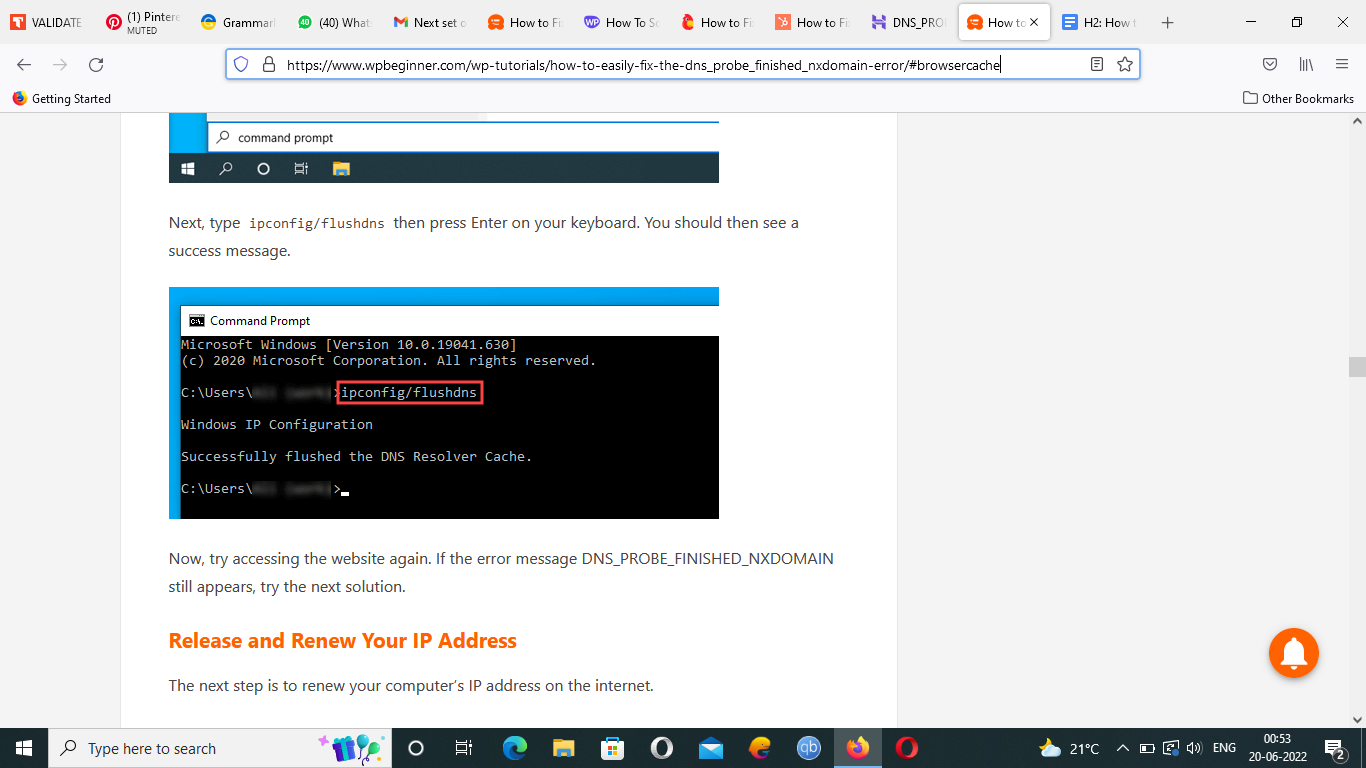
- Type ipconfig /flushdns, click Enter. You should now see a success message.
- And you are done!
Release and Renew Your IP Address
As you know DNS PROBE FINISHED NXDOMAIN error could be due to an IP address issue, so now we will work with IP addresses and renew your computer's IP address.
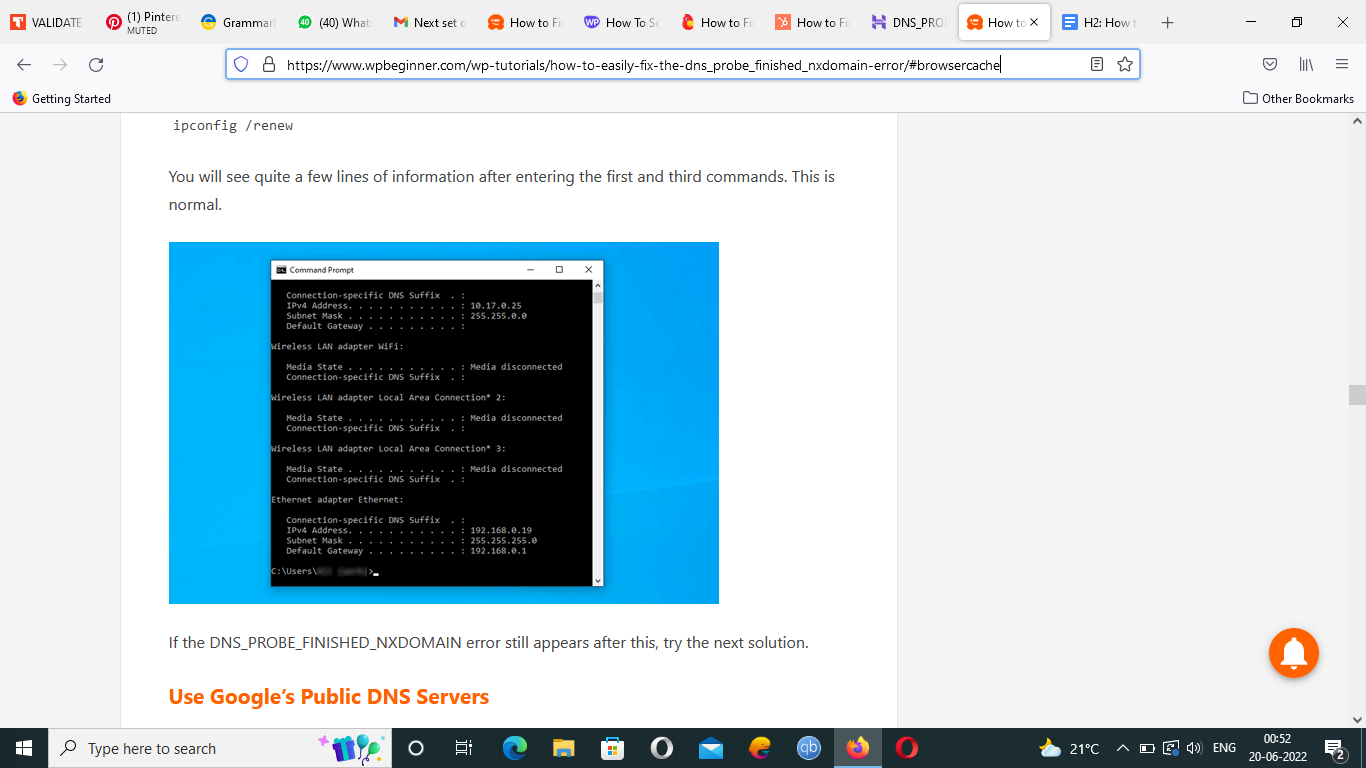
Open the Command prompt app and enter the following code and click Enter after each code.
ipconfig /release

ipconfig /flushdns

ipconfig /renew
You might see a few commands popping up between these codes, but that's normal. And voila! Done!
Use Google's Public DNS Servers
- In case you are using Windows, go to the Control Panel, Network and Internet, and Network and Sharing Center.
- Select Change adapter settings.
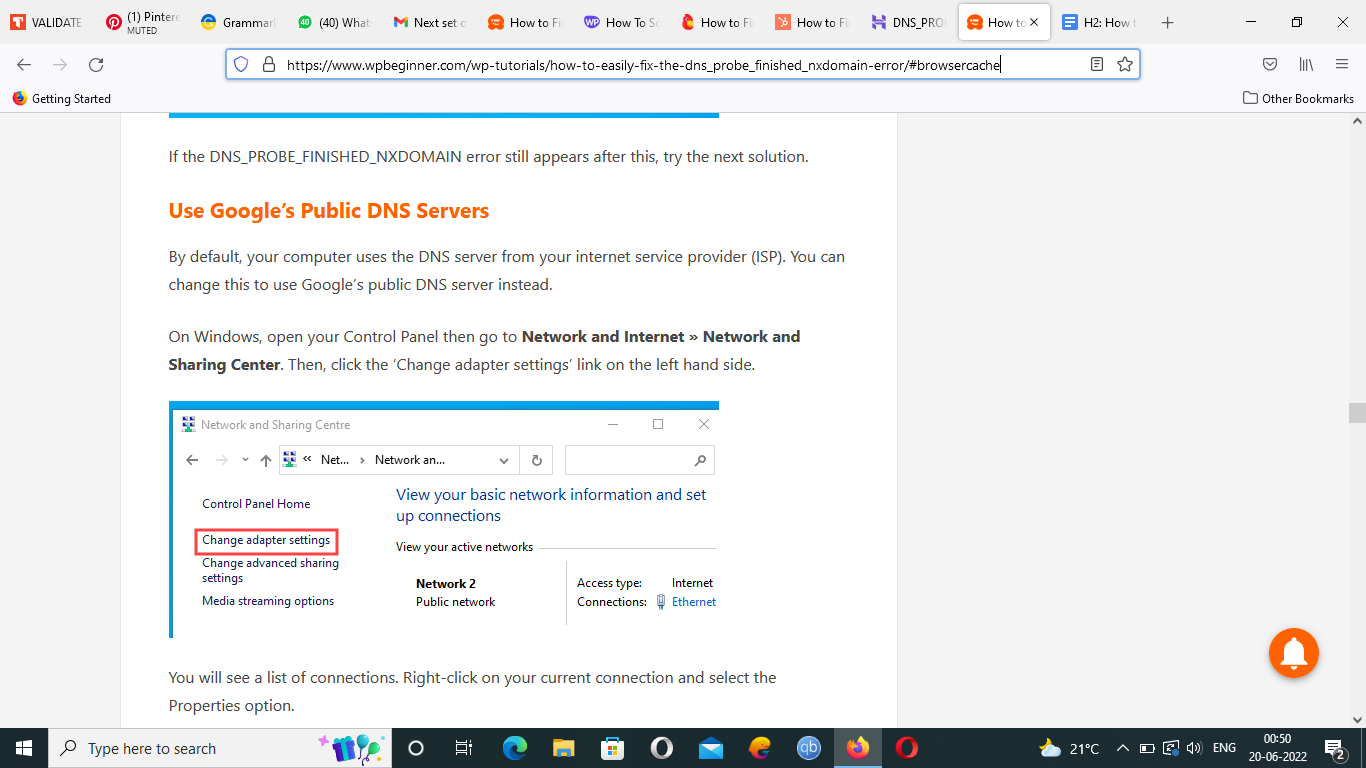
- Right-click on your current connection in the list of connections and select Properties.
- Click on the Internet Protocol Version 4 (TCP/IPv4), then select Properties.
- Click on Use the following DNS server addresses and type in these DNS servers:
Preferred DNS server: 8.8.8.8
Alternative DNS server: 8.8.4.4
- Select ok to save changes, and you are done!
Read: Fix Another Update is Currently in Progress Error in WordPress
Check Your Computer's 'hosts' File.
- On Windows, to find the Host file, you can search through File explorer.
- Now go to System32, then drivers, etc.
- Locate the host file and double-click on it, which will open it. If you are required to open an app, open Notepad.
- Look for your website's address in the host file, if you find it, delete it with the IP address and then save the file.
Read: Fix The Invalid JSON Error in WordPress Website
Fixing DNS_PROBE_FINISHED_NXDOMAIN on Mac or Another Browser
- On a Mac: open System Settings, go to Network, select your active connection, click Details, then DNS, and add 8.8.8.8 and 8.8.4.4 as DNS servers. To flush the DNS cache, open Terminal and run sudo dscacheutil -flushcache; sudo killall -HUP mDNSResponder.
- On Firefox: clear the cache from Settings, Privacy and Security, Cookies and Site Data, Clear Data. Firefox keeps its own DNS cache too, which you can clear by typing about:networking#dns in the address bar and clicking Clear DNS Cache.
- On Microsoft Edge: the chrome://flags and chrome://settings/clearBrowserData steps above work the same way if you replace chrome:// with edge://, since Edge runs on the same engine as Chrome.
FAQs
What does DNS_PROBE_FINISHED_NXDOMAIN mean?
It means your browser asked a DNS server to look up a domain name and got no answer, so it treats the site as non-existent. The cause is almost always on your own computer or network, not the website itself.
Is DNS_PROBE_FINISHED_NXDOMAIN caused by my website or my computer?
In the vast majority of cases, it is your computer, browser or network settings. If the website loads normally on another device or network, the problem is on the device showing the error.
Which DNS fix should I try first?
Start with clearing your browser cache and flushing your computer's DNS cache, since those two steps resolve most cases. Only move on to changing DNS servers or editing the hosts file if the error persists.
How do I flush DNS on Windows?
Open Command Prompt as an administrator and run ipconfig /flushdns, with a space before the slash. A success message confirms the DNS resolver cache has been cleared.
How do I fix DNS_PROBE_FINISHED_NXDOMAIN on a Mac?
Open Terminal and run sudo dscacheutil -flushcache; sudo killall -HUP mDNSResponder to flush the DNS cache, or switch to Google's public DNS servers, 8.8.8.8 and 8.8.4.4, in Network settings.
Does switching to Google DNS actually help?
Yes, in many cases. Your default DNS server, often set by your ISP, can be slow or temporarily unreachable. Public DNS servers such as 8.8.8.8 and 8.8.4.4 are reliable alternatives that resolve this specific error for a lot of users.
What is the hosts file and why does it cause this error?
The hosts file lets your computer map a domain name to an IP address manually, overriding normal DNS lookups. An old or incorrect entry in this file for a domain can cause NXDOMAIN errors, which is why checking it is one of the fixes above.
Conclusion
In this article, we saw simple ways to fix the DNS PROBE FINISHED NXDOMAIN error. You can use these methods whether you are an expert or not, as these are pretty simple and beginner-friendly. The steps are easy to follow and have a great chance of resolving the issue at hand.
A few methods might seem lengthy but are effective in certain situations, so do not lose hope and use the other if one way does not work. And make sure you maintain your browser and get rid of cache frequently. Also keeping a backup is recommended as you would not want to lose your data at any cost.
If none of these work or if you do not have the time or experience to perform these steps, you always have the option to seek professional help. They will look into the matter and help you with minimal effort on your side.