

To enlarge an image without losing quality, upscale it using AI super resolution or high quality resampling, then refine with selective sharpening and noise reduction. Start from the highest quality source, choose lossless formats during editing (PNG/TIFF), and export at the target size with suitable compression. For logos and icons, recreate as vector (SVG) to scale infinitely.
If you’ve ever needed to print a banner, crop a selfie for a promo, or turn a small thumbnail into a clean hero image, you’ve likely asked how to enlarge image without losing quality. As a technical SEO writer and longtime content producer for creators and brands, here’s a beginner friendly, expert backed guide that delivers real, repeatable results.
What “Enlarge Without Losing Quality” Really Means?
Images are either raster (pixels) or vector (math based shapes). Raster files (JPG, PNG, TIFF) lose detail if you just scale them up because you’re stretching pixels.
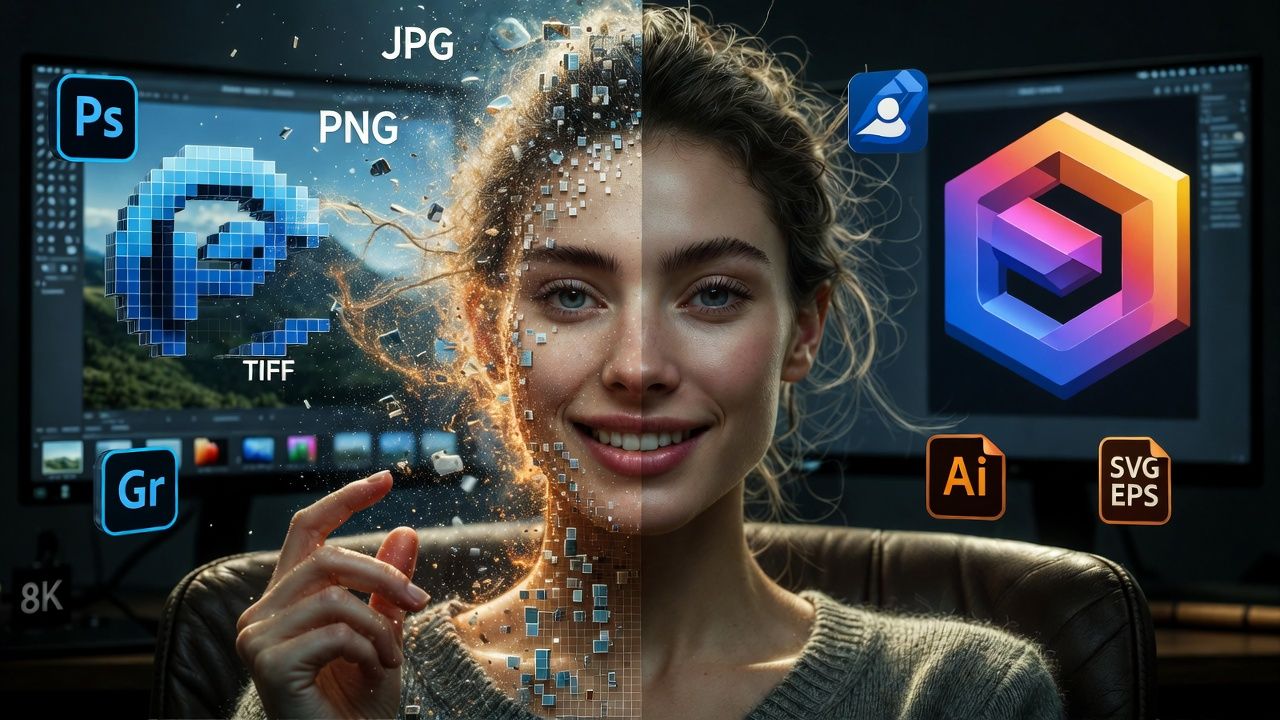
Vector files (SVG, AI, EPS) can scale to any size without degradation. Most photos are raster; most logos should be vector.
Two concepts matter when you upscale:
- Resampling: Creating new pixels using algorithms (AI, bicubic, Lanczos) to infer detail.
- PPI/DPI: Pixels per inch (PPI) affects print size at a given quality. Changing PPI without resampling won’t add detail; it only changes how large the image prints.
The goal is to add believable detail (not blur or blockiness) and keep artifacts under control. That’s why AI upscalers and high quality resampling methods are key.
The best ways to enlarge images without losing quality
1) AI super resolution (best overall)
Modern AI models learn patterns from millions of images to reconstruct missing detail when you upscale. They’re outstanding for faces, textures, and low resolution sources.
- Adobe Photoshop Super Resolution (Camera Raw): Doubles width and height (4× pixels). Excellent for photos and RAW files.
- Topaz Gigapixel AI: Multiple models (Standard, Lines, Low Res, Face Recovery). Great for large upscales (2×–6×) with control over noise and blur.
- waifu2x/Real ESRGAN: Free/open source options, strong on illustrations, anime, and general photos.
- Online AI upscalers: Handy for quick jobs. Check maximum resolution, privacy policy, and export formats.
Pros: Highest detail, handles noise, strong on faces/textures. Cons: Can hallucinate details, needs tuning, may be paid or require GPU.
2) High quality traditional resampling (reliable and free)
Classic algorithms won’t invent features, but they do a clean job of scaling with minimal artifacts when used correctly.
- Photoshop: Image Size > Resample: “Bicubic Smoother (enlargement)” or “Preserve Details 2.0.”
- GIMP: Scale Image > Interpolation: “NoHalo” or “LoHalo.”
- ImageMagick: Filters like lanczos (sinc) or mitchell for crisp results.
Pros: Predictable, free, works offline. Cons: Less detail gain than AI, may need extra sharpening.
3) Use vector formats for logos and icons
If you’re enlarging a logo, the right answer is usually to rebuild it as vector (SVG/AI/EPS). Vectors scale without quality loss and are ideal for print, merch, and large signage.
Step by step workflows that actually work
Photoshop: Fast, highquality enlargement
- Open your highest quality source (prefer RAW/TIFF/PNG over JPEG).
- Camera Raw (for RAW): Right click > “Enhance…” > tick Super Resolution.
- For other formats: Image > Image Size > check Resample > choose Preserve Details 2.0 or Bicubic Smoother, set target dimensions.
- Reduce noise (Filter > Noise > Reduce Noise) lightly, then sharpen (Smart Sharpen or Unsharp Mask) at low amounts.
- Export to PNG (web) or JPEG (quality 80–90) after you reach the final size.
GIMP: Free and effective
- Image > Scale Image > set new width/height.
- Interpolation: choose NoHalo (clean edges) or LoHalo (preserve halos/textures).
- Filters > Enhance > Sharpen (Unsharp Mask) lightly after scaling.
- Export to PNG or JPEG (85–90%) for web.
ImageMagick: Precise, scriptable upscaling
Great for bulk processing or server side pipelines. Lanczos is a strong default for enlargements.
# 2× upscale with Lanczos filter and mild sharpening
magick input.jpg -filter Lanczos -resize 200% -unsharp 0x1 output.png

# Set a specific long edge (e.g., 4000 px) and preserve aspect ratio
magick input.jpg -filter Lanczos -resize 4000x4000> -unsharp 0x1 output.png

# Denoise slightly before sharpening to avoid amplifying noise
magick input.jpg -filter Lanczos -resize 200% -noise 2 -unsharp 0x1 output.jpg
Online AI upscalers: Quick wins with caveats
- Choose tools that support face enhancement and artifact reduction.
- Check privacy if you upload sensitive or paid content.
- Export PNG if you’ll do more edits; use JPEG only for final publishing.
Quality checklist after upscaling
- Edge clarity: Zoom to 100% and 200%. Text, eyes, hair, and logos should look crisp, not crinkly or smeared.
- Noise and banding: Apply gentle noise reduction if grainy; avoid over smoothing skin.
- Haloing and ringing: Reduce sharpening amount/radius if you see bright/black halos.
- Color consistency: Work in sRGB for web. For print, convert to CMYK per your printer profile.
- File format: Save working files as TIFF/PSD. Publish to PNG (graphics) or JPEG (photos) at quality 80–90.
Also Read: Windows Server Backup for Hyper-V & SAN
Pro tips from 15+ years in production
- Upscale in sensible steps: If not using AI, do 110–125% increments with light sharpening between steps for cleaner results.
- Faces matter: Use tools with dedicated Face Recovery for creator headshots, thumbnails, and banners.
- Denoise first, sharpen last: Noise becomes uglier as you enlarge. Tame it before final sharpening.
- Start from the cleanest source: RAW > TIFF/PNG > high quality JPEG. Avoid re-saving JPEGs repeatedly.
- Vectorize logos: Rebuild simple marks in SVG; you’ll never worry about size again.
- Mind your target: Web banners need dimensions (pixels); prints need physical size at required PPI (usually 240–300 for close viewing).
- Crop smart: Composition changes after upscaling. Leave safe margins for platform overlays and trims.
Common mistakes to avoid
- Confusing PPI with quality: Changing PPI without resampling doesn’t add detail.
- Over sharpening: It creates halos and crunchy textures. Keep amounts low, radius small.
- Saving mid process as JPEG: Use PNG/TIFF while editing. Compress only at the end.
- Ignoring noise/artifacts: Upscaling amplifies flaws. Clean them up early.
- Expecting miracles from tiny thumbnails: AI helps, but extreme upscales from very small images can look fake. Set realistic expectations.
Use cases and recommended target sizes
Web and social
- Instagram posts: 1080×1350 (portrait) or 1080×1080 (square).
- Twitter/X: 1600×900 for shared images; 1500×500 for headers.
- Thumbnails (e.g., promo/teaser): 1280×720 minimum; 1920×1080 for crisp HD.
Printing
- Close viewing prints (posters, photo books): Target 240–300 PPI at final size.
- Large format (banners, billboards): 100–150 PPI is fine due to viewing distance.
Quick comparisons: AI vs. traditional upscaling
- Detail recovery: AI > Traditional
- Predictability: Traditional > AI (AI may hallucinate)
- Speed and automation: AI batch tools are strong; ImageMagick excels for scripting
- Cost: Traditional (free) > AI (often paid)
Example: From Phone Snapshot to Clean A3 Print
- Start with the original photo (not a social media compressed download).
- Run Super Resolution or Gigapixel AI 2×. Inspect faces, hair, and edges.
- Apply light noise reduction, then Smart Sharpen (Amount 30–60%, Radius 0.5–0.8 px).
- Set PPI to 300 for A3 if the pixel dimensions allow; otherwise 240 PPI is acceptable.
- Export TIFF for print or high quality JPEG per printer specs.
FAQs
Can I enlarge a JPEG without losing quality?
u003cstrongu003eYesu003c/strongu003e, but start from the highest quality JPEG you have. Use AI upscalers or high quality resampling, keep edits in PNG/TIFF while working, and only export JPEG at the end to avoid additional compression losses.
What’s the best AI image upscaler right now?
For general photography, Photoshop Super Resolution and Topaz Gigapixel AI are industry leaders. For free options, Real ESRGAN and waifu2x perform well, especially on illustrations and line art. Always compare results case by case.
How big can I print my image without it looking blurry?
Calculate by pixels ÷ PPI. For close view prints, aim for 240–300 PPI. A 4000×6000 px image prints cleanly at roughly 13.3×20 inches at 300 PPI. For large format viewed from afar, 100–150 PPI often suffices.
Is changing DPI/PPI the same as increasing resolution?
u003cstrongu003eNou003c/strongu003e. Changing PPI without resampling doesn’t add pixels, it only changes print scaling. To truly increase resolution, you must resample (AI or high quality algorithms) to create new pixels.
Should I sharpen before or after upscaling?
Sharpen last. Upscaling exaggerates sharpening halos and noise. Apply light denoise first if needed, upscale, then finish with subtle sharpening to restore crispness.










