

To install Node.js and npm on Windows, macOS, and Linux, choose the LTS version for stability, use your OS package manager or the official installer, then verify with node -v and npm -v. For developers, use a version manager like nvm to install, update, and switch Node versions safely without breaking global tools.
If you’re learning how to install Node.js and npm, this guide walks you through the best methods for Windows, macOS, and Linux, including GUI installers, package managers (winget, Homebrew, apt, dnf/yum, pacman), and version managers (nvm and nvm-windows). You’ll also learn how to verify, update, switch versions, and fix common errors.
What are Node.js and npm?
Node.js is a JavaScript runtime built on Chrome’s V8 engine, used to build CLI tools, APIs, and full stack apps.
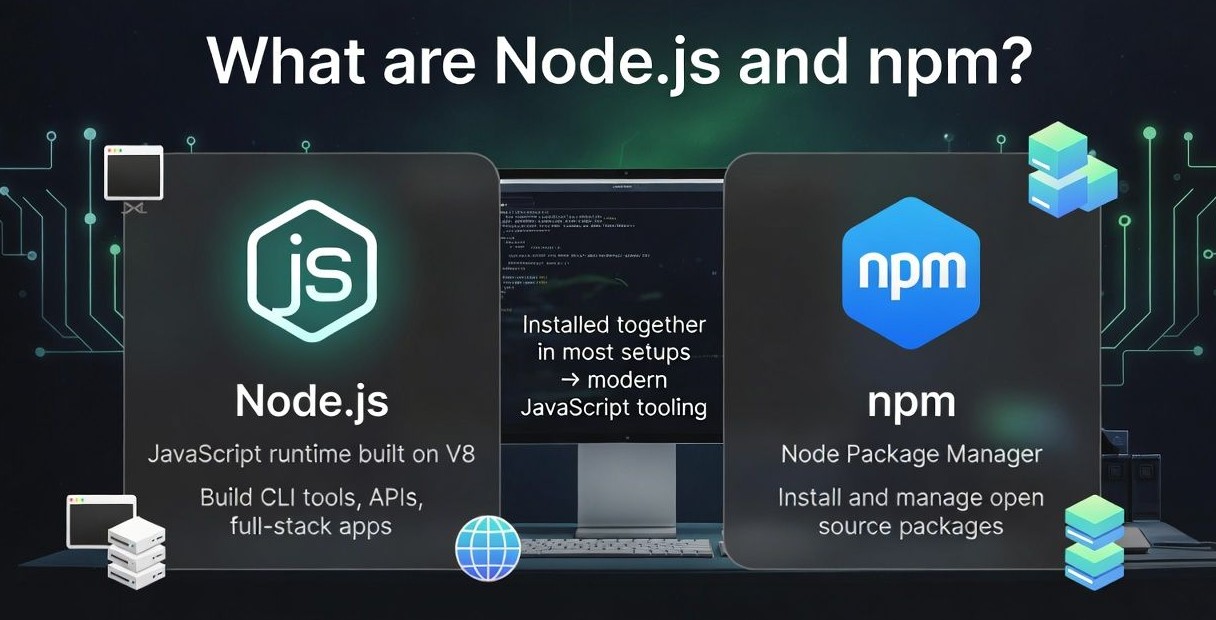
npm (Node Package Manager) ships with Node and lets you install and manage open source packages. Most installations include both, so one setup gets you started with modern JavaScript tooling.
LTS vs Current: Choose the Right Version
Before you install, decide between LTS (Recommended) and Current:
- LTS (Long Term Support): Stable, widely used in production and CI/CD. Best for most users.
- Current: Latest features but shorter support. Good for testing or frameworks requiring newer Node versions.
Tip: Most teams standardize on LTS and pin versions with a .nvmrc file to keep environments consistent.
Install Node.js and npm on Windows
Method 1: Official Windows Installer (.msi)
- Download the LTS .msi from the Node.js website.
- Run the installer as Administrator.
- Accept license, keep default features (including npm and Add to PATH).
- Finish and restart PowerShell or Command Prompt.
Method 2: winget (recommended for developers)
Windows 10/11 includes winget, a simple way to install and update Node.
# Install Node.js LTS
winget install OpenJS.NodeJS.LTS --source winget

# Or get Current
winget install OpenJS.NodeJS --source winget

# Update later
winget upgrade OpenJS.NodeJS.LTS
Method 3: Chocolatey
If you use Chocolatey for Windows automation:
choco install nodejs-lts
# Or
choco install nodejs

# Update
choco upgrade nodejs-lts
Verify Installation on Windows
node -v
npm -v
where node
where npm
Fix PATH Issues on Windows
If node isn’t recognized, add this to your user PATH (System Properties > Environment Variables):
- C:Program Filesnodejs
- %AppData%npm
Update or Uninstall on Windows
- Update: Use winget/choco upgrade, or download the latest installer and run it.
- Uninstall: Settings > Apps > Installed Apps > Node.js > Uninstall. Then remove any leftover folders in
C:Program Filesnodejsand%AppData%npm.
Install Node.js and npm on macOS
Method 1: Official macOS Installer (.pkg)
- Download the LTS .pkg from the Node.js website.
- Run the installer and follow prompts.
- Restart Terminal to refresh your shell PATH.
Method 2: Homebrew (popular for devs)
# Install Homebrew if not present (see brew.sh)
# Install Node.js LTS
brew update
brew install node

# Or install a specific major (example)
brew install node@20
brew link --overwrite node@20

# Update later
brew upgrade node
Method 3: nvm for macOS (best for multiple versions)
Use nvm to install and switch Node versions per project.
# Install nvm (check nvm-sh GitHub for the latest version tag)
curl -o- https://raw.githubusercontent.com/nvm-sh/nvm/v0.39.7/install.sh | bash

# Load nvm into current shell (zsh example)
export NVM_DIR="$HOME/.nvm"
[ -s "$NVM_DIR/nvm.sh" ] && . "$NVM_DIR/nvm.sh"

# Install and use LTS
nvm install --lts
nvm use --lts

# Set default
nvm alias default 'lts/*'
Verify on macOS
node -v
npm -v
which node
which npm
Update or Uninstall on macOS
- Update:
brew upgrade nodeornvm install --lts --reinstall-packages-from=current. - Uninstall:
brew uninstall nodeor remove versions vianvm uninstall <version>.
Install Node.js and npm on Linux
Ubuntu/Debian: NodeSource (LTS)
NodeSource provides current and LTS builds for apt based systems.
sudo apt-get update
curl -fsSL https://deb.nodesource.com/setup_lts.x | sudo -E bash -
sudo apt-get install -y nodejs

# (Optional) Install build tools for native addons
sudo apt-get install -y build-essential
Ubuntu/Debian: nvm (developer friendly)
# Install nvm (verify latest tag on nvm-sh GitHub)
curl -o- https://raw.githubusercontent.com/nvm-sh/nvm/v0.39.7/install.sh | bash

# Load nvm for your shell (bash example)
export NVM_DIR="$HOME/.nvm"
[ -s "$NVM_DIR/nvm.sh" ] && . "$NVM_DIR/nvm.sh"

# Install Node LTS
nvm install --lts
nvm use --lts
Fedora/RHEL/CentOS: NodeSource
# Fedora (dnf)
curl -fsSL https://rpm.nodesource.com/setup_lts.x | sudo bash -
sudo dnf install -y nodejs

# CentOS/RHEL (yum)
curl -fsSL https://rpm.nodesource.com/setup_lts.x | sudo bash -
sudo yum install -y nodejs
Arch Linux: pacman
sudo pacman -Syu nodejs npmVerify on Linux
node -v
npm -v
which node
which npm
Update or Uninstall on Linux
- Update (NodeSource): Re-run the setup script for the desired major, then
apt get installordnf/yum install. - Update (nvm):
nvm install --lts --reinstall-packages-from=current. - Uninstall:
sudo apt get remove nodejsorsudo dnf remove nodejs. With nvm:nvm uninstall <version>.
Manage Multiple Versions with nvm (Windows, macOS, Linux)
Using a Node Version Manager avoids permission issues, lets you switch versions per project, and keeps global tools stable.
macOS/Linux: nvm
# Install (check for latest tag)
curl -o- https://raw.githubusercontent.com/nvm-sh/nvm/v0.39.7/install.sh | bash

# Load nvm, then:
nvm list-remote
nvm install 20
nvm use 20
nvm alias default 20

# Switch per project using .nvmrc
echo "20" > .nvmrc
nvm use
Windows: nvm windows
- Download nvm-setup.exe from the nvm-windows releases page.
- Install to a path without spaces (e.g., C:nvm) and set a Node symlink directory (e.g., C:Program Filesnodejs).
# Open PowerShell (non-admin is fine after install)
nvm list available
nvm install 20.11.1
nvm use 20.11.1
nvm list
Note: nvm for Windows is a separate project from nvm-sh, with slightly different commands and behaviors.
Post Install Best Practices
- Prefer LTS for stability, especially on servers and CI.
- Use
nvm/nvm-windows to avoid permission errors and to switch versions safely. - Install packages locally unless truly global (e.g.,
npm i -gforpm2,typescript,serve). - Run
npm -vand keep npm updated:npm i -g npm@latest(with nvm, this is per Node version). - Use
npxto run CLIs without global installs. - Enable Corepack to manage Yarn/pnpm if needed:
corepack enable. - Commit
package-lock.jsonfor reproducible builds.
Common Errors and Fixes
“command not found” or Not Recognized
- Windows: Ensure
C:Program Filesnodejsand%AppData%npmare in PATH. Reopen terminal. - macOS/Linux: Open a new shell or ensure your shell config loads nvm (
.bashrc,.zshrc).
Permission Errors (EACCES) on macOS/Linux
- Use nvm so global installs don’t require
sudo. - Alternatively, set a user-level npm prefix:
mkdir -p ~/.npm-global && npm config set prefix ~/.npm-globaland add~/.npm-global/binto PATH.
Corporate Proxy/SSL Issues
- Configure npm proxy
npm config set proxy http://user:[email protected]:8080andnpm config set https-proxy https://user:[email protected]:8080. - Use your company’s CA bundle as required by IT policy.
Windows Development with Linux Tooling (WSL)
If you use WSL, install Node inside the Linux distro (Ubuntu, Debian, etc.) with nvm or NodeSource. Do not mix Windows and WSL Node tools to prevent path conflicts.
Deploying Node Apps: Local to Production
After you install Node.js and npm, you can run local servers with node, package scripts, or frameworks like Next.js. For production, use a process manager (e.g., pm2) and reverse proxy (Nginx). On Windows servers, use IIS or run Node behind a proxy service.
If you plan to host an API, real time app, or microservice, choose a VPS with predictable CPU and RAM. At YouStable, we provide SSD based VPS and dedicated servers optimized for Node workloads, with fast NVMe storage and global datacenters, so your Node apps stay responsive under load.
Quick Start: Create and Run a Project
# Initialize a project
mkdir myapp && cd myapp
npm init -y

# Install a web framework (example: Express)
npm install express

# index.js
cat > index.js <<'EOF'
const express = require('express')
const app = express()
app.get('/', (req, res) => res.send('Hello Node.js!'))
app.listen(3000, () => console.log('Server on http://localhost:3000'))
EOF

# Run
node index.js
Security and Maintenance Tips
- Regularly audit dependencies:
npm auditandnpm audit fix. - Update patch/minor versions:
npm outdated, thennpm update. - Pin Node and npm versions in CI for reproducible builds.
- Back up
.envsecurely; never commit secrets. - On servers, use LTS only and apply OS security updates promptly.
FAQs
Is npm installed with Node.js?
Yes, The official installers and most package managers install npm alongside Node.js. Verify with u003ccodeu003enpm -vu003c/codeu003e. If it’s missing, reinstall Node, or use nvm to install a fresh Node version that bundles npm.
Which is better: installer or package manager?
For one time setups, the official installer is fine. For developers who update often, a package manager (winget, Homebrew, apt/dnf) or a version manager (nvm/nvm-windows) is better because it simplifies upgrades and switching versions.
How do I update Node.js safely without breaking global tools?
Use nvm or nvm-windows. Install the new version, then reinstall global packages with u003ccodeu003envm install u0026lt;versionu003e u002du002dreinstall-packages-from=currentu003c/codeu003e (nvm) or manually reinstall with npm. Test in a project before making it your default.
How can I install a specific Node version?
u003cstrongu003eWith nvm:u003c/strongu003e u003ccodeu003envm install 18.20.4u003c/codeu003e then u003ccodeu003envm use 18.20.4u003c/codeu003e. With package managers, install the specific formula/package (e.g., u003ccodeu003ebrew install node@18u003c/codeu003e). For Windows nvm: u003ccodeu003envm install 18.20.4u003c/codeu003e then u003ccodeu003envm use 18.20.4u003c/codeu003e.
How do I completely uninstall Node.js and npm?
u003cstrongu003eWindows:u003c/strongu003e Uninstall from Apps, then remove u003ccodeu003eC:u005cProgram Filesu005cnodejsu003c/codeu003e and u003ccodeu003e%AppData%u005cnpmu003c/codeu003e. macOS/Linux: Remove via brew/apt/dnf and delete leftover directories if any. If you used nvm, simply run u003ccodeu003envm uninstall u0026lt;versionu003eu003c/codeu003e for each installed version










