


To set up Redis on a Linux server, install Redis from your distro’s repository, enable and start the systemd service, secure it with bind and password/ACLs, restrict the firewall, configure persistence (RDB/AOF), tune memory and kernel settings, then verify with redis-cli. Follow the step-by-step guide below to deploy a fast, secure Redis instance.
In this guide, you’ll learn how to setup Redis on Linux server the right way installation, configuration, security hardening, persistence, performance tuning, testing, and integration with applications like WordPress. I’ll walk you through commands for Ubuntu/Debian and RHEL based distros, plus best practices from 12+ years deploying Redis in production.
What is Redis and Why Use it?
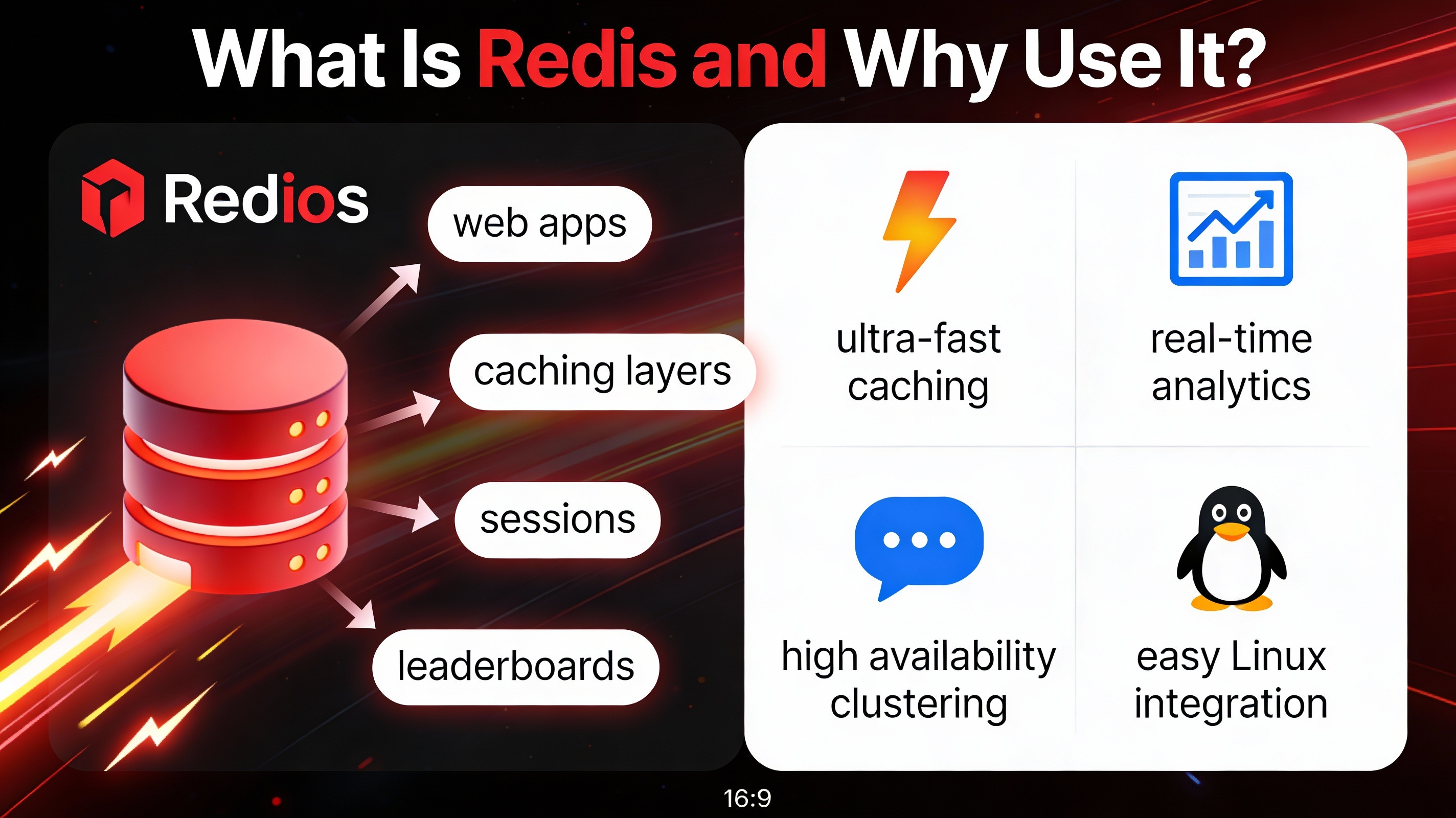
Redis is an in-memory data store used as a cache, database, and message broker. It dramatically speeds up web apps and WordPress by reducing database load and latency. Typical use cases include page caching, session storage, rate limiting, queues, and real-time analytics.
Prerequisites and System Requirements
Before you install Redis on Linux, ensure the following basics are covered.
What You Need
- Supported Linux server (Ubuntu 20.04/22.04/24.04, Debian 11/12, Rocky/Alma/CentOS Stream 8+, RHEL 8/9)
- Root or sudo access
- Open local port 6379 (do not expose publicly)
- Basic shell knowledge
Install Redis on Linux
Ubuntu/Debian (APT)
sudo apt update
sudo apt install -y redis-server
APT packages are stable and include a systemd service. The default configuration file is at /etc/redis/redis.conf.
RHEL, CentOS Stream, Rocky, AlmaLinux (DNF/YUM)
# Enable EPEL if needed
sudo dnf install -y epel-release
sudo dnf install -y redis

# Or on older YUM-based systems
# sudo yum install -y epel-release
# sudo yum install -y redis
The default configuration path is usually /etc/redis/redis.conf and the service name is redis or redis.service depending on the package.
Build the Latest Redis from Source (Optional)
Building from source gets you the latest features and performance improvements, useful for edge cases or new features.
sudo apt update && sudo apt install -y build-essential tcl wget
# or: sudo dnf groupinstall -y "Development Tools" && sudo dnf install -y tcl wget

wget https://download.redis.io/redis-stable.tar.gz
tar xzf redis-stable.tar.gz
cd redis-stable
make -j$(nproc)
sudo make install
# Optional test:
make test
For source installs, create your own systemd unit and config directory (e.g., /etc/redis/redis.conf). For most users, distro packages are simpler and safer to maintain.
Start, Enable, and Verify Redis
sudo systemctl enable --now redis
sudo systemctl status redis --no-pager
Test connectivity:
redis-cli ping
# Expected: PONG
If you installed via APT, Ubuntu may start Redis in supervised mode by default. Logs are available via journalctl -u redis.
Secure Redis (Do Not Expose Port 6379)
Security is critical. By default, Redis trusts localhost. Never expose Redis directly to the internet. Use localhost bindings, strong authentication, and firewalls.
Bind and Protected Mode
Edit the main config file (/etc/redis/redis.conf on most systems):
sudo nano /etc/redis/redis.conf
# Ensure these are set:
bind 127.0.0.1 ::1
protected-mode yes
supervised systemd
Restart to apply:
sudo systemctl restart redis
Set a Password or Use ACLs
For single-user authentication, set requirepass. For multi-app environments, use ACLs to define users and per-command permissions.
# redis.conf
requirepass <STRONG_RANDOM_PASSWORD>

# Or ACLs (preferred for complex setups):
# In conf or via redis-cli:
# user app on >password ~* +@all
Test authentication:
redis-cli -a <STRONG_RANDOM_PASSWORD> ping
Firewall: Allow Only Local or Trusted Hosts
# UFW (Ubuntu/Debian) - block external access by default
sudo ufw deny 6379/tcp

# Firewalld (RHEL/Rocky/Alma)
sudo firewall-cmd --permanent --add-rich-rule='rule family="ipv4" port protocol="tcp" port="6379" reject'
sudo firewall-cmd --reload
If a remote app must connect, allow only its IP and use a private network or SSH tunnel/VPN.
Use a Unix Socket (Optional)
Sockets are faster and limit exposure to local processes:
# redis.conf
unixsocket /run/redis/redis.sock
unixsocketperm 770
# Add your web user (e.g., www-data or nginx) to redis group
sudo usermod -aG redis www-data
Configure Persistence and Data Safety
Redis supports RDB snapshots (periodic) and AOF (Append Only File) for durability. Choose based on data criticality and performance needs.
RDB Snapshots
Good default for caches and many web apps:
# redis.conf
save 900 1
save 300 10
save 60 10000
stop-writes-on-bgsave-error yes
rdbcompression yes
AOF (Append Only File)
Better durability; slightly more I/O.
# redis.conf
appendonly yes
appendfsync everysec
auto-aof-rewrite-percentage 100
auto-aof-rewrite-min-size 64mb
You can combine RDB + AOF for safety and faster restarts.
Performance Tuning for Production
Set Max Memory and Eviction Policy
Define memory limits and how Redis evicts keys when full. For a pure cache, use an LRU-style policy.
# redis.conf
maxmemory 2gb
maxmemory-policy allkeys-lru
Tune the Linux Kernel
Apply proven kernel settings for Redis servers.
# Disable Transparent Huge Pages (THP)
echo never | sudo tee /sys/kernel/mm/transparent_hugepage/enabled
echo "echo never > /sys/kernel/mm/transparent_hugepage/enabled" | sudo tee /etc/rc.local && sudo chmod +x /etc/rc.local

# Overcommit memory
echo "vm.overcommit_memory=1" | sudo tee /etc/sysctl.d/99-redis.conf

# Increase backlog
echo "net.core.somaxconn=1024" | sudo tee -a /etc/sysctl.d/99-redis.conf

# Apply
sudo sysctl --system
Enable Slow Log and Basic Monitoring
# redis.conf
slowlog-log-slower-than 10000   # microseconds (10ms)
slowlog-max-len 256
View slowlog:
redis-cli slowlog get 10
redis-cli info memory
redis-cli info stats
Test Redis and Common CLI Tasks
Basic Operations
redis-cli
127.0.0.1:6379> set site "youstable"
OK
127.0.0.1:6379> get site
"youstable"
127.0.0.1:6379> incr counter
(integer) 1
Benchmark
redis-benchmark -q -n 10000 -c 50 -P 10
Connect from Applications
- PHP: Install phpredis and point to localhost:6379 or the Unix socket.
- Python: pip install redis and connect via redis.Redis(host=”localhost”, port=6379).
- Node.js: npm i redis and use createClient().
WordPress: Enable Redis Object Cache
- Install a plugin like “Redis Object Cache” or “Object Cache Pro” (premium).
- Ensure Redis is running locally, set a password or socket.
- In wp-config.php, define Redis host and auth if required.
- Enable object cache in the plugin and check the connection status.
// wp-config.php
define( 'WP_REDIS_HOST', '127.0.0.1' );
define( 'WP_REDIS_PORT', 6379 );
define( 'WP_REDIS_PASSWORD', '<STRONG_PASSWORD>' );
// Or use Unix socket:
// define( 'WP_REDIS_PATH', '/run/redis/redis.sock' );
Object caching can cut database queries drastically and improve TTFB for logged-in users and dynamic pages.
Troubleshooting Quick Checks
- Service won’t start: check sudo journalctl -u redis and config syntax errors.
- Cannot connect: confirm bind 127.0.0.1, firewall rules, and that Redis is listening (ss -ltnp | grep 6379).
- Performance issues: verify THP disabled, proper maxmemory, and eviction policy.
- Data loss on reboot: enable RDB/AOF and confirm permissions on /var/lib/redis.
- AUTH errors: ensure app credentials match requirepass or ACL user settings.
Scaling: Redis Sentinel or Cluster (When You Need HA)
For high availability, use Redis Sentinel to monitor a master and automate failover to replicas. For horizontal scaling and massive datasets, use Redis Cluster with sharding. Both require careful network planning, authentication, and consistent configuration across nodes.
Managed Redis with YouStable
If you’d rather skip maintenance and tuning, YouStable’s managed VPS and cloud hosting can deliver pre-optimized Redis with security hardening, monitoring, and backups. Our team handles installation, upgrades, and performance tuning so your apps stay fast and reliable.
Frequently Asked Questions
u003cstrongu003eIs it safe to expose Redis to the internet?u003c/strongu003e
No. Redis should not be publicly accessible. Bind to 127.0.0.1, enable protected-mode, require authentication (password/ACLs), and restrict access with a firewall or private network/VPN. If remote access is required, use SSH tunneling or a private VPC.
u003cstrongu003eHow much RAM does my Redis server need?u003c/strongu003e
Size RAM based on your dataset plus overhead. As a cache, allocate slightly more than working set and set maxmemory with an eviction policy. For persistent workloads, add room for RDB/AOF and background rewrite peaks. Monitor used_memory and fragmentation via INFO.
u003cstrongu003eShould I use RDB or AOF?u003c/strongu003e
For caching, RDB only is often enough. For durable data (queues, sessions you cannot lose), enable AOF with appendfsync everysec and keep RDB as a backup. Combining both yields faster restarts and better resilience.
u003cstrongu003eHow do I flush the Redis cache safely?u003c/strongu003e
Use redis-cli -a u0026lt;passwordu003e FLUSHDB to clear the current database or FLUSHALL to clear all databases. In multi-tenant systems, target specific DB numbers (SELECT 0..15) to avoid impacting other apps. Always confirm the environment before flushing.
u003cstrongu003eHow can I monitor Redis in production?u003c/strongu003e
Track latency, ops/sec, memory, evictions, and persistence via INFO, Slow Log, and tools like Redis Exporter for Prometheus/Grafana. Consider enabling AOF rewrite metrics and monitoring disk I/O. Log rotation and alerting on key thresholds are essential.
Final Thoughts
Now you know how to setup Redis on Linux server securely and efficiently—installation, configuration, security, durability, and tuning. Start local-only, add authentication, choose the right persistence, and tune memory and kernel settings. When scale and uptime matter, plan Sentinel or Cluster—or let YouStable manage it for you.










