


CI/CD on a Linux server automates building, testing, and deploying code on every change. To use it: pick a CI/CD tool (Jenkins, GitHub Actions, GitLab CI), prepare a secure Linux host, connect your repository, write a pipeline (YAML/Jenkinsfile), and deploy via SSH or Docker with rollback and monitoring.
If you’re setting up CI/CD on a Linux server for the first time, this guide walks you through the essentials, tool choice, architecture, security, and an end to end setup using Jenkins or GitHub Actions. You’ll learn battle tested practices from real deployments, plus zero downtime strategies using Docker and Nginx.
What is CI/CD on a Linux Server?
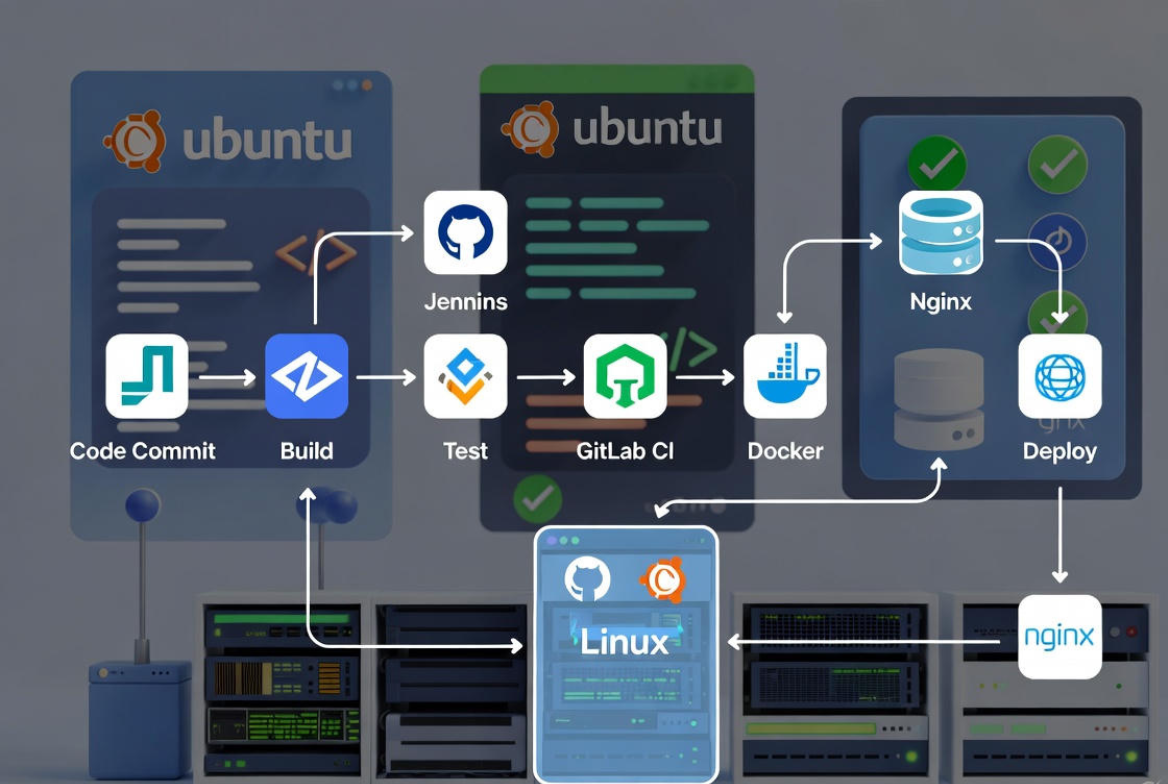
CI/CD (Continuous Integration/Continuous Delivery) is the practice of automatically building, testing, and deploying software after code changes. On a Linux server, CI/CD typically involves a pipeline that compiles your app, runs tests, builds an artifact or container image, then deploys to staging or production via SSH, Docker, or Kubernetes.
Why Use CI/CD on Linux?
Linux is stable, secure, and ubiquitous on production infrastructure. It integrates cleanly with Git, systemd, Docker, Nginx, and firewalls, making it ideal for reliable automated deployments. With CI/CD, teams ship faster, reduce errors, standardize releases, and enforce testing—without manual uploads or ad-hoc scripts.
Prerequisites and Environment Checklist
- A Linux server (Ubuntu 22.04+ or Debian 12+ recommended) with sudo access
- Git repository (GitHub, GitLab, or Bitbucket)
- Domain and SSL/TLS if serving web traffic (Let’s Encrypt)
- Configured firewall (UFW/iptables) and SSH keys
- Optional: Docker and Docker Compose for containerized deploys
- CI/CD tool chosen: Jenkins, GitHub Actions (self-hosted runner), or GitLab CI
How CI/CD on Linux Works (Architecture)
- Developer pushes code to main or a release branch.
- CI pipeline triggers and runs unit/integration tests.
- Pipeline builds an artifact (binary, zip) or a Docker image.
- CD step deploys to the Linux server: copies files, runs migrations, reloads services, and updates reverse proxy.
- Monitoring and logging verify health, with rollback ready if something fails.
Choosing Your CI/CD Tool
The right tool depends on your repository host, team skills, and compliance needs. Below are the most common options for CI/CD on Linux servers.
Jenkins (Self Hosted)
- Pros: Fully customizable, plugin-rich, runs anywhere, great for complex pipelines.
- Cons: Requires maintenance, patching, backups, and plugin auditing.
- Best for: Enterprises and teams needing on-prem control and advanced orchestration.
GitHub Actions (Self Hosted Runner)
- Pros: Native to GitHub, YAML-based, large marketplace, easy secrets management.
- Cons: Requires a self-hosted runner to deploy into private networks.
- Best for: Teams already on GitHub wanting a simple path to deployment.
GitLab CI/CD
- Pros: Built-in with GitLab, excellent pipeline visualization, runners are easy to manage.
- Cons: Requires GitLab; licensing considerations at scale.
- Best for: GitLab users seeking one integrated platform.
Step-by-Step: Set Up CI/CD on a Linux Server
Create a Service User, SSH Keys, and Hardening
Run these commands to create a non-root deploy user, add Docker access if needed, and prepare SSH keys. Disable password logins for better security.
# Create user
sudo adduser ci
sudo usermod -aG sudo ci
# Optional: if using Docker
sudo usermod -aG docker ci

# Generate SSH key for CI (run as ci user)
sudo -u ci ssh-keygen -t ed25519 -C "ci@server"

# Harden SSH (disable password auth)
sudo sed -i 's/^#?PasswordAuthentication .*/PasswordAuthentication no/' /etc/ssh/sshd_config
sudo systemctl reload ssh

# Allow only required ports (SSH, HTTP, HTTPS)
sudo ufw allow 22/tcp
sudo ufw allow 80,443/tcp
sudo ufw enable
Install Docker and Nginx (Optional but Recommended)
Containers standardize deployments and make rollbacks safer. Nginx provides TLS termination and blue green/canary routing.
# Docker (Ubuntu)
sudo apt-get update
sudo apt-get install -y ca-certificates curl gnupg lsb-release
sudo install -m 0755 -d /etc/apt/keyrings
curl -fsSL https://download.docker.com/linux/ubuntu/gpg | sudo gpg --dearmor -o /etc/apt/keyrings/docker.gpg
echo
  "deb [arch=$(dpkg --print-architecture) signed-by=/etc/apt/keyrings/docker.gpg]
  https://download.docker.com/linux/ubuntu $(lsb_release -cs) stable" |
  sudo tee /etc/apt/sources.list.d/docker.list > /dev/null
sudo apt-get update
sudo apt-get install -y docker-ce docker-ce-cli containerd.io docker-compose-plugin

# Nginx
sudo apt-get install -y nginx
sudo systemctl enable --now nginx
Option A: Jenkins on Linux (Freestyle or Jenkinsfile)
Install Jenkins, connect to your repo, and define a pipeline. Keep Jenkins behind TLS and restrict admin access.
# Install Jenkins (Ubuntu LTS)
curl -fsSL https://pkg.jenkins.io/debian-stable/jenkins.io-2023.key | sudo tee
  /usr/share/keyrings/jenkins-keyring.asc >/dev/null
echo deb [signed-by=/usr/share/keyrings/jenkins-keyring.asc]
  https://pkg.jenkins.io/debian-stable binary/ | sudo tee
  /etc/apt/sources.list.d/jenkins.list >/dev/null
sudo apt-get update && sudo apt-get install -y openjdk-17-jdk jenkins
sudo systemctl enable --now jenkins
Example Jenkinsfile for a Dockerized app with tests and a deploy stage:
pipeline {
  agent any
  environment {
    REGISTRY = "registry.example.com/myapp"
    IMAGE = "${REGISTRY}:${env.GIT_COMMIT}"
  }
  stages {
    stage('Checkout') { steps { checkout scm } }
    stage('Build') { steps { sh 'docker build -t $IMAGE .' } }
    stage('Test')  { steps { sh 'pytest -q || npm test || true' } }
    stage('Push')  { steps { sh 'docker login -u $REG_USER -p $REG_PASS registry.example.com; docker push $IMAGE' } }
    stage('Deploy') {
      steps {
        sh 'ssh -o StrictHostKeyChecking=no [email protected] "APP_IMAGE=$IMAGE bash -s" < deploy.sh'
      }
    }
  }
  post { failure { mail to: '[email protected]', subject: 'Build Failed', body: "Check Jenkins #${env.BUILD_NUMBER}" } }
}
Option B: GitHub Actions with a Self-Hosted Runner
Install a runner on the Linux server or a build host. Use repository secrets to store credentials and restrict runner permissions.
# On the server as the ci user:
mkdir -p ~/actions-runner && cd ~/actions-runner
curl -o actions.tar.gz -L https://github.com/actions/runner/releases/latest/download/actions-runner-linux-x64-*.tar.gz
tar xzf actions.tar.gz
./config.sh --url https://github.com/ORG/REPO --token YOUR_TOKEN
./run.sh # or install as a service
Example workflow to build, test, and deploy a Node.js app with Docker:
name: CI/CD
on:
  push:
    branches: [ "main" ]
jobs:
  build-test-deploy:
    runs-on: self-hosted
    steps:
      - uses: actions/checkout@v4
      - uses: actions/setup-node@v4
        with:
          node-version: '20'
      - name: Install deps and test
        run: npm ci && npm test
      - name: Build image
        run: docker build -t myapp:${{ github.sha }} .
      - name: Deploy
        env:
          IMAGE_SHA: ${{ github.sha }}
        run: |
          APP_IMAGE="myapp:${IMAGE_SHA}" bash ./deploy.sh
Zero Downtime Deployments with Docker, Nginx, and systemd
Blue green keeps two versions live (blue and green). Traffic switches when the new container passes health checks. Use Nginx upstream blocks and a symlink or variable to point to the active port.
# /etc/nginx/conf.d/app.conf
upstream app_upstream {
    server 127.0.0.1:8081;  # blue
    # server 127.0.0.1:8082;  # green (toggle when ready)
}
server {
    listen 80;
    server_name example.com;
    location / {
        proxy_pass http://app_upstream;
        proxy_set_header Host $host;
        proxy_set_header X-Real-IP $remote_addr;
    }
}
Example deploy script that rotates containers and reloads Nginx after a health check:
#!/usr/bin/env bash
set -euo pipefail
IMAGE="${APP_IMAGE:-myapp:latest}"

# Determine target port
CURRENT=$(grep -q "8081" /etc/nginx/conf.d/app.conf && echo "blue" || echo "green")
if [ "$CURRENT" = "blue" ]; then
  NEW_PORT=8082
  OLD_PORT=8081
else
  NEW_PORT=8081
  OLD_PORT=8082
fi

# Run new container
docker rm -f myapp_new || true
docker run -d --name myapp_new -p ${NEW_PORT}:3000 --health-cmd="curl -f http://localhost:3000/health || exit 1"
  --health-interval=10s --restart=always "$IMAGE"

# Wait for healthy
for i in {1..30}; do
  STATUS=$(docker inspect --format='{{json .State.Health.Status}}' myapp_new | tr -d '"')
  [ "$STATUS" = "healthy" ] && break
  sleep 2
done

# Switch Nginx upstream
sudo sed -i "s/${OLD_PORT}/${NEW_PORT}/" /etc/nginx/conf.d/app.conf
sudo nginx -t && sudo systemctl reload nginx

# Replace old container
docker rm -f myapp_old || true
docker rename myapp_new myapp_old
Security and Compliance Best Practices
- Use SSH keys (ed25519) and disable password logins; restrict CI user with least privilege.
- Store secrets in your CI tool’s vault (GitHub Secrets, Jenkins Credentials, GitLab Variables).
- Pin base images and verify checksums; scan images with Trivy or Grype.
- Enable firewall, fail2ban, and automatic security updates.
- Audit and patch CI tools regularly; remove unused plugins.
- Log and monitor with systemd-journald, Prometheus/Node Exporter, and Nginx access logs.
- Follow CIS Benchmarks and OWASP ASVS guidance for hardening.
Monitoring, Logs, and Rollbacks
- Health checks: Expose /health endpoints; CI waits for “healthy” before switching traffic.
- Observability: Use Prometheus + Grafana or a managed APM (e.g., New Relic).
- Structured logs: Ship to Loki/ELK for search and alerts.
- Rollback: Keep N-1 image/tag, previous .env, and database backup; automate rollback as a pipeline job.
Stack-Specific Tips
Node.js
- Cache npm with CI cache keys for faster builds.
- Use PM2 or a container; avoid global installs in production images.
- Run npm ci for reproducible dependencies and npm audit in CI.
PHP/Laravel or WordPress
- Composer install –no-dev –optimize-autoloader in CI.
- Run php artisan migrate safely with backups; for WordPress, version-control wp-content (theme/plugins you own).
- Serve via Nginx + PHP-FPM; reload PHP-FPM on deploy to clear opcode cache.
Python/Django
- Create a locked requirements.txt with pip-compile.
- Run manage.py migrate and collectstatic in the CD step.
- Use Gunicorn behind Nginx; preload app and set graceful timeout for zero-downtime restarts.
Troubleshooting and Common Pitfalls
- Pipeline passes, app breaks: Add integration/contract tests and health checks.
- Permissions issues: Ensure the CI user owns deploy directories and has Docker group membership.
- Flaky builds: Pin dependencies, use reproducible builds, and cache properly.
- Secrets leakage: Never echo secrets in logs; mask outputs; rotate credentials regularly.
- Downtime on deploy: Implement blue green or canary; avoid in place restarts without readiness probes.
Costs, Hosting, and Where YouStable Helps
Running CI/CD on Linux requires reliable compute, fast storage, and stable networking. YouStable’s SSD-powered VPS and dedicated servers give you DDoS protection, free SSL, and full root access ideal for Jenkins, runners, Docker, and Nginx. Our support team can guide you on hardening, backups, and performance tuning without lock in.
FAQ’s
1. What is the easiest way to set up CI/CD on a Linux server?
For most GitHub users, GitHub Actions with a self-hosted runner is the quickest path. Install the runner on your Linux server, store secrets in GitHub, and write a YAML workflow to build, test, and deploy via Docker or SSH.
2. Is Jenkins or GitHub Actions better for Linux deployments?
Jenkins offers deep customization and on-prem control, ideal for complex pipelines. GitHub Actions is simpler, tightly integrated with GitHub, and great for most teams. If you need strict isolation and custom agents, choose Jenkins; if you want speed and simplicity, pick Actions.
3. How do I achieve zero downtime deployments on Linux?
Use blue green or canary strategies with Docker and Nginx. Spin up the new version on a different port, verify health, switch the Nginx upstream, and retire the old container. Always keep a rollback image and database backup ready.
4. How should I store and manage secrets in CI/CD?
Use your CI tool’s secrets manager (GitHub Secrets, Jenkins Credentials, GitLab Variables). Don’t hardcode secrets in code or images. Rotate tokens periodically, scope permissions minimally, and mask secrets in logs.
5. Can I use CI/CD for WordPress on a Linux server?
u003cstrongu003eYesu003c/strongu003e. Version-control your theme and custom plugins, run automated tests (PHPUnit, linting), build assets, and deploy via SSH or Docker. Use Nginx + PHP-FPM, reload PHP-FPM on release, and back up the database and uploads before running updates or migrations.
Also Read:










