


To install CI/CD on a Linux server, choose a CI engine (Jenkins, GitLab Runner, or a GitHub Actions self‑hosted runner), install prerequisites (Git, Docker/Java), register the runner or set up the server, connect your repository via SSH/webhooks, define a pipeline file (Jenkinsfile or YAML), secure the host(firewall/HTTPS), and run builds as services.
In this guide, you’ll learn how to install CI/CD on a Linux server step-by-step, using industry-proven methods. We’ll cover Jenkins, GitLab CI, and GitHub Actions self-hosted runners, add Docker for clean builds, secure everything with Nginx and Let’s Encrypt, and share practical tips learned from 12+ years of managing production servers.
What is CI/CD and Why Install it on a Linux Server?
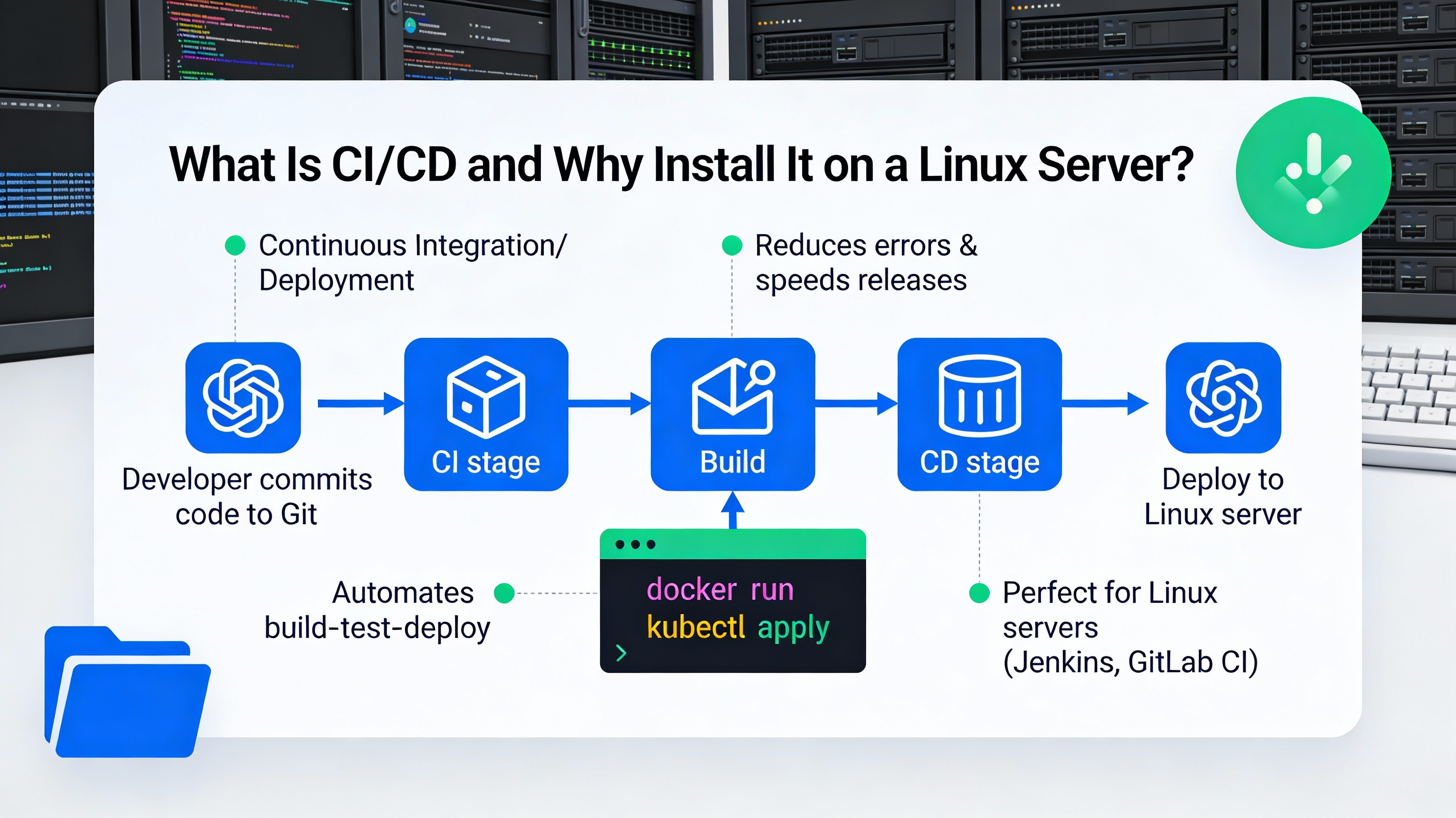
CI/CD (Continuous Integration/Continuous Delivery) automates building, testing, and deploying code. Installing CI/CD on a Linux server gives you control, data sovereignty, predictable costs, and the flexibility to build on your own infrastructure. It’s ideal for teams needing custom tooling, on-prem compliance, or optimized performance close to production.
Search Intent and What You’ll Achieve
This tutorial targets informational and how-to intent: you want a clear, actionable way to install CI/CD on Linux. By the end, you’ll have a secure, production-ready CI/CD pipeline using your preferred stack, plus best practices for performance, security, and reliability.
Prerequisites and System Requirements
We’ll use Ubuntu 22.04 LTS in examples, but commands are similar for Debian-based systems. Red Hat/CentOS/AlmaLinux users can adapt with yum/dnf. Always run as a non-root sudo user unless noted.
Minimum Server Sizing
- Small teams: 2 vCPU, 4 GB RAM, 40–80 GB SSD
- Medium teams/containers: 4 vCPU, 8–16 GB RAM, 100–200 GB SSD
- Heavy builds (Java/Android): 8+ vCPU, 16–32 GB RAM, fast NVMe
Networking, Ports, and DNS
- Open ports: 22 (SSH), 80/443 (HTTP/HTTPS), 8080 (Jenkins, if direct)
- Set an A record, e.g., ci.example.com, to your server IP
- Use HTTPS with Let’s Encrypt for secure access
Required Packages and Access
- Sudo user with SSH access
- Git, cURL, and optionally Docker
- Firewall control (ufw) and basic Linux familiarity
Choose Your CI/CD Engine
Jenkins (Self-Hosted CI/CD Server)
- Pros: Extremely flexible, huge plugin ecosystem, great for complex pipelines
- Cons: More maintenance, Java dependency, plugins require governance
GitLab CI (Runner on Your Server)
- Pros: Native to GitLab, simple YAML, scalable runners
- Cons: Requires GitLab (cloud or self-managed); features vary by plan
GitHub Actions (Self-Hosted Runner)
- Pros: Tight GitHub integration, easy YAML, use your own hardware
- Cons: Administration of runners, job isolation requires attention
If you need maximum customization, choose Jenkins. If you already use GitLab, install a GitLab Runner. If your code lives on GitHub, a self-hosted Actions runner is straightforward.
Architecture Overview
Recommended Topology
- Public CI endpoint behind Nginx reverse proxy with HTTPS
- Workers as services (Jenkins agents or GitLab/GitHub runners)
- Docker for clean, reproducible builds
- SSH deploy keys to production or a staging server
How to Install CI/CD on Linux Server (Step-by-Step)
Base Setup (All Options)
sudo apt update && sudo apt -y upgrade
sudo apt -y install git curl unzip ca-certificates gnupg lsb-release ufw

# Secure SSH (optional basics)
sudo ufw allow OpenSSH
sudo ufw enable

# Create a build user (optional good practice)
sudo adduser ci --gecos "CI User,,," --disabled-password
sudo usermod -aG sudo ci
Option A: Install Jenkins on Ubuntu
Install Java and Jenkins
# Java (Temurin or OpenJDK)
sudo apt -y install fontconfig openjdk-17-jre

# Jenkins repository
curl -fsSL https://pkg.jenkins.io/debian-stable/jenkins.io-2023.key | sudo tee
/usr/share/keyrings/jenkins-keyring.asc > /dev/null
echo deb [signed-by=/usr/share/keyrings/jenkins-keyring.asc]
https://pkg.jenkins.io/debian-stable binary/ | sudo tee
/etc/apt/sources.list.d/jenkins.list > /dev/null

sudo apt update
sudo apt -y install jenkins

# Enable and open firewall
sudo systemctl enable --now jenkins
sudo ufw allow 8080/tcp
Initial Setup
# Get admin password
sudo cat /var/lib/jenkins/secrets/initialAdminPassword
Visit http://SERVER_IP:8080, enter the password, install recommended plugins, and create an admin user. For production, place Jenkins behind Nginx with HTTPS (see the Nginx section below) and disable direct port 8080 externally.
Sample Jenkinsfile
pipeline {
  agent any
  options { skipDefaultCheckout(false) }
  stages {
    stage('Checkout') {
      steps { checkout scm }
    }
    stage('Build') {
      steps { sh 'docker build -t myapp:ci .' }
    }
    stage('Test') {
      steps { sh 'docker run --rm myapp:ci npm test' }
    }
    stage('Deploy') {
      when { branch 'main' }
      steps { sh './deploy/scripts/deploy.sh' }
    }
  }
  post {
    always { archiveArtifacts artifacts: 'logs/**', onlyIfSuccessful: false }
  }
}
Store this Jenkinsfile at your repo root and configure a Multibranch Pipeline or a Pipeline job pointing to your SCM with webhooks for automatic builds.
Option B: Install GitLab Runner on Ubuntu
Use this if your repository is hosted on GitLab. You’ll register the runner with a project or the whole GitLab instance.
Install and Register GitLab Runner
curl -L https://packages.gitlab.com/install/repositories/runner/gitlab-runner/script.deb.sh | sudo bash
sudo apt -y install gitlab-runner

# Register (get token from GitLab: Settings > CI/CD > Runners)
sudo gitlab-runner register
# Enter:
# GitLab URL: https://gitlab.com/ (or your self-managed URL)
# Registration token: <TOKEN>
# Description: ubuntu-runner
# Tags: docker,linux
# Executor: docker (recommended) or shell
For Docker executor, define a default image and enable Docker in Docker or bind the host Docker socket, depending on your security model.
Sample .gitlab-ci.yml
image: node:20-alpine

stages:
  - build
  - test
  - deploy

cache:
  key: ${CI_COMMIT_REF_SLUG}
  paths:
    - node_modules/

build:
  stage: build
  script:
    - npm ci
    - npm run build
  artifacts:
    paths:
      - dist/
    expire_in: 1 week

test:
  stage: test
  script:
    - npm test -- --ci

deploy:
  stage: deploy
  only:
    - main
  script:
    - ./deploy/scripts/deploy.sh
Option C: Install a GitHub Actions Self-Hosted Runner
Perfect if your code is on GitHub and you want to run Actions on your own hardware.
Install and Configure Runner
# Create a runner directory
mkdir -p ~/actions-runner && cd ~/actions-runner

# Download the latest runner from GitHub (replace version as needed)
curl -o actions-runner.tar.gz -L https://github.com/actions/runner/releases/download/v2.317.0/actions-runner-linux-x64-2.317.0.tar.gz
tar xzf actions-runner.tar.gz

# In GitHub: Repo Settings > Actions > Runners > New self-hosted runner to get URL/TOKEN
./config.sh --url https://github.com/ORG/REPO --token YOUR_TOKEN

# Install as a service
sudo ./svc.sh install
sudo ./svc.sh start
Sample GitHub Workflow
name: CI

on:
  push:
    branches: [ main ]
  pull_request:

jobs:
  build-test:
    runs-on: self-hosted
    steps:
      - uses: actions/checkout@v4
      - uses: actions/setup-node@v4
        with:
          node-version: 20
      - run: npm ci
      - run: npm test -- --ci
Add Docker for Clean, Reproducible Builds
Install Docker Engine
curl -fsSL https://get.docker.com | sudo sh
sudo usermod -aG docker $USER
# Re-login to apply group membership
Use Docker images per language (node, python, maven, golang) for consistent builds. In Jenkins, add the Docker Pipeline plugin or run shell steps. In GitLab CI/GitHub Actions, select an appropriate container image in YAML.
Reverse Proxy and HTTPS with Nginx + Let’s Encrypt
Install and Configure Nginx
sudo apt -y install nginx
sudo ufw allow 'Nginx Full'

# Example for Jenkins at localhost:8080 (adjust server_name)
sudo tee /etc/nginx/sites-available/ci.conf >/dev/null <<'EOF'
server {
  listen 80;
  server_name ci.example.com;

  location / {
    proxy_pass http://127.0.0.1:8080;
    proxy_set_header Host $host;
    proxy_set_header X-Real-IP $remote_addr;
    proxy_set_header X-Forwarded-For $proxy_add_x_forwarded_for;
    proxy_set_header X-Forwarded-Proto $scheme;
  }
}
EOF

sudo ln -s /etc/nginx/sites-available/ci.conf /etc/nginx/sites-enabled/ci.conf
sudo nginx -t && sudo systemctl reload nginx
Add Let’s Encrypt TLS
sudo apt -y install certbot python3-certbot-nginx
sudo certbot --nginx -d ci.example.com --redirect --agree-tos -m [email protected]
After enabling HTTPS, close external access to port 8080 and expose only 80/443 through Nginx.
Security Hardening Essentials
- Least privilege: run CI services under dedicated users
- Firewall: allow only SSH and HTTP/HTTPS; restrict internal ports
- SSH hardening: key-based auth, disable root login, change default port if policy allows
- Secrets: store tokens/keys in Jenkins Credentials, GitLab CI Variables, or GitHub Secrets
- Isolation: prefer Docker executor over shell; consider ephemeral runners
- Updates: automate system and container image updates; patch weekly
- Backups: backup Jenkins $JENKINS_HOME, runner configs, and Nginx/SSL data
Test Your Pipeline End-to-End
Push a small code change or a commit that updates tests. Confirm the CI job triggers automatically, runs build and tests, and deploys to staging. Check logs, artifacts, and any notifications (email/Slack) to ensure visibility.
Troubleshooting Common Issues
Webhooks Do Not Trigger Builds
- Verify public DNS/HTTPS reachability
- Confirm webhook secret and correct endpoint
- Check reverse proxy timeouts and headers
Docker Permission Denied
- Add runner/jenkins user to docker group: usermod -aG docker
- Re-login or restart service
- On hardened hosts, consider rootless Docker with proper ports
Slow Builds
- Enable dependency caching (node_modules, Maven cache)
- Use regional mirrors/registries
- Scale CPU/RAM or use multiple runners/agents
Performance and Cost Optimization
- Cache smartly: npm, pip, Maven, Gradle caches drastically cut build times
- Parallelize tests: split tests across multiple executors
- Ephemeral runners: auto-scale with cloud VMs or Kubernetes
- Use base images: pre-bake dependencies into Docker images
- Artifact retention: prune old artifacts and images regularly
When to Choose Managed Infrastructure
If you prefer to focus on development over server ops, consider managed VPS or dedicated servers optimized for CI/CD. YouStable provides NVMe-powered Linux servers with fast networking, IPv4/IPv6, and 24×7 support, making it easy to host Jenkins or runners securely with predictable performance.
Example: Full UFW and Systemd Checks
# Firewall
sudo ufw status
sudo ufw allow 80,443/tcp
sudo ufw delete allow 8080/tcp  # after Nginx/HTTPS is in place

# Services
systemctl status jenkins
systemctl status gitlab-runner
systemctl status nginx
Best Practices Recap
- Choose the CI engine that matches your VCS (Jenkins/GitLab/GitHub)
- Secure access with Nginx + Let’s Encrypt
- Run builds in containers for consistency and isolation
- Manage secrets centrally; never hardcode credentials
- Automate updates, backups, and monitoring
FAQ’s: Install CI/CD on Linux Server
u003cstrongu003eWhich is better for beginners: Jenkins, GitLab CI, or GitHub Actions?u003c/strongu003e
If your code is on GitHub, Actions is easiest. If you use GitLab, start with GitLab CI runner. Choose Jenkins when you need deep customization, complex pipelines, or vendor-neutral control.
u003cstrongu003eDo I need Docker to install CI/CD on a Linux server?u003c/strongu003e
No, but Docker simplifies dependency management and isolation. Most modern pipelines use containerized builds for reproducibility and security.
u003cstrongu003eHow do I secure my CI/CD server?u003c/strongu003e
Use HTTPS with Let’s Encrypt, restrict ports via ufw, disable root SSH, use SSH keys, store secrets in CI vaults, and run builds in non-root containers. Keep your OS and plugins updated.
u003cstrongu003eCan I deploy directly to production from CI?u003c/strongu003e
Yes, but add safeguards: approvals, canary/staged deploys, automated rollbacks, and environment-specific credentials. Many teams deploy to staging on merge and to production on tag or manual approval.
u003cstrongu003eWhat ports should I open for Jenkins or runners?u003c/strongu003e
Open 80/443 for the web UI via Nginx. Keep 8080 internal for Jenkins. Always allow 22 for SSH. Runners typically initiate outbound connections, so inbound runner ports are rarely required.
u003cstrongu003eHow much server resource do I need for CI?u003c/strongu003e
For small teams, 2 vCPU/4 GB RAM is workable. For container-heavy or Java builds, 4–8 vCPU and 8–16 GB RAM is more comfortable. Scale based on concurrency, language, and test suite size.
u003cstrongu003eWhere should I host my CI/CD server?u003c/strongu003e
Close to your developers and registries for low latency. A performance-optimized VPS from YouStable with NVMe storage and strong network throughput is a solid starting point for most teams.u003cbru003eu003cbru003eWith these steps, you can confidently install CI/CD on a Linux server, secure it with best practices, and ship code faster. Whether you prefer Jenkins, GitLab CI, or GitHub Actions, the combination of Docker, Nginx, and vigilant hardening will yield a robust, scalable pipeline.










