
To install cron jobs on a Linux server, install and enable the cron service (cronie/cron), then create schedules using crontab -e with the five-field format: minute hour day month weekday, followed by a command. Confirm your schedule with crontab -l, ensure the service is running, and review execution logs with journalctl or /var/log/cron.
In this guide, you’ll learn how to install cron jobs on a Linux server, understand crontab syntax, avoid common pitfalls, and monitor execution reliably. Whether you’re automating backups, cache warmups, or reports, these steps will help you schedule tasks confidently on Ubuntu, Debian, CentOS, Rocky, AlmaLinux, and Amazon Linux.
What is a Cron Job and How Does it Work?
A cron job is a scheduled command or script that runs automatically on a Linux server at fixed times, dates, or intervals. The cron daemon (crond) continuously reads schedules from user crontabs and system directories, then executes the defined commands in the background using system time.
Use cron for recurring automation like backups, log rotation, SSL renewals, API polling, and maintenance tasks. For one-off or complex triggers, systemd timers or at may be better choices (covered below).
Prerequisites and Quick Checklist
- SSH access with a non-root user (sudo privileges recommended).
- Package manager access (apt, dnf, or yum).
- A text editor installed (nano or vim).
- Basic command-line familiarity and absolute paths to scripts.
- Know which user should own the cron job (root vs application user).
Install and Enable Cron on Popular Linux Distros
On most distributions, cron is powered by the cronie or cron package. Install, start, and enable the service so it persists across reboots.
Ubuntu/Debian
sudo apt update
sudo apt install cron -y
sudo systemctl enable --now cron
sudo systemctl status cron
CentOS/RHEL/AlmaLinux/Rocky Linux
sudo dnf install cronie -y   # or: sudo yum install cronie -y
sudo systemctl enable --now crond
sudo systemctl status crond
Amazon Linux
sudo dnf install cronie -y    # Amazon Linux 2023
# For Amazon Linux 2:
# sudo yum install cronie -y
sudo systemctl enable --now crond
sudo systemctl status crond
Verify the Service Is Running
# Ubuntu/Debian
systemctl is-active cron

# RHEL family / Amazon Linux
systemctl is-active crond
If the service is active, you’re ready to add your first cron job.
Understand Crontab Syntax (The Five Fields)
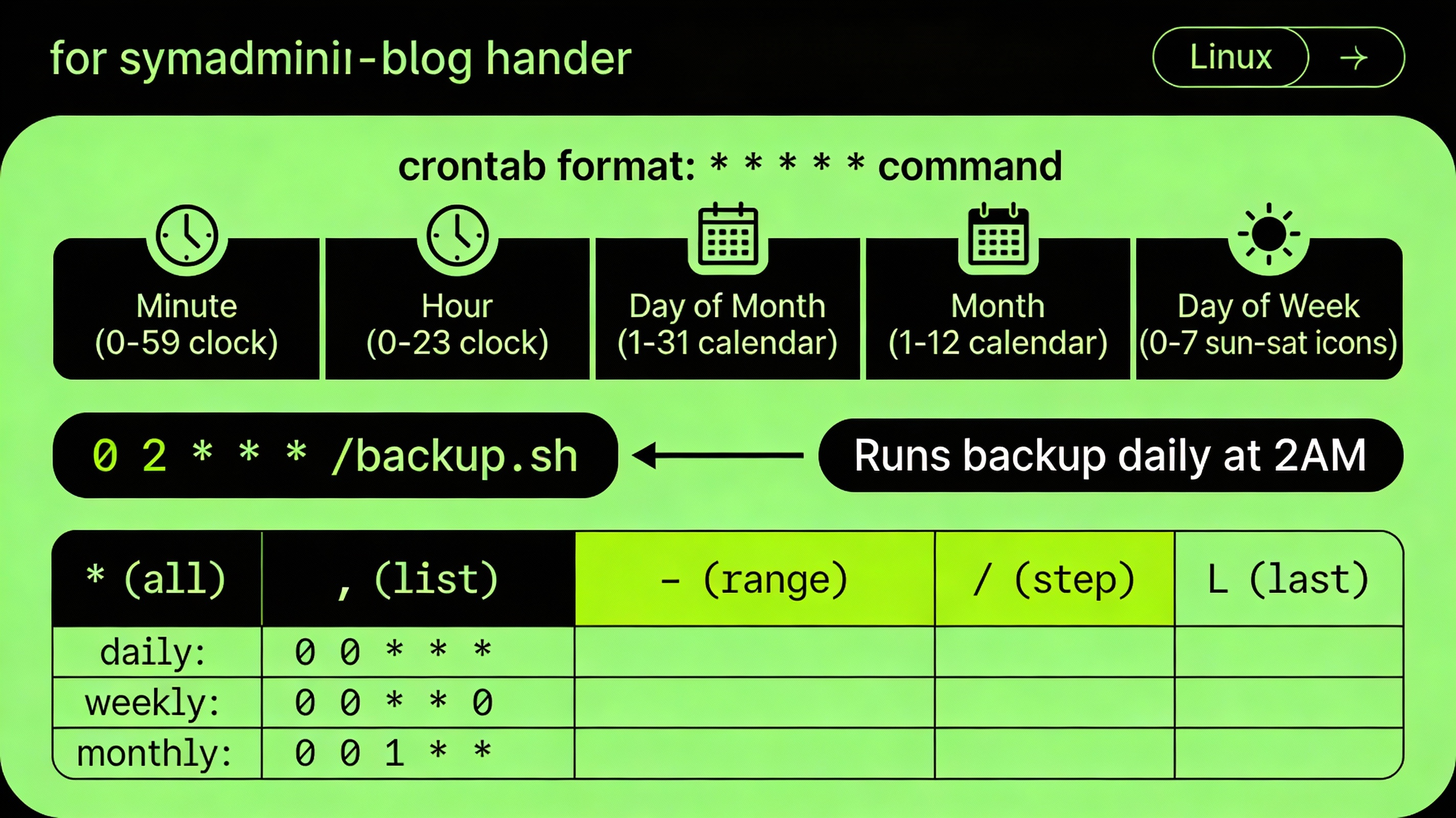
Cron expressions use five time fields followed by the command to run. Each field supports ranges, lists, and steps.
# ┌──────── minute (0–59)
# │ ┌────── hour (0–23)
# │ │ ┌──── day of month (1–31)
# │ │ │ ┌── month (1–12 or JAN–DEC)
# │ │ │ │ ┌─ day of week (0–7 or SUN–SAT; 0 or 7 = Sunday)
# │ │ │ │ │
# * * * * *  <command to run>
Common operators:
- * = any value
- , = listed values (e.g., 1,15)
- – = range (e.g., 1-5)
- / = step (e.g., */5 for every 5 units)
Special Strings for Quick Schedules
- @reboot — run once at startup
- @yearly or @annually — 0 0 1 1 *
- @monthly — 0 0 1 * *
- @weekly — 0 0 * * 0
- @daily — 0 0 * * *
- @hourly — 0 * * * *
Create, Edit, and Manage Cron Jobs
User Crontab vs System Crontab
- User crontab: crontab -e stores entries in /var/spool/cron/crontabs/<user> (Debian/Ubuntu) or /var/spool/cron/<user> (RHEL). No “user” column required.
- System crontab: /etc/crontab and files in /etc/cron.d/ include an extra field for the user to run as.
Step-by-Step: Add Your First Cron Job
# Open your user crontab (choose your editor on first run)
crontab -e

# Example: run a backup script every day at 02:30
30 2 * * * /usr/local/bin/backup.sh >> /var/log/backup.log 2>&1
View current entries:
crontab -lRemove all entries for your user:
crontab -r # Caution: deletes without prompt on many systemsRun Scripts Reliably (Avoid PATH Issues)
- Use absolute paths: /usr/bin/php, /usr/bin/python3, /bin/bash.
- Invoke scripts with full paths: /home/app/run.sh instead of ./run.sh.
- Source environments if needed (virtualenv, nvm, rbenv).
- Redirect output and errors to logs to debug issues.
# Good practice example with explicit interpreter and logging
*/5 * * * * /usr/bin/python3 /opt/app/poll.py >> /var/log/app/poll.log 2>&1
Set Environment Variables in Crontab
You can define simple environment variables at the top of a crontab or in /etc/crontab and /etc/cron.d files:
[email protected]
SHELL=/bin/bash
PATH=/usr/local/sbin:/usr/local/bin:/usr/sbin:/usr/bin:/sbin:/bin

0 * * * * /usr/local/bin/report.sh
MAILTO sends command output to the specified email (ensure local mail or an MTA like Postfix is configured, or pipe to sendmail/SMTP tools).
System-wide Cron: /etc/crontab, cron.d, cron.daily, cron.hourly
For tasks managed by administrators or packages, system-level cron files are used. These support specifying the user account per job.
# /etc/crontab syntax includes the <user> field:
# m  h  dom mon dow  user   command
*/10 * * * * root /usr/local/bin/healthcheck.sh- /etc/cron.d/<file> — drop-in job files with the same format as /etc/crontab.
- /etc/cron.daily/, /etc/cron.hourly/, /etc/cron.weekly/, /etc/cron.monthly/ — place executable scripts here; they run at distribution-defined times.
Logging, Monitoring, and Troubleshooting Cron
Where Are Cron Logs?
- Ubuntu/Debian: cron events usually in /var/log/syslog and execution details via journalctl -u cron.
- RHEL/CentOS/AlmaLinux/Rocky/Amazon Linux: /var/log/cron and journalctl -u crond.
# Ubuntu/Debian
sudo journalctl -u cron --since "today"
sudo grep CRON /var/log/syslog

# RHEL family / Amazon Linux
sudo journalctl -u crond --since "today"
sudo tail -f /var/log/cron
Test Your Cron Job
- Run the command manually to confirm it works outside cron.
- Use the same user the cron job will run as (su – <user>).
- Temporarily change the schedule to run every minute (*/1) for testing.
- Write to a timestamped log to confirm execution.
*/1 * * * * echo "$(date) cron fired" >> /tmp/cron-test.logCommon Cron Mistakes (And Fixes)
- Relative paths — use absolute paths for binaries and scripts.
- Missing permissions — ensure scripts are executable (chmod +x) and readable by the cron user.
- Environment differences — set PATH or source the required profile files.
- Interactive commands — avoid anything requiring TTY or user input.
- Script uses a different shell — set SHELL=/bin/bash or add a shebang (#!/bin/bash) to scripts.
- Timezone confusion — cron uses system time; confirm with timedatectl and document UTC vs local time.
Security Best Practices for Cron Jobs
- Least privilege: run jobs as the dedicated application user, not root, unless required.
- Validate inputs: never curl | bash untrusted sources; checksum your scripts.
- Restrict users: manage /etc/cron.allow and /etc/cron.deny to control who can create cron jobs.
- Log and alert: centralize logs and set MAILTO or external alerts for failures.
- Protect secrets: use environment files with restricted permissions; avoid hardcoding credentials in scripts.
Cron vs systemd Timers: Which Should You Use?
Cron is simple and battle-tested. systemd timers offer richer features like dependency ordering, randomized delays, missed-run catching, and tighter service integration. If you need advanced orchestration or per-unit logs, consider systemd timers; for straightforward intervals and portability across distros, cron is often sufficient.
Example: Equivalent systemd Timer
# /etc/systemd/system/report.service
[Unit]
Description=Generate hourly report

[Service]
Type=oneshot
ExecStart=/usr/local/bin/report.sh

# /etc/systemd/system/report.timer
[Unit]
Description=Run report every hour

[Timer]
OnCalendar=hourly
Persistent=true

[Install]
WantedBy=timers.target

# Enable and start
sudo systemctl enable --now report.timer
sudo systemctl list-timers --all
Advanced Scheduling: Anacron and Time Zones
Servers that don’t run 24/7 may miss cron events. Anacron addresses this by running “catch-up” jobs for daily, weekly, and monthly frequencies after boot. Many distros include anacron by default and integrate it with /etc/cron.* directories.
Time zones: Cron uses the server’s local time. For globally distributed teams, standardize on UTC, document schedules in UTC, or explicitly set TZ in the crontab (supported on many systems).
# Set timezone for a single job (check distro support)
TZ=UTC
0 3 * * * /usr/local/bin/cleanup.sh
Real-World Cron Job Examples
- Renew Let’s Encrypt certificates (if not using systemd timer)
15 2 * * * /usr/bin/certbot renew --quiet >> /var/log/letsencrypt/cron.log 2>&1- Run a WordPress wp-cron replacement via WP-CLI
*/10 * * * * /usr/bin/php /var/www/html/wp-cron.php >/dev/null 2>&1
# Or with WP-CLI:
*/10 * * * * /usr/bin/wp cron event run --due-now --path=/var/www/html >/dev/null 2>&1- Database backup with timestamped filename
0 1 * * * /usr/bin/mysqldump -u backup -p'secret' db
| gzip > /backups/db-$(date +%F).sql.gz 2>&1- Laravel scheduler (runs every minute, framework decides tasks)
* * * * * cd /var/www/app && /usr/bin/php artisan schedule:run >> /var/log/laravel-schedule.log 2>&1- System health check with alert
*/5 * * * * /usr/local/bin/healthcheck.sh || echo "Healthcheck failed at $(date)" | mail -s "Server Alert" [email protected]FAQ’s: Install Cron Jobs on Linux Server
How do I install cron on Ubuntu or Debian?
Run sudo apt update && sudo apt install cron -y, then enable the service with sudo systemctl enable –now cron. Verify with systemctl status cron and schedule tasks using crontab -e.
What’s the difference between crontab -e and /etc/crontab?
crontab -e edits a per-user crontab without a user column. /etc/crontab (and files in /etc/cron.d) are system-wide and include a user field to specify which account runs each command.
Where are cron logs stored?
On Ubuntu/Debian, check journalctl -u cron and /var/log/syslog. On RHEL/CentOS/AlmaLinux/Rocky/Amazon Linux, use journalctl -u crond and /var/log/cron. You can also redirect job output to custom log files.
Why does my cron job run manually but not via cron?
Cron runs with a minimal environment. Use absolute paths for binaries, set PATH in your crontab, ensure scripts are executable, specify the correct shell (SHELL=/bin/bash), and capture errors to logs for diagnosis.
Can I run cron at system startup?
Yes. Use the @reboot shortcut to run a command after the system boots. For ordered dependencies or missed-run handling, consider a systemd timer with Persistent=true.
Should I use cron or systemd timers?
Use cron for simple, portable schedules. Choose systemd timers when you need dependencies, jitter (RandomizedDelaySec), robust logging, or guaranteed catch-up runs.
How do I restrict which users can use cron?
Use /etc/cron.allow to explicitly permit users or /etc/cron.deny to block users. If cron.allow exists, only listed users can create cron jobs.
Key Takeaways
- Install and enable the cron service (cron/cronie) for your distro.
- Create jobs with crontab -e using the five-field schedule or special strings.
- Use absolute paths, set PATH/SHELL, and log outputs for reliability.
- Monitor via journalctl and /var/log/cron or /var/log/syslog.
- Consider systemd timers for advanced scheduling; use anacron for laptops or offline servers.
With these steps, you can confidently install cron jobs on a Linux server, automate maintenance safely, and keep your operations predictable and resilient.