


To install FirewallD on a Linux server, update your packages, install the firewalld package (dnf/yum/apt/zypper), enable and start the service with systemctl, then open required ports via firewall-cmd. Always allow SSH before applying changes to avoid lockouts. Verify with firewall-cmd –state and persist rules using the –permanent flag.
Looking to install FirewallD on Linux Server the right way? This guide walks you through secure installation, configuration, and best practices across RHEL, CentOS, AlmaLinux, Rocky Linux, Fedora, Debian, Ubuntu, and openSUSE. As a senior technical writer at YouStable, I’ll keep things clear, accurate, and beginner-friendly while emphasizing real-world hosting considerations.
What is FirewallD and Why Use it?
FirewallD is a dynamic firewall manager for Linux that uses zones and services to control network traffic without dropping active connections. It provides an easy CLI (firewall-cmd) and XML-defined services, and on modern distributions it leverages nftables under the hood. It’s the default firewall on RHEL-family systems and a solid choice on Debian/Ubuntu.
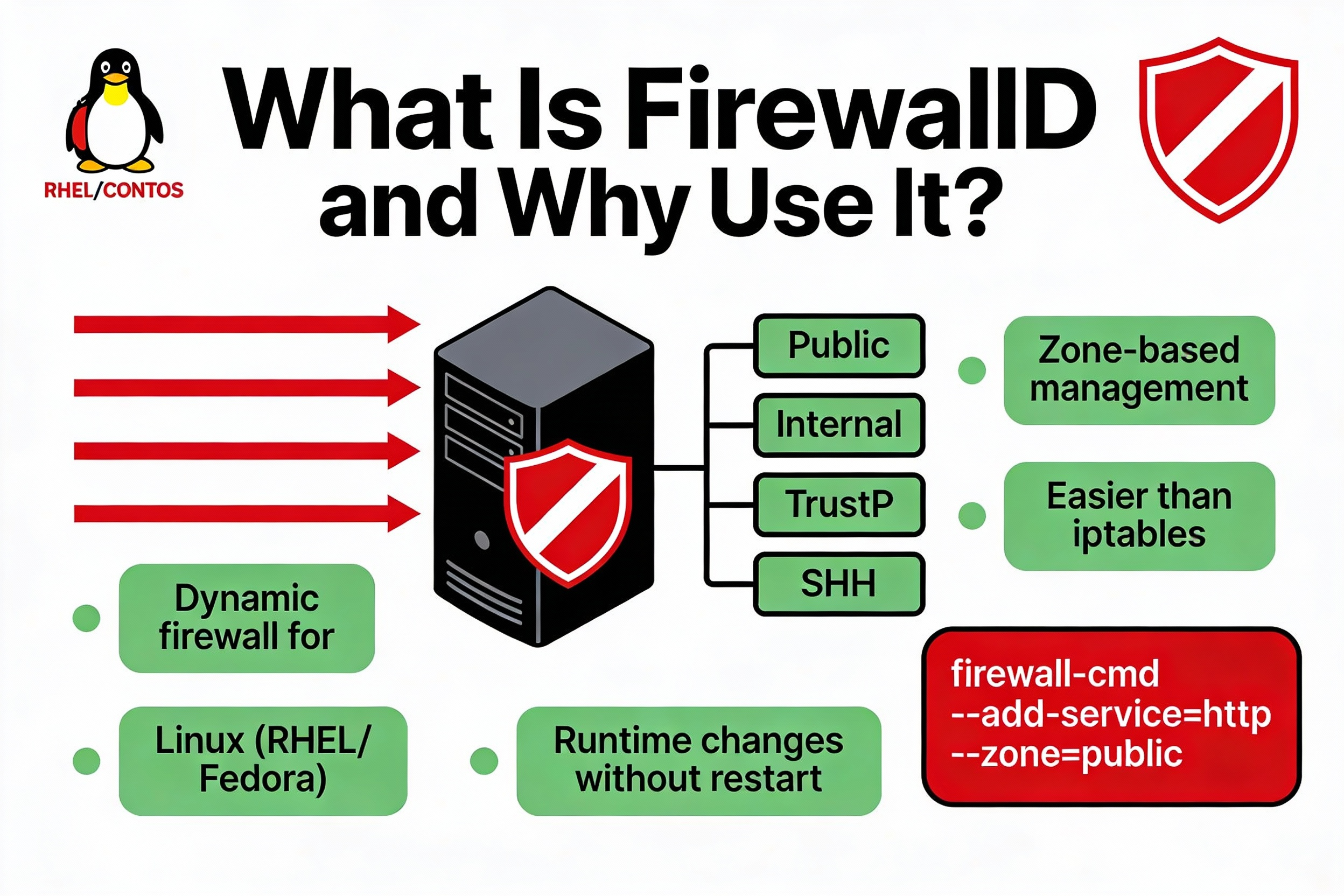
Key benefits include live rule updates, zone-based security per interface, predefined services (like ssh, http, https), rich rules for granular policies, and built-in NAT/masquerading for routing scenarios.
Prerequisites and Safety Checks
- Access: SSH or console access with sudo/root privileges.
- OS support: RHEL/CentOS/AlmaLinux/Rocky/Fedora, Debian/Ubuntu, openSUSE.
- Avoid conflicts: Do not run multiple firewalls. Disable UFW or iptables-services if using FirewallD.
- Cloud rules: If you’re on AWS, GCP, Azure, or a VPS, ensure security groups/firewall policies also allow required ports.
- Prevent lockouts: Allow SSH before enabling and reloading rules.
# Check whether firewalld is installed and running
firewall-cmd --state 2>/dev/null || echo "not running"

# Check if another firewall is active
systemctl is-active ufw
systemctl is-active iptables
Install FirewallD on RHEL, CentOS, AlmaLinux, Rocky Linux, Fedora
On RHEL-family systems, FirewallD is often installed by default. If not, install it with your package manager and enable it at boot.
# RHEL 8/9, AlmaLinux, Rocky Linux, CentOS Stream, Fedora
sudo dnf install -y firewalld

# RHEL/CentOS 7
sudo yum install -y firewalld

# Enable and start
sudo systemctl enable --now firewalld

# Verify
sudo firewall-cmd --state
sudo systemctl status firewalld --no-pager
Install FirewallD on Ubuntu and Debian
Ubuntu and Debian typically ship with UFW. If you choose FirewallD, disable UFW to prevent conflicts.
# Disable and remove UFW if present
sudo systemctl stop ufw
sudo ufw disable || true
sudo apt remove -y ufw

# Install firewalld
sudo apt update
sudo apt install -y firewalld

# Enable and start
sudo systemctl enable --now firewalld

# Verify
sudo firewall-cmd --state
Install FirewallD on openSUSE/SUSE
sudo zypper install -y firewalld
sudo systemctl enable --now firewalld
sudo firewall-cmd --state
Quick-Start: Allow SSH and Essential Services
Before making any other changes, make sure SSH is allowed so you don’t lose access. Then open HTTP/HTTPS or any application ports you need.
# See the default zone
sudo firewall-cmd --get-default-zone

# Allow SSH, HTTP, and HTTPS temporarily (runtime)
sudo firewall-cmd --add-service=ssh
sudo firewall-cmd --add-service=http
sudo firewall-cmd --add-service=https

# Make rules permanent and reload to apply persistently
sudo firewall-cmd --permanent --add-service=ssh
sudo firewall-cmd --permanent --add-service=http
sudo firewall-cmd --permanent --add-service=https
sudo firewall-cmd --reload

# Verify services open in the default zone
sudo firewall-cmd --list-services
sudo firewall-cmd --list-all
FirewallD Concepts: Zones, Services, and Runtime vs Permanent
FirewallD groups rules into zones that you bind to network interfaces or sources. Services are predefined rule sets (ports, protocols) that simplify allowing common applications. Changes can be applied to the running config (runtime) and/or saved (permanent) for persistence.
Common Zones and When to Use Them
- Public: Default for internet-facing servers; moderately restrictive.
- External: For NAT gateways; masquerading typically enabled.
- Internal/home/work: For trusted LAN segments.
- Trusted: Allows all traffic; use sparingly.
# List zones and active zone(s)
sudo firewall-cmd --get-zones
sudo firewall-cmd --get-active-zones

# Set default zone
sudo firewall-cmd --set-default-zone=public

# Bind an interface to a zone (persistently)
sudo firewall-cmd --permanent --zone=public --change-interface=eth0
sudo firewall-cmd --reload
Open Ports and Services Safely
Prefer services when available; otherwise, open ports explicitly. Always commit permanent rules and reload after testing.
# Discover available services
sudo firewall-cmd --get-services

# Allow a service in a specific zone
sudo firewall-cmd --permanent --zone=public --add-service=http
sudo firewall-cmd --permanent --zone=public --add-service=https

# Open single ports
sudo firewall-cmd --permanent --zone=public --add-port=8080/tcp
sudo firewall-cmd --permanent --zone=public --add-port=53/udp

# Open a port range
sudo firewall-cmd --permanent --zone=public --add-port=3000-3010/tcp

# Apply changes
sudo firewall-cmd --reload
Rich Rules: Granular Access Controls
Rich rules provide fine-grained policies such as allowing a service from a specific source, rate limiting, or logging. Use them for targeted allowances or blocks.
# Allow SSH only from a management IP
sudo firewall-cmd --permanent --zone=public
  --add-rich-rule='rule family="ipv4" source address="203.0.113.10" service name="ssh" accept'

# Block a hostile IP
sudo firewall-cmd --permanent --zone=public
  --add-rich-rule='rule family="ipv4" source address="198.51.100.23" drop'

# Allow a TCP port from a specific subnet
sudo firewall-cmd --permanent --zone=public
  --add-rich-rule='rule family="ipv4" source address="10.0.0.0/24" port protocol="tcp" port="5432" accept'

sudo firewall-cmd --reload
NAT, Masquerading, and Port Forwarding
If your server routes traffic for other hosts, enable masquerading and configure forward rules. This is common for gateways, VPN endpoints, or homelabs.
# Enable NAT (masquerading) in the zone that faces the internet
sudo firewall-cmd --permanent --zone=external --add-masquerade

# Forward external:80 to an internal host 192.168.1.10:8080
sudo firewall-cmd --permanent --zone=external
  --add-forward-port=port=80:proto=tcp:toaddr=192.168.1.10:toport=8080

sudo firewall-cmd --reload

# Verify forwarding and masquerade settings
sudo firewall-cmd --zone=external --list-all
Testing, Logging, and Troubleshooting
- List rules: firewall-cmd –list-all or –list-all-zones
- Check configuration: firewall-cmd –check-config
- Service state: systemctl status firewalld
- Logs: journalctl -u firewalld; enable deny logs with set-log-denied
- Backend info: firewall-cmd –info-backend (nftables on modern distros)
# Enable logging of denied packets
sudo firewall-cmd --set-log-denied=all
# Inspect logs
sudo journalctl -u firewalld --since "15 min ago" --no-pager

# Show everything in the active zone
sudo firewall-cmd --list-all

# Reset to distribution defaults (use with caution)
sudo firewall-cmd --permanent --reset-default-zone
sudo firewall-cmd --reload
Best Practices for Production Servers
- Principle of least privilege: Only open what you truly need.
- Lock SSH by source: Restrict SSH to your office/VPN IPs when possible.
- Use services, not ports: Services auto-track protocol/port combos.
- Separate zones: Bind public interfaces to public/external; LAN to internal.
- Document changes: Keep a change log; use version-controlled scripts.
- Monitor logs: Turn on log-denied temporarily during audits; turn off if too noisy.
- Automate: Apply reproducible rules via Ansible or cloud-init.
FirewallD vs UFW vs iptables/nftables: Which Should You Use?
- FirewallD: Dynamic, zone-based, service-aware; default on RHEL-family, great for servers with changing rules.
- UFW: Simple and user-friendly on Ubuntu; fine for basic setups, fewer advanced constructs out-of-the-box.
- iptables/nftables directly: Maximum control; steeper learning curve. FirewallD uses nftables backend on modern distros, offering a higher-level interface.
Common Pitfalls and How to Avoid Them
- Locking yourself out: Always allow SSH first and keep a console session open while testing.
- Running multiple firewalls: Disable UFW or iptables-services when using FirewallD.
- Forgetting to reload: Permanent rules need a reload to take effect.
- Cloud firewall mismatch: Open ports in both FirewallD and your cloud security group.
- Docker/Kubernetes interactions: Containers manage their own rules; avoid over-restricting docker0/cni0 unless you know the networking model.
Real-World Example: LAMP Server Hardened with FirewallD
Here’s a compact sequence we use on production web servers to expose only what’s required and keep SSH locked down to a bastion host.
# Assume eth0 is public; set public as default zone
sudo firewall-cmd --set-default-zone=public
sudo firewall-cmd --permanent --zone=public --change-interface=eth0

# Allow SSH only from bastion IP
sudo firewall-cmd --permanent --zone=public
  --add-rich-rule='rule family="ipv4" source address="203.0.113.50" service name="ssh" accept'

# Allow HTTP/HTTPS for the website
sudo firewall-cmd --permanent --zone=public --add-service=http
sudo firewall-cmd --permanent --zone=public --add-service=https

# Optionally, allow MySQL only from app subnet
sudo firewall-cmd --permanent --zone=public
  --add-rich-rule='rule family="ipv4" source address="10.2.0.0/24" port protocol="tcp" port="3306" accept'

sudo firewall-cmd --reload
sudo firewall-cmd --list-all
If you prefer a managed experience, YouStable’s managed VPS and dedicated servers ship with secure firewall policies, 24×7 monitoring, and hands-on help tuning FirewallD for your stack.
FAQ: Install FirewallD on Linux Server
u003cstrongu003eIs FirewallD better than UFW for servers?u003c/strongu003e
Both are capable. FirewallD offers dynamic reloads, zones, and rich rules that suit multi-interface servers and evolving rulesets. UFW is simpler and fine for basic Ubuntu setups. For RHEL-family systems, FirewallD is the native, recommended choice.
u003cstrongu003eDoes FirewallD use iptables or nftables?u003c/strongu003e
Modern distributions use nftables as the backend, managed by FirewallD. You can confirm with firewall-cmd u002du002dinfo-backend. On older systems, iptables may be used, but nftables is the standard on RHEL 8+, Fedora, and recent Debian/Ubuntu.
u003cstrongu003eHow do I open ports 80 and 443?u003c/strongu003e
Use services to allow both at once and make it persistent. Example: sudo firewall-cmd u002du002dpermanent u002du002dadd-service=http; sudo firewall-cmd u002du002dpermanent u002du002dadd-service=https; sudo firewall-cmd u002du002dreload. Verify with sudo firewall-cmd u002du002dlist-services.
u003cstrongu003eHow can I allow only specific IPs for SSH?u003c/strongu003e
Use a rich rule that restricts SSH by source address. Example: sudo firewall-cmd u002du002dpermanent u002du002dzone=public u002du002dadd-rich-rule=’rule family=u0022ipv4u0022 source address=u0022203.0.113.10u0022 service name=u0022sshu0022 accept’; then reload. Remove the generic SSH allow if previously set.
u003cstrongu003eWill FirewallD break Docker or Kubernetes?u003c/strongu003e
No, but be aware both manipulate low-level rules. Docker creates its own chains and NAT; Kubernetes uses CNI rules. Avoid blocking docker0 or cni0 bridges unless you understand your container networking design. Test carefully on cluster nodes.
u003cstrongu003eHow do I reset FirewallD to defaults?u003c/strongu003e
Use sudo firewall-cmd u002du002dpermanent u002du002dreset-default-zone and optionally remove custom services or rich rules by deleting files in /etc/firewalld and reloading. Always back up /etc/firewalld/ before major changes.
u003cstrongu003eWhat’s the difference between runtime and permanent rules?u003c/strongu003e
Runtime rules apply immediately but vanish on reboot or reload. Permanent rules persist across reboots and take effect after sudo firewall-cmd u002du002dreload. In production, set u002du002dpermanent first, then reload once you verify.
Conclusion
Installing FirewallD on a Linux server is straightforward: install the package, enable the service, then allow only the ports and services you need through zones and rich rules. With careful testing, logging, and adherence to least privilege, you’ll keep your workloads secure and stable. Need help? YouStable’s team can configure and monitor it for you.










