


To check disk space and files in Linux, use df -h to see filesystem usage, du -sh to measure directories, and find / -type f -size +1G to locate large files. Combine these with tools like ncdu, inodes checks (df -i), and log cleanup (journalctl --vacuum-size) to analyze and free space safely.
Managing storage efficiently starts with knowing how to check disk space in Linux and quickly pinpoint what’s consuming it. In this guide, I’ll show you practical, reliable methods used in real production servers to measure disk usage, find large files, understand df vs du, and clean up space without breaking your system.
Whether you’re on a VPS, dedicated server, or local machine, this is the workflow that works.
Fast Reference: Commands You’ll Use Most
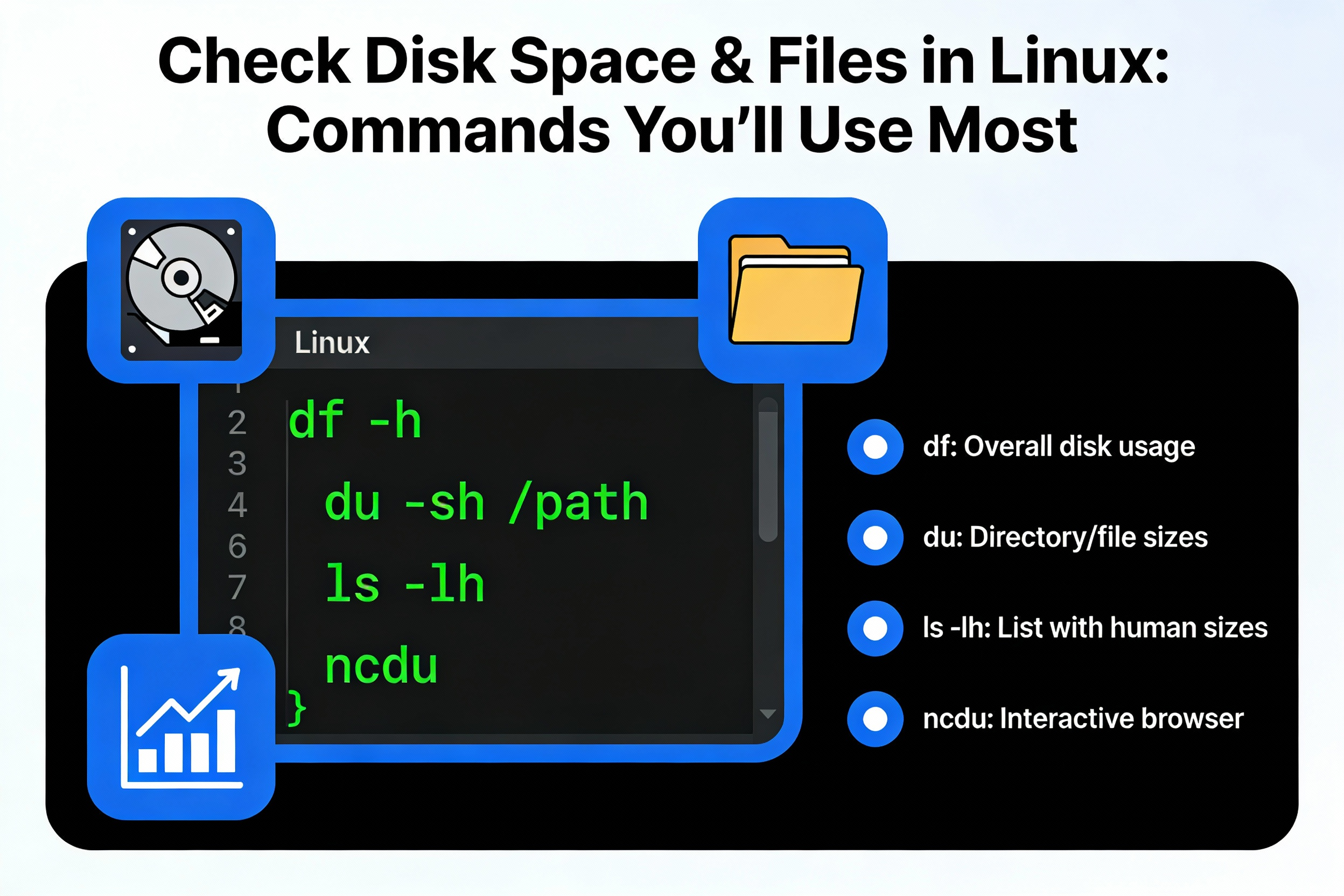
- Check filesystem usage:
df -hT(human-readable, show filesystem type) - Check inode usage:
df -i - Top-level directory sizes:
du -sh /* - Sort directories by size:
du -sh * | sort -h - Limit to one filesystem:
du -x / - Interactive analyzer:
ncdu / - Find large files (>1 GB):
find / -xdev -type f -size +1G -printf "%s %pn" | sort -nr | head -50 - Check orphaned (deleted but open) files:
lsof +L1 - Check journal size:
journalctl --disk-usage; reduce:journalctl --vacuum-size=500M
Understanding Disk Usage in Linux (df vs du, inodes, mounts)
Before diving into commands, a quick orientation helps you avoid common mistakes and save time.
df vs du: What’s the difference?
- df (disk free): Shows free and used space per mounted filesystem. It reads filesystem metadata—great for “how full is this disk?”
- du (disk usage): Calculates the actual size of files and directories by walking the filesystem. Ideal for “which directory is big?”
They can disagree if files were deleted but still held open by processes, or when snapshot/overlay filesystems (e.g., Docker, Btrfs) are involved. Always reconcile with lsof +L1, snapshots, and container storage.
Inodes and why they matter
Each file uses an inode. You can have free space but no free inodes, causing writes to fail. Check with df -i. Millions of tiny files (cache/temp files) commonly exhaust inodes.
Mount points and staying on one disk
Use lsblk -f to see disks, mount points, and filesystem types. When analyzing, limit traversal to a single filesystem with -x in du or -xdev in find to avoid crossing onto other mounts like /boot, /home, /var, NFS, or Docker overlay layers.
Check Disk Space with df
The essential df commands
# Human-readable disk usage with filesystem type
df -hT

# Exclude temporary filesystems
df -hTx tmpfs -x devtmpfs

# Show inode usage
df -i

# Focus on a specific mount (e.g., root)
df -hT /
Interpretation tips: Watch for Use% crossing 80–90%. For critical servers, alert at 80% to avoid performance degradation or write failures. Check unexpected mounts (e.g., overlay, loop devices from snaps or ISO mounts) that may skew usage.
Spot the filesystem type and implications
- ext4/xfs: Common on servers. Ext4 reserves space for root by default (often 5%). You can adjust with
tune2fs -m 1 /dev/yourdev(use carefully, root required). - btrfs: Snapshots and subvolumes can consume space even if files look deleted. Use
btrfs filesystem df /and manage snapshots. - zfs: Datasets and snapshots require ZFS-specific tools.
Analyze Directory Sizes with du
Top down discovery
# Size of root directories (top level)
sudo du -sh /* 2>/dev/null | sort -h

# Drill into a heavy directory, e.g., /var
sudo du -sh /var/* 2>/dev/null | sort -h

# Show summary only
du -sh /home/user

# Limit to one filesystem to avoid crossing mounts
sudo du -x -h / 2>/dev/null | sort -h | tail -20
Use du -sh * inside a suspected directory to quickly identify growth. The 2>/dev/null suppresses permission errors; prepend sudo as needed on servers to get complete results.
Exclude patterns and control depth
# Exclude cache and VCS directories
du -sh --exclude="*.cache" --exclude=".git" /path

# Limit depth to show just top N levels
du -h --max-depth=1 /var | sort -h
Interactive analysis with ncdu
ncdu is a curses-based disk analyzer that’s fast and user-friendly.
# Install and run ncdu (Debian/Ubuntu)
sudo apt update && sudo apt install -y ncdu
sudo ncdu /

# RHEL/CentOS/AlmaLinux
sudo dnf install -y ncdu
sudo ncdu /
Navigate with arrow keys and drill down to large directories. This is my go-to for quick triage on busy servers.
Find Large Files and What’s Growing
Locate big files reliably
# Largest files (>=1G) on the current filesystem
sudo find / -xdev -type f -size +1G -printf "%s %pn" 2>/dev/null | sort -nr | head -50

# Human-friendly listing with ls -lh after finding candidates
sudo find /var -type f -size +500M -exec ls -lh {} ; 2>/dev/null | sort -k5 -h
Common culprits: database dumps, media archives, tarballs in /root or /home, VM images under /var/lib/libvirt, Docker layers, and logs under /var/log.
Log files and systemd journald
# See how much space journald uses
journalctl --disk-usage

# Cap logs to 500 MB total
sudo journalctl --vacuum-size=500M

# Or keep only last 7 days
sudo journalctl --vacuum-time=7d
Also inspect classic logs: /var/log/*.log, rotated logs (.gz), and application logs (Nginx, Apache, MySQL, Node). Ensure logrotate is configured for your services and set sane retention.
Deleted but still consuming space (orphaned files)
When a process holds an open file that’s been deleted, df shows high usage but you won’t see it with du. Identify with:
# Show deleted-but-open files
sudo lsof +L1 | grep -i deleted
Restart the offending service to release the handle (e.g., sudo systemctl restart nginx). Truncating log files is also safe if the process is still writing: : > /path/to/logfile.
Special Cases: Docker, Snap, Flatpak, Databases
Docker and container storage
# See Docker disk usage summary
sudo docker system df

# Remove unused images/containers/networks (review carefully)
sudo docker system prune -af --volumes
On hosts with heavy container churn, orphaned layers and volumes can balloon /var/lib/docker. Prune only if you understand the impact. For Kubernetes, use cluster-aware cleanup or node maintenance windows.
Snap and Flatpak
# Snap old revisions
snap list --all | awk '/disabled/{print $1, $3}' | while read snapname revision; do sudo snap remove "$snapname" --revision="$revision"; done

# Flatpak cleanup
flatpak uninstall --unused -y
flatpak remove --delete-data <app-id>
Snaps maintain multiple revisions by default; removing disabled ones reclaims space. Flatpak caches and runtimes also grow over time.
Databases and backups
- MySQL/MariaDB: Check
/var/lib/mysql; hugeibdataor binary logs can grow rapidly. Rotate binlogs and size your InnoDB logs. - PostgreSQL: Inspect
/var/lib/postgresqlandpg_wal; long-running transactions can block cleanup. - Backups: Move archives off the root disk. Compress with
zstdorxzfor better ratios when CPU allows.
Clean Up Disk Space Safely
Package caches
# Debian/Ubuntu
sudo apt-get autoremove -y
sudo apt-get clean
sudo apt-get autoclean

# RHEL/CentOS/AlmaLinux
sudo dnf autoremove -y
sudo dnf clean all
Logs and temp files
# Rotate and compress logs
sudo logrotate -f /etc/logrotate.conf

# Clear system temp (systemd)
sudo systemd-tmpfiles --clean

# Truncate a large log safely
: > /var/log/app/app.log
Avoid deleting entire log directories; services expect paths to exist. Prefer rotation and truncation.
Old kernels (when using package managed kernels)
# Ubuntu/Debian example (review output before removing)
dpkg --list | grep linux-image
sudo apt-get autoremove --purge -y
Ensure the running kernel is not removed. Leave at least one known-good kernel for rollback.
Large caches: language runtimes and build tools
- Node.js:
npm cache clean --force, removenode_modulesin old builds. - Python: prune
~/.cache/pip, virtualenvs no longer used. - Composer:
composer clear-cache.
Proactive Monitoring and Alerts
Set early warnings so you never wake up to a full disk. A simple cron based script can email you when usage crosses thresholds.
#!/usr/bin/env bash
set -euo pipefail
THRESHOLD=80
ALERT="[email protected]"

df -hP -x tmpfs -x devtmpfs | awk -v t="$THRESHOLD" '
NR>1 {gsub("%","",$5); if ($5 >= t) printf "ALERT: %s is at %s%% on %sn",$6,$5,$1 }' |
while read -r line; do
  echo "$line" | mail -s "Disk Space Alert" "$ALERT"
done
On managed servers at YouStable, we pair OS-level alerts with platform monitoring and proactive support, so disk anomalies are caught before they impact uptime. If you’re running critical workloads, consider a managed VPS or dedicated server plan with built-in monitoring and 24/7 response.
Troubleshooting Tips from Real World Servers
When df and du don’t match
- Check deleted-open files:
lsof +L1. - Confirm mount points:
mount | column -t,lsblk -f. - Consider snapshots (Btrfs/ZFS) or container overlays affecting
df.
Inode exhaustion
- Find directories with many small files:
sudo find /var -xdev -type f | sed -n '1,5p'and analyze hot paths withdu --inodes -d1 /var | sort -n(if supported). - Clean app caches, temp upload dirs, and session stores.
Filesystem errors or sudden space drop
- Check
dmesgandjournalctl -kfor disk I/O errors. - Run
fsckon unmounted filesystems during maintenance windows. - On ext4, consider adjusting reserved blocks:
sudo tune2fs -m 1 /dev/sdXNfor non-root data volumes (do not set to 0 on OS partitions without understanding the risk).
A Practical Workflow to Check Disk Space and Files
- Step 1:
df -hTto identify the full filesystem and type. - Step 2:
df -ito rule out inode issues. - Step 3:
du -sh /* | sort -hto find the largest top-level directories. - Step 4: Drill down with
du -sh /var/* | sort -h, thendu -sh /var/log/*or/var/lib/*. - Step 5:
findlarge files; verify logs and database folders. - Step 6: Handle special cases (journald, Docker, snaps, backups).
- Step 7: Clean safely (rotate, truncate, prune caches, remove unused kernels/images).
- Step 8: Add monitoring and review growth trends monthly.
FAQs
How do I check disk space in Linux in one command?
Use u003ccodeu003edf -hTu003c/codeu003e for a clear overview of all mounted filesystems, their sizes, used/free space, and types. To check a specific mount, append its path: u003ccodeu003edf -hT /u003c/codeu003e.
What’s the difference between df and du?
u003ccodeu003edfu003c/codeu003e reads filesystem metadata to show free/used space per mount; u003ccodeu003eduu003c/codeu003e walks directories to measure file sizes. If they disagree, look for deleted open files, snapshots, or overlay filesystems (Docker).
How do I find large files in Linux quickly?
Run u003ccodeu003esudo find / -xdev -type f -size +1G -printf u0022%s %pu005cnu0022 | sort -nr | headu003c/codeu003e. Then verify with u003ccodeu003els -lhu003c/codeu003e and clean or archive as appropriate. Use u003ccodeu003encduu003c/codeu003e for an interactive view.
How can I clean up logs safely?
Use u003ccodeu003elogrotateu003c/codeu003e to rotate/compress logs and u003ccodeu003ejournalctl u002du002dvacuum-sizeu003c/codeu003e for systemd journals. To immediately shrink a giant log, truncate it: u003ccodeu003e: u003e /path/to/log.logu003c/codeu003e. Avoid deleting log directories.
Why does df show full but du doesn’t?
Likely deleted files held open by a running process. Check with u003ccodeu003elsof +L1u003c/codeu003e and restart the offending service. Snapshots and container layers can also cause mismatches.
How do I check inode usage?
Run u003ccodeu003edf -iu003c/codeu003e. If inodes are near 100%, find and remove directories with many small files (caches, sessions, temporary uploads). Consider consolidating tiny files or changing storage strategy.
What’s the safest way to free space on a production server?
Take backups, identify large consumers with u003ccodeu003eduu003c/codeu003e/u003ccodeu003efindu003c/codeu003e, rotate/truncate logs, prune package and application caches, and remove only unused images/kernels. Test cleanup steps in staging if possible and schedule maintenance for restarts.
Conclusion
With the right workflow df for the big picture, du/ncdu for drilling down, and targeted cleanup, you can confidently check disk space in Linux and prevent outages.
If you’d rather focus on your apps, YouStable’s managed VPS and dedicated servers include proactive monitoring and expert help, so storage stays healthy and your uptime stays intact.










