To use Elasticsearch on a Linux server, install the official package from Elastic’s repository, start the systemd service, and secure access. Configure cluster and network settings in elasticsearch.yml, set an appropriate Java heap size, and test with the REST API. Optionally add Kibana for visualization and schedule snapshots for backups.
Elasticsearch on Linux server gives you a fast, scalable search and analytics engine powered by Lucene. In this guide, I’ll show you how to install, configure, secure, and use Elasticsearch 8.x on Ubuntu/Debian and RHEL-based distributions, then index data and run searches without skipping the production-critical details beginners often miss.
What is Elasticsearch and Why Use it on Linux?
Elasticsearch is a distributed, JSON-based search and analytics engine. It excels at full-text search, log analytics, observability, and real-time dashboards. Linux is the most common platform for deploying Elasticsearch because it offers predictable performance, robust tooling (systemd, journald, ufw/firewalld), and easier automation for clusters.
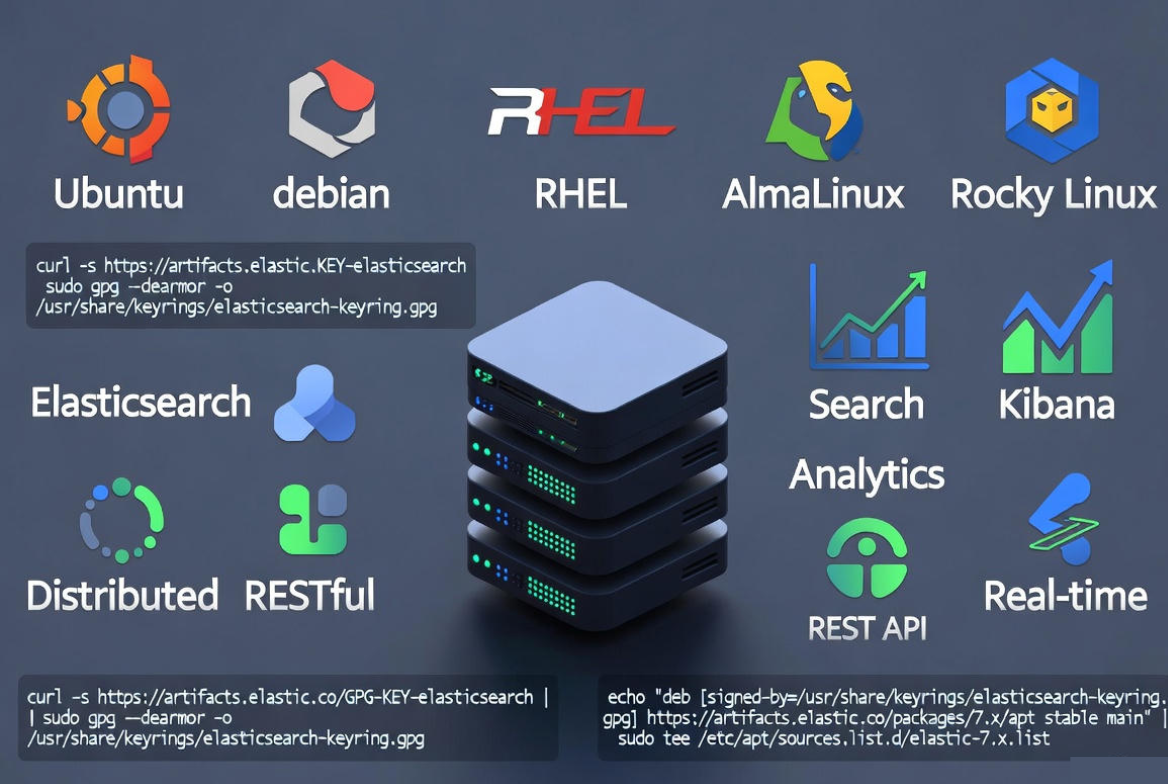
Prerequisites and Planning
- Server: x86_64 Linux (Ubuntu 20.04+/22.04+, Debian 11/12, RHEL/CentOS/Alma/Rocky 8/9)
- RAM/CPU: Minimum 2 vCPU and 4 GB RAM for trials; 8–16 GB RAM+ recommended for production
- Disk: SSD storage; plan IOPS and capacity for shards, replicas, and retention
- Ports: 9200 (HTTP), 9300 (Transport). Restrict both to trusted IPs/VPC/subnets
- Kernel setting: vm.max_map_count=262144 (required by Elasticsearch memory-mapped files)
- Java: Bundled OpenJDK included in Elasticsearch 8.x packages—no separate JDK needed
Decide whether you’re running a single-node for development (discovery.type: single-node) or a multi-node cluster (separate master/data/ingest roles). Plan for snapshots (S3, GCS, NFS) and monitoring from day one.
Install Elasticsearch on Ubuntu/Debian
These commands add the official Elastic APT repository and install Elasticsearch 8.x.
sudo apt update
sudo apt install -y curl gnupg apt-transport-https
curl -fsSL https://artifacts.elastic.co/GPG-KEY-elasticsearch | sudo gpg --dearmor -o /usr/share/keyrings/elastic-archive-keyring.gpg
echo "deb [signed-by=/usr/share/keyrings/elastic-archive-keyring.gpg] https://artifacts.elastic.co/packages/8.x/apt stable main" | sudo tee /etc/apt/sources.list.d/elastic-8.x.list
sudo apt update
sudo apt install -y elasticsearch
Set the required kernel parameter and persist it:
sudo sysctl -w vm.max_map_count=262144
echo "vm.max_map_count=262144" | sudo tee /etc/sysctl.d/99-elasticsearch.conf
Install Elasticsearch on RHEL/CentOS/AlmaLinux/Rocky
Use DNF/YUM with the Elastic YUM repository:
sudo rpm --import https://artifacts.elastic.co/GPG-KEY-elasticsearch
cat << 'EOF' | sudo tee /etc/yum.repos.d/elasticsearch.repo
[elasticsearch-8.x]
name=Elasticsearch repository for 8.x packages
baseurl=https://artifacts.elastic.co/packages/8.x/yum
gpgcheck=1
gpgkey=https://artifacts.elastic.co/GPG-KEY-elasticsearch
enabled=1
autorefresh=1
type=rpm-md
EOF

sudo dnf install -y elasticsearch

# Kernel parameter
sudo sysctl -w vm.max_map_count=262144
echo "vm.max_map_count=262144" | sudo tee /etc/sysctl.d/99-elasticsearch.conf
First Start, Auto-Generated Passwords, and Verification
In Elasticsearch 8.x, security is on by default. On first start, the installer outputs a temporary “elastic” superuser password and enrollment tokens for Kibana and nodes. Save them securely.
sudo systemctl daemon-reload
sudo systemctl enable --now elasticsearch
sudo systemctl status elasticsearch --no-pager
Verify the node is up. If connecting locally with self-signed certs, use -k to skip certificate verification during tests:
curl -k https://localhost:9200 -u elastic:'YOUR_INITIAL_PASSWORD'You should see JSON with cluster_name, version, and tagline. Change the default password as soon as you log in.
Essential Configuration for Production
Main settings live in /etc/elasticsearch/elasticsearch.yml. For a secure single-node setup (great for dev or a small production appliance):
# /etc/elasticsearch/elasticsearch.yml
cluster.name: my-es-cluster
node.name: node-1

# Data and logs
path.data: /var/lib/elasticsearch
path.logs: /var/log/elasticsearch

# Bind address (use a private IP or specific interface, not 0.0.0.0 unless firewalled)
network.host: 127.0.0.1
http.port: 9200

# Single-node discovery (remove in multi-node clusters)
discovery.type: single-node
Adjust the Java heap in /etc/elasticsearch/jvm.options (or jvm.options.d/). A good rule is ~50% of RAM, capped at 31g for compressed oops:
# Example for an 8 GB server:
-Xms4g
-Xmx4g
Apply changes after every config edit:
sudo systemctl restart elasticsearch
sudo journalctl -u elasticsearch -f
Network and Security Hardening
Elasticsearch should not be wide-open on the internet. Keep HTTP (9200) limited to trusted IPs or private networks, and secure transport between nodes.
- Firewall: allow SSH and trusted IPs only
- TLS: 8.x enables TLS by default; replace self-signed with your own CA for production
- Users/Roles: use the built-in role-based access control for least privilege
- API Keys: prefer API keys for apps ingesting data
- Backups: configure repository snapshots off-box (S3, GCS, NFS)
# UFW example (Ubuntu)
sudo ufw allow OpenSSH
sudo ufw allow from YOUR_TRUSTED_IP to any port 9200 proto tcp
sudo ufw enable

# firewalld example (RHEL)
sudo firewall-cmd --permanent --add-rich-rule='rule family="ipv4" source address="YOUR_TRUSTED_IP/32" port protocol="tcp" port="9200" accept'
sudo firewall-cmd --reload
To create a least-privilege user for an app that only indexes data to an index pattern, define a role and user:
# Create a role (write to "logs-*")
curl -k -u elastic:STRONG_PASSWORD -H "Content-Type: application/json" \
  -X POST https://localhost:9200/_security/role/log-writer \
  -d '{ "indices": [{ "names": ["logs-*"], "privileges": ["create_index", "write"] }] }'

# Create a user and assign the role
curl -k -u elastic:STRONG_PASSWORD -H "Content-Type: application/json" \
  -X POST https://localhost:9200/_security/user/app-ingestor \
  -d '{ "password": "CHANGEME", "roles": ["log-writer"] }'
Optional: Install Kibana for Dashboards
Kibana provides UI for management, dashboards, and Dev Tools. Install and connect with the enrollment token shown during Elasticsearch setup.
# Ubuntu/Debian
sudo apt install -y kibana
sudo systemctl enable --now kibana

# RHEL family
sudo dnf install -y kibana
sudo systemctl enable --now kibana
Open Kibana (default port 5601) from a trusted IP and complete the guided connection flow.
Index and Search: The Basics
Elasticsearch uses a RESTful JSON API. Below are quick examples to create an index, insert a document, and run a search. Use HTTPS and credentials.
# Create an index
curl -k -u elastic:PASS -X PUT https://localhost:9200/products

# Index a document
curl -k -u elastic:PASS -H "Content-Type: application/json" \
  -X POST https://localhost:9200/products/_doc/1 \
  -d '{ "name": "SSD Hosting", "price": 4.99, "tags": ["hosting","ssd"] }'

# Simple query string search
curl -k -u elastic:PASS -X GET 'https://localhost:9200/products/_search?q=hosting'

# Structured match query
curl -k -u elastic:PASS -H "Content-Type: application/json" \
  -X POST https://localhost:9200/products/_search \
  -d '{ "query": { "match": { "name": "hosting" } } }'
For time-series data (logs, metrics), use index lifecycle management (ILM) to roll over indices automatically and control retention and cost.
Scaling to a Cluster
In multi-node clusters, dedicate roles for stability and performance. A common pattern is 3 master-eligible nodes (for quorum) and N data nodes.
# /etc/elasticsearch/elasticsearch.yml (multi-node example)
cluster.name: prod-es
node.name: node-1
node.roles: ["master","data","ingest"]   # or split roles across nodes
network.host: 10.0.0.11

discovery.seed_hosts: ["10.0.0.11","10.0.0.12","10.0.0.13"]
cluster.initial_master_nodes: ["node-1","node-2","node-3"]- Shards/Replicas: Default is 1 primary and 1 replica; adjust per index based on size/throughput
- Heap: Avoid swapping; monitor GC. Never exceed ~50% of RAM or 31g heap
- Storage: Prefer NVMe SSDs; isolate logs and data if IO is intense
- Networking: Keep transport traffic on a private network or VPC
Monitoring, Maintenance, and Backups
Use cat and health APIs for quick checks, and integrate with Kibana or external monitors for visibility.
# Health and stats
curl -k -u elastic:PASS https://localhost:9200/_cluster/health
curl -k -u elastic:PASS https://localhost:9200/_cat/nodes?v
curl -k -u elastic:PASS https://localhost:9200/_cat/indices?v

# Snapshot repository (S3 example requires plugin)
sudo /usr/share/elasticsearch/bin/elasticsearch-plugin install repository-s3
sudo systemctl restart elasticsearch

# Register S3 repo
curl -k -u elastic:PASS -H "Content-Type: application/json" \
  -X PUT https://localhost:9200/_snapshot/daily-s3 \
  -d '{ "type": "s3", "settings": { "bucket": "my-es-backups", "region": "us-east-1" } }'

# Take a snapshot
curl -k -u elastic:PASS -X PUT https://localhost:9200/_snapshot/daily-s3/snap-$(date +%F)
Schedule snapshots (cron or orchestrator) and routinely test restores in a staging environment.
Troubleshooting Common Issues
- Service won’t start: check
journalctl -u elasticsearch -f. Common causes: file permissions, wrong JVM options, or missing vm.max_map_count - Connection refused/timeouts: ensure service is running, firewall allows your IP, and network.host is correct
- Red cluster health: missing shards or nodes. Use
_cat/shardsand logs to identify failures - High heap/GC pressure: lower shard count, increase heap (within limits), or scale out. Tune refresh intervals and mappings
- Slow queries: add analyzers, use keyword fields for aggregations, and avoid wildcard leading queries
Pros and Cons of Running Elasticsearch Yourself
- Pros: full control, cost-optimized on your hardware, custom security/networking, no vendor lock-in
- Cons: operational complexity (upgrades, shards, scaling, security), on-call burden, careful capacity planning required
When Managed Hosting Helps
If you’d rather focus on your app instead of cluster care, YouStable can provision performance-optimized Linux servers with Elasticsearch pre-installed, secured, and monitored. Our experts handle sizing, backups, and 24×7 support, while you keep API-level control for indexing, search, and dashboards.
Uninstall or Clean Removal (If Needed)
On Ubuntu/Debian:
sudo systemctl stop elasticsearch
sudo apt purge -y elasticsearch
sudo rm -rf /var/lib/elasticsearch /var/log/elasticsearch
On RHEL family:
sudo systemctl stop elasticsearch
sudo dnf remove -y elasticsearch
sudo rm -rf /var/lib/elasticsearch /var/log/elasticsearch
Best Practices Checklist
- Keep Elasticsearch updated to the latest 8.x release
- Separate master and data roles at scale; keep 3 master-eligible nodes
- Set heap to ~50% RAM (max 31g), disable swap, and monitor GC
- Lock down 9200/9300 to trusted networks; use TLS with real certificates
- Use ILM for time-series and snapshots for backups
- Benchmark mappings and queries with real data before go-live
FAQs:
Is Elasticsearch free to use on a Linux server?
Yes. Elasticsearch offers a free tier under the Elastic license that includes core search, security defaults, APIs, and Kibana. Advanced features may require a commercial subscription. Always review the current license terms for your version.
How much RAM does Elasticsearch need?
For small tests, 4–8 GB RAM works. For production, start with 16–32 GB per data node and allocate about 50% to the Java heap (capped at 31g). The rest is used for the filesystem cache, which is critical for performance.
Should I run Elasticsearch on Docker or directly on Linux?
Both work. Packages (APT/YUM) integrate cleanly with systemd and are straightforward for single hosts. Docker provides portability and easy CI but needs careful memory, ulimits, and storage tuning. For beginners, native packages are simpler; for teams, containers ease repeatability.
How do I secure Elasticsearch if it’s publicly accessible?
Prefer private networks/VPC peering and VPNs. If you must expose it, enforce TLS with a trusted certificate, restrict IPs via firewall, enable strong users/roles, rotate credentials, and monitor access logs. Never leave 9200 open to the world without authentication.
What’s the difference between Elasticsearch and OpenSearch?
They share a common origin but are now separate projects with differing licenses, features, and release cycles. Elasticsearch uses the Elastic license; OpenSearch is Apache 2.0. Choose based on features, ecosystem, and compliance needs; migration requires testing mappings and APIs.