To fix YUM on a Linux server, verify network/DNS and time, clean the YUM cache, clear locks, rebuild the RPM database, validate/repair repository files, import GPG keys, address SSL/CA issues, and disable broken repos or plugins.
On EOL systems, update baseurls to vault mirrors. Finally, rebuild metadata and test with a safe package install. Fixing YUM on a Linux server typically involves checking connectivity, repositories, and the RPM database.
In this guide, you’ll learn practical, step by step troubleshooting for YUM on CentOS, RHEL, AlmaLinux, Rocky Linux, and older Fedora based systems. Whether YUM errors show “cannot find a valid baseurl,” “GPG check failed,” or “rpmdb open failed,” this tutorial helps you resolve them quickly and safely.
What YUM Does (and Why it Breaks)?
YUM (Yellowdog Updater, Modified) is the package manager for RHEL/CentOS 7 and earlier.
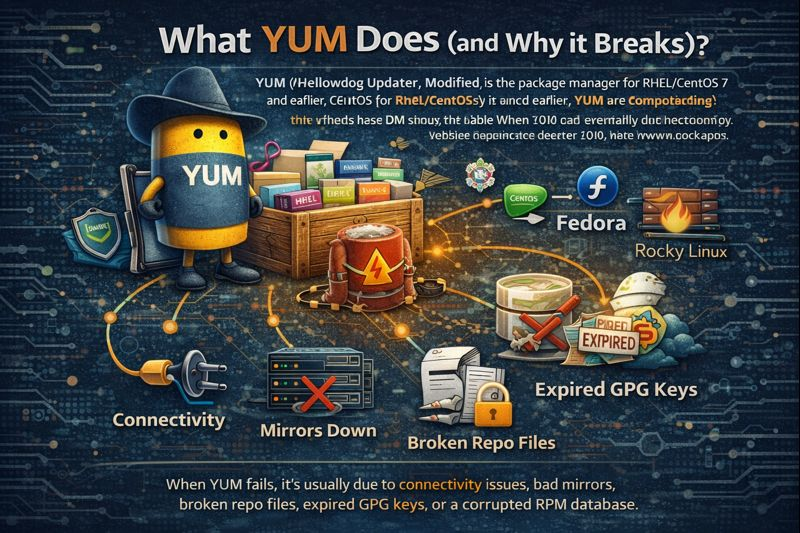
On RHEL 8+/AlmaLinux/Rocky Linux/Fedora, YUM is a compatibility command that uses DNF under the hood. When YUM fails, it’s usually due to connectivity issues, bad mirrors, broken repo files, expired GPG keys, or a corrupted RPM database.
Common YUM Errors and What They Mean
“Cannot find a valid baseurl for repo”
YUM can’t reach the repository URL. Causes include DNS/time issues, offline mirrors, wrong baseurl/mirrorlist, or an End of Life (EOL) distro pointing to dead mirrors (CentOS 7/8).
“GPG key retrieval failed” or “Public key for … is not installed”
GPG signature verification failed because the key wasn’t imported, is outdated, or the repo metadata is inconsistent.
“rpmdb open failed” or database corruption
The local RPM database is locked or damaged—often after abrupt shutdowns or interrupted installs.
Timeouts, SSL errors, or 404
Proxy misconfiguration, firewall blocks, expired CA certificates, or an old repo URL returning 404/410 triggers these errors.
Before You Start: Know Your OS and Package Manager
Identify your platform and whether it uses YUM or DNF:
cat /etc/os-release
yum --version || dnf --version
Most commands below work with both YUM and DNF. If you see dnf on your system, you can safely substitute yum with dnf.
How to Fix YUM on Linux Server: Step by Step:
Step 1: Check Network, DNS, Time, and Proxy
YUM relies on DNS and accurate time for SSL. Verify connectivity first.
ping -c3 8.8.8.8
dig google.com +short
timedatectl status
curl -I https://mirror.centos.org/ || curl -I https://repo.almalinux.org/ || curl -I https://download.rockylinux.org/
If you use a proxy, confirm it in /etc/yum.conf:
grep -E "proxy|proxy_username|proxy_password" /etc/yum.confFix time drift (common in VMs) and DNS first; broken SSL or host resolution will make every repo fail.
Step 2: Clear Locks and Stop Stuck Processes
Only one YUM/DNF process can run at a time. Kill stale processes and remove lock files.
ps aux | egrep "yum|dnf"
kill -9 <pid>   # if safe and you know the process is stuck
rm -f /var/run/yum.pid /var/run/dnf.pid
Step 3: Clean the YUM/DNF Cache
Corrupt metadata often causes random errors. Clearing cache is safe and fast.
yum clean all
rm -rf /var/cache/yum
yum makecache fast
Using DNF? Replace yum with dnf.
Step 4: Rebuild the RPM Database
If you see “rpmdb open failed” or transaction problems, rebuild the RPM database.
rm -f /var/lib/rpm/__db.*
rpm --rebuilddb
yum clean all
yum makecache
Step 5: Verify and Repair Repository Files
Check .repo files for bad baseurls or mirrorlists. Repos live in /etc/yum.repos.d/.
ls -1 /etc/yum.repos.d/
grep -R "baseurl\|mirrorlist\|enabled=" /etc/yum.repos.d
Test a repo URL directly:
curl -I $(grep -m1 "^baseurl=" /etc/yum.repos.d/*.repo | head -1 | cut -d= -f2)If you run CentOS 7/8 (EOL), many public mirrors are gone. Point baseurls to the vault:
# Example for CentOS 7 (EOL). Edit /etc/yum.repos.d/CentOS-Base.repo:
[base]
name=CentOS-7 - Base
baseurl=https://vault.centos.org/7.9.2009/os/$basearch/
gpgcheck=1
enabled=1
gpgkey=file:///etc/pki/rpm-gpg/RPM-GPG-KEY-CentOS-7

[updates]
name=CentOS-7 - Updates
baseurl=https://vault.centos.org/7.9.2009/updates/$basearch/
gpgcheck=1
enabled=1
gpgkey=file:///etc/pki/rpm-gpg/RPM-GPG-KEY-CentOS-7

[extras]
name=CentOS-7 - Extras
baseurl=https://vault.centos.org/7.9.2009/extras/$basearch/
gpgcheck=1
enabled=1
gpgkey=file:///etc/pki/rpm-gpg/RPM-GPG-KEY-CentOS-7
On RHEL 8+/AlmaLinux/Rocky Linux, ensure CRB/PowerTools is enabled when needed:
dnf config-manager --set-enabled crb || dnf config-manager --set-enabled powertools
dnf repolist
Step 6: Disable Broken Repos and Plugins
Third party repos (EPEL, Remi, Docker, MariaDB) sometimes fail. Temporarily disable them to isolate the issue.
yum repolist all
yum-config-manager --disable epel docker-ce-stable remi-safe
yum makecache
If timeouts persist, try disabling plugins like fastestmirror while testing:
sed -i 's/^enabled=1/enabled=0/' /etc/yum/pluginconf.d/fastestmirror.conf
yum makecache
Step 7: Import or Refresh GPG Keys
Signature failures? Import the correct GPG keys for your distribution and any third party repo:
# CentOS 7
rpm --import /etc/pki/rpm-gpg/RPM-GPG-KEY-CentOS-7

# RHEL/AlmaLinux/Rocky (adjust path if needed)
rpm --import /etc/pki/rpm-gpg/RPM-GPG-KEY-redhat-release
rpm --import /etc/pki/rpm-gpg/RPM-GPG-KEY-AlmaLinux
rpm --import /etc/pki/rpm-gpg/RPM-GPG-KEY-RockyLinux

# EPEL
rpm --import /etc/pki/rpm-gpg/RPM-GPG-KEY-EPEL
Then clean and rebuild metadata:
yum clean metadata
yum makecache
Step 8: Fix SSL and CA Certificate Issues
Expired or missing CA bundles break HTTPS repos. Update your trust store:
update-ca-trust force-enable
update-ca-trust extract
yum reinstall -y ca-certificates
If your server must use TLS 1.2+ and is outdated, upgrade curl, OpenSSL, and NSS via standard repos or your vendor channels.
Step 9: Rebuild Metadata and Test a Safe Install
Once repaired, validate repositories and run a harmless transaction:
yum repolist
yum check-update
yum install -y vim-minimal --setopt=obsoletes=0
If the test succeeds, your YUM stack is healthy again.
Advanced Scenarios and Real World Fixes
EOL Migrations (CentOS 7/8)
For CentOS 7/8, many mirrors are offline. Use vault.centos.org and consider a migration to supported platforms like AlmaLinux or Rocky Linux. This restores security updates and reliable repos.
RHEL Subscription Issues
On RHEL, repos are tied to subscriptions. If repos vanish, re-register and attach a subscription:
subscription-manager register
subscription-manager attach --auto
subscription-manager repos --list-enabled
Versionlock or Held Packages
The versionlock plugin can block updates and cause dependency conflicts. Check and clear locks if necessary.
grep -R "." /etc/yum/pluginconf.d/
cat /etc/yum/pluginconf.d/versionlock.list
# Remove lines you no longer need, or temporarily disable the plugin
Corporate Proxies and Firewalls
If you’re behind a proxy or strict egress firewall, whitelist vendor repo domains and set proxy settings in /etc/yum.conf. Validate with curl to each baseurl/mirrorlist.
Best Practices to Prevent Future YUM Issues
Adopt these habits to keep YUM healthy and updates reliable:
- Keep time synced with NTP/chrony and enforce correct timezones.
- Avoid abrupt shutdowns during updates; use screen/tmux on remote sessions.
- Stick to a minimal set of trusted repositories; document third party repos.
- Enable CRB/PowerTools only when needed; disable it if not used.
- Regularly update CA certificates and curl/OpenSSL libraries.
- For EOL systems, plan migrations to supported distros to regain security updates.
When to Get Help (and How YouStable Can Assist)
If YUM continues to fail due to complex dependency loops, damaged repositories, or compliance constraints, it’s faster to involve experts. As a managed hosting provider, YouStable can audit your repositories, set up private mirrors, harden package sources, and migrate legacy CentOS to AlmaLinux/Rocky Linux with minimal downtime.
Quick Reference: Most Used Commands
# Cache and metadata
yum clean all && yum makecache

# RPM DB
rm -f /var/lib/rpm/__db.* && rpm --rebuilddb

# Repo sanity
yum repolist all
yum-config-manager --disable <repo>  # or --enable <repo>

# GPG keys
rpm --import /etc/pki/rpm-gpg/RPM-GPG-KEY-*

# SSL/CA
yum reinstall -y ca-certificates
update-ca-trust extract
Read Also: Fix ERR_CONNECTION_RESET error on Chrome Browser
FAQs
How do I fix “Cannot find a valid baseurl for repo” in YUM?
Check DNS, time, and internet first. Then verify repo files in /etc/yum.repos.d/. If you’re on an EOL release (CentOS 7/8), switch baseurl to vault.centos.org. Finally, run yum clean all and yum makecache to rebuild metadata.
What’s the safest way to rebuild a broken RPM database?
Stop any YUM/DNF processes, remove RPM db locks, then rebuild: rm -f /var/lib/rpm/__db.*; rpm –rebuilddb; yum clean all; yum makecache. Avoid reboots mid transaction to prevent corruption.
Do I need to switch from YUM to DNF?
On RHEL 8+/AlmaLinux/Rocky Linux, yum is a compatibility wrapper and uses dnf underneath. You can use either, but dnf offers better performance and features. Commands are largely interchangeable for day to day tasks.
How do I fix GPG signature errors in YUM?
Ensure gpgcheck=1 and gpgkey are correctly set in the repo file, import the appropriate keys with rpm –import, then clean and rebuild metadata. For third party repos, follow the vendor’s key import instructions.
Why does YUM fail behind a proxy or firewall?
Repositories require outbound HTTPS. Add proxy= to /etc/yum.conf, whitelist repo domains on the firewall, and verify with curl -I to each baseurl. If SSL inspection is used, ensure the proxy’s CA is trusted by the server.
With these steps, you can reliably fix YUM on Linux servers, prevent repeat issues, and maintain secure, fast updates. If you prefer hands off management, YouStable can implement best practice repos, private mirrors, and smooth OS migrations tailored to your workloads.