To fix cron jobs on a Linux server, verify the cron service is running, inspect logs for errors, and test with a simple job. Then correct paths, permissions, environment variables (PATH, SHELL, HOME), and timing rules.
Finally, validate user crontabs, scripts, and security contexts, and re-run tests to confirm scheduled execution. If your scheduled tasks aren’t running, this guide shows exactly how to fix cron jobs on a Linux server.
We’ll walk through diagnosis, logs, environment fixes, permissions, and distro specific quirks. As a hosting specialist at YouStable, I’ve solved thousands of cron issues use this checklist to get your jobs working reliably.
Quick Checklist to Diagnose Broken Cron Jobs
- Is the cron service running and enabled at boot?
- Do logs show the job running or failing?
- Does a minimal test job work?
- Are full paths used for every command and script?
- Are file permissions, ownership, and shebang correct?
- Are environment variables (PATH, SHELL, HOME) set?
- Is the schedule correct, timezone accurate, and system clock synced?
- Is the job under the correct user, and allowed by cron.allow/deny?
- Any SELinux/AppArmor or run parts naming issues?
How Cron Works (and Why it Breaks)?
Cron runs commands on schedules defined in user crontabs and system files. It uses a minimal environment, which often breaks scripts that run fine in interactive shells.
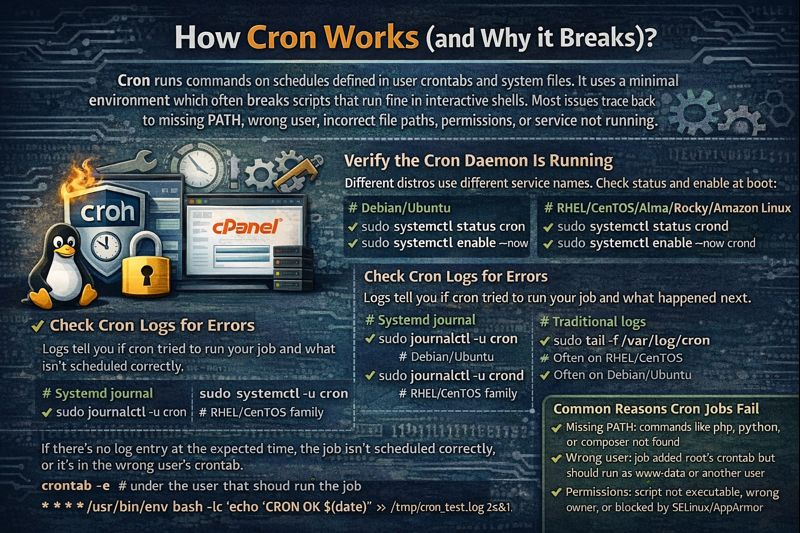
Most issues trace back to missing PATH, wrong user, incorrect file paths, permissions, or service not running.
Verify the Cron Daemon Is Running
Different distros use different service names. Check status and enable at boot:
# Debian/Ubuntu
sudo systemctl status cron
sudo systemctl enable --now cron

# RHEL/CentOS/Alma/Rocky/Amazon Linux
sudo systemctl status crond
sudo systemctl enable --now crond
Check Cron Logs for Errors
Logs tell you if cron tried to run your job and what happened next.
# Systemd journal
sudo journalctl -u cron    # Debian/Ubuntu
sudo journalctl -u crond   # RHEL/CentOS family

# Traditional logs
sudo tail -f /var/log/cron           # Often on RHEL/CentOS
sudo tail -f /var/log/syslog         # Often on Debian/Ubuntu
If there’s no log entry at the expected time, the job isn’t scheduled correctly, or it’s in the wrong user’s crontab.
Create a Minimal Test Job
Testing isolates cron from your script’s complexity. Add a one minute test:
crontab -e   # under the user that should run the job
* * * * * /usr/bin/env bash -lc 'echo "CRON OK $(date)" >> /tmp/cron_test.log 2>&1'
Wait two minutes. If /tmp/cron_test.log updates, cron is working. The issue is likely in your script or environment.
Common Reasons Cron Jobs Fail
- Missing PATH: commands like php, python, or composer not found.
- Wrong user: job added to root’s crontab but should run as www-data or another user.
- Relative paths: script expects a working directory that cron doesn’t set.
- Permissions: script not executable, wrong owner, or blocked by SELinux/AppArmor.
- Bad shebang or CRLF line endings: script won’t execute under Linux shell.
- run parts naming: files in /etc/cron.daily need names without dots on Debian/Ubuntu.
- Schedule mistakes: fields misordered, or using @reboot without service enabling.
- Timezone/clock drift: system time off; job appears to “skip.”
Fix Environment: PATH, SHELL, HOME, and Full Paths
Cron uses a minimal environment. Explicitly set what you need at the top of your crontab and use full paths for every binary and script.
# At the top of your crontab
SHELL=/bin/bash
PATH=/usr/local/sbin:/usr/local/bin:/usr/sbin:/usr/bin:/sbin:/bin
MAILTO=""        # or set to your email to receive job output
HOME=/home/youruser

# Example job
0 2 * * * /usr/bin/php /var/www/html/artisan schedule:run >> /var/log/laravel-cron.log 2>&1
Always discover binary locations using which:
which php
which python3
which composer
which wp
Fix Permissions, Ownership, and Shebang
- Executable bit: chmod +x /path/to/script.sh
- Correct owner: chown correctuser:correctgroup /path/to/script.sh
- Shebang: ensure the first line points to an existing shell or interpreter (e.g., #!/bin/bash or #!/usr/bin/env python3)
- Last newline: ensure the crontab ends with a newline; some cron versions ignore the last line otherwise.
- Fix Windows line endings: dos2unix /path/to/script.sh
sudo chmod +x /path/to/script.sh
sudo chown www-data:www-data /path/to/script.sh
head -n1 /path/to/script.sh   # verify shebang
dos2unix /path/to/script.sh   # if edited on Windows
Validate the Correct User and Crontab
If a web app needs to run as www-data (Apache/Nginx user), create or edit that user’s crontab, not root’s. System-wide /etc/crontab allows specifying the user per job.
# User crontab
sudo -u www-data crontab -e

# System crontab (format includes a user field)
# m h dom mon dow user command
* * * * * www-data /usr/bin/php /var/www/html/artisan schedule:run
Access control may restrict cron usage.
Check allow/deny files:
cat /etc/cron.allow   # if present, user must be listed here
cat /etc/cron.deny    # user must NOT be listed here
Use Robust Debugging: Logs, Email, and Tracing
- Redirect stdout/stderr to a log file to capture errors.
- Enable email notifications via MAILTO for quick insights.
- Use logger to write to syslog from within scripts.
- Trace scripts with set -x for shell or -v for PHP CLI to see what runs.
# Crontab example
MAILTO=admin@example.com
*/5 * * * * /usr/local/bin/backup.sh >> /var/log/backup.log 2>&1

# Inside /usr/local/bin/backup.sh
#!/bin/bash
set -euo pipefail
set -x
logger -t backup "Backup started"
# ...backup logic...
logger -t backup "Backup finished"
Distro-Specific Quirks: /etc/cron.* and run-parts
- Debian/Ubuntu use run-parts for /etc/cron.daily, weekly, etc. Files must be executable and have names without dots (e.g., backup_db, not backup.db).
- RHEL/CentOS also support /etc/cron.daily but may differ in log locations and service name (crond).
- /etc/cron.d/ files require a user field and must have proper permissions (typically 600) and no extension that run-parts rejects.
# Example /etc/cron.d/backup (permissions 600)
# m h dom mon dow user command
15 3 * * * root /usr/local/bin/backup.sh
Timing, Timezone, and Clock Sync
- Confirm timezone and NTP to avoid “missed” runs around DST changes.
- Use @reboot only when the cron service is enabled and the server reboots.
- For laptops or servers not always on, use anacron to catch missed jobs.
timedatectl
sudo timedatectl set-timezone <Your/Timezone>
systemctl status systemd-timesyncd  # or chronyd/ntpd
SELinux/AppArmor and Security Contexts
Security frameworks can block cron jobs silently. On SELinux systems, check for denials and set proper contexts instead of disabling SELinux.
# Check audit log for denials
sudo ausearch -m avc -ts recent
sudo cat /var/log/audit/audit.log | grep cron -i

# Adjust context (example)
sudo chcon -t bin_t /usr/local/bin/backup.sh
# Or create a policy module if needed (preferred for persistence)
Avoid Cron Pitfalls: Percent Signs, Paths, and Concurrency
- Escape % in crontab commands as \% (cron treats % as newline in command input).
- Use absolute paths for files and commands. Don’t rely on cd.
- Prevent overlapping runs using flock.
# Prevent overlapping runs
*/10 * * * * /usr/bin/flock -n /var/lock/report.lock /usr/local/bin/report.sh
Systemd Timers vs Cron: When to Switch
On modern distros, systemd timers offer better logging, dependency control, and accuracy. Consider replacing complex cron setups with timers for reliability.
# Example systemd timer
# /etc/systemd/system/backup.service
[Unit]
Description=Nightly backup

[Service]
Type=oneshot
ExecStart=/usr/local/bin/backup.sh

# /etc/systemd/system/backup.timer
[Unit]
Description=Run backup daily at 03:15

[Timer]
OnCalendar=*-*-* 03:15:00
Persistent=true

[Install]
WantedBy=timers.target

sudo systemctl daemon-reload
sudo systemctl enable --now backup.timer
sudo systemctl status backup.timer
Security Best Practices for Cron Jobs
- Least privilege: run jobs as the minimal user needed, not root.
- Protect scripts and logs with strict permissions (600–700).
- Sanitize inputs; avoid parsing untrusted data in cron scripts.
- Version control scripts and deploy via CI/CD to avoid “snowflake” servers.
- Rotate logs and monitor via centralized logging.
How to Fix Cron Jobs on Linux Server: Step by Step
- Check service: ensure cron/crond is active and enabled.
- Review logs: journalctl and /var/log/cron or syslog for job entries and errors.
- Add a minimal test job to confirm cron runs at all.
- Set environment: define SHELL, PATH, HOME, and MAILTO at top of crontab.
- Use absolute paths: to every command, interpreter, and file.
- Fix permissions and shebang; remove CRLF with dos2unix; ensure executable bit.
- Confirm correct user: put job in the right user crontab or specify user in /etc/crontab or /etc/cron.d/.
- Account for distro specifics: run-parts naming rules and file permissions.
- Handle security: check SELinux/AppArmor denials; apply proper contexts/policies.
- Prevent overlap with flock; add logging and email; re-test and monitor.
FAQs
Why does my cron job run manually but not from cron?
Cron runs with a minimal environment and a different working directory. Use full paths, set PATH and SHELL in the crontab, and avoid relative paths. Redirect output to a log to capture errors and confirm the user running the job is correct.
Where are cron logs on Linux?
On Debian/Ubuntu, check journalctl -u cron and /var/log/syslog. On RHEL/CentOS, check journalctl -u crond and /var/log/cron. Some minimal images log only to the journal, so use journalctl accordingly.
How do I set environment variables for cron jobs?
Add them at the top of the crontab (e.g., SHELL, PATH, HOME, MAILTO) or source a config file inside your script. Don’t rely on .bashrc or .profile, they might not run under cron unless you source them explicitly.
What’s the correct format for /etc/cron.d files?
They require a user field after the schedule. Permissions should be restrictive (often 600), with a newline at the end. If run-parts is used, ensure the filename meets its naming rules (no dots on Debian/Ubuntu).
Should I replace cron with systemd timers?
For complex jobs needing dependencies, robust logging, and persistence after downtime, systemd timers are superior. For simple periodic tasks, cron is fine. Many production teams mix both based on use case.
By following this guide, you can confidently fix cron jobs on a Linux server and keep automation reliable. Need hands on help or managed hosting built for uptime? YouStable’s experts are ready to implement best practices and monitor your jobs 24/7.