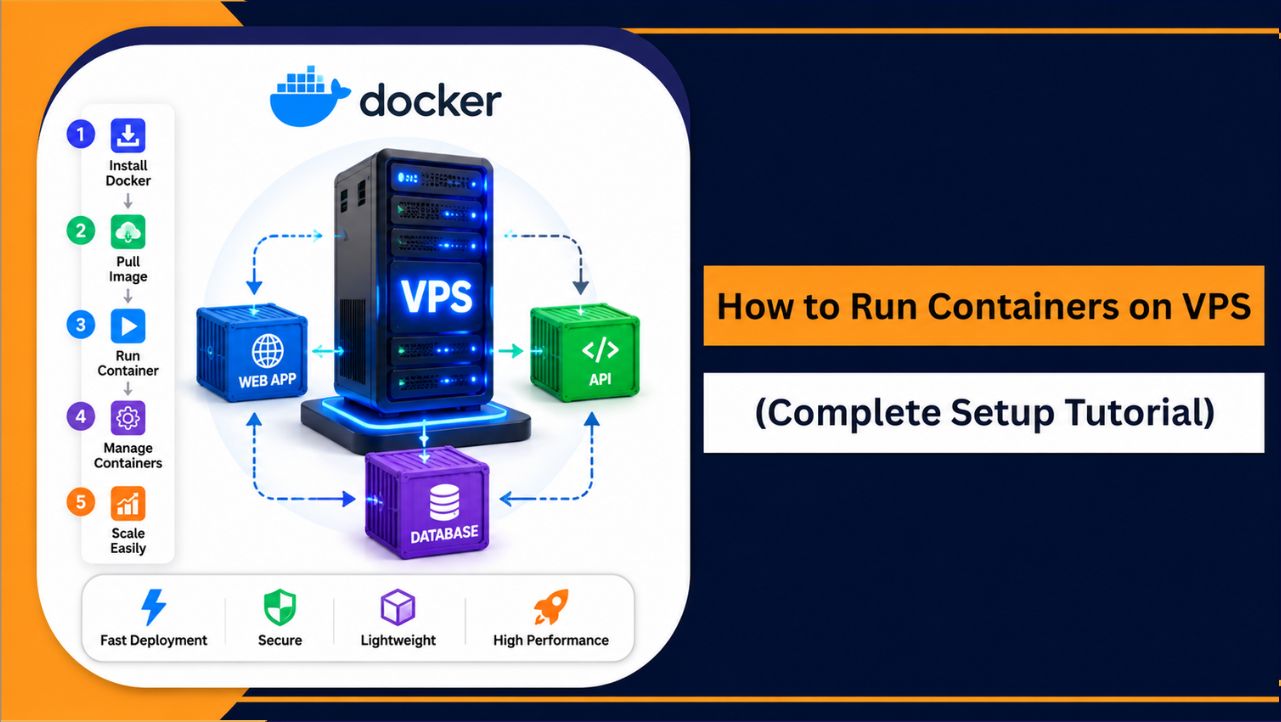
If you want to run containers on VPS smoothly without dealing with complicated server setup or configuration problems, understanding the right process is important.
Containers are widely used for hosting websites, APIs, applications, and development environments because they are lightweight, fast, and easier to manage than traditional setups. With a properly configured VPS, you can deploy applications faster, use server resources more efficiently, and scale your projects without unnecessary issues.
This step-by-step tutorial explains how to choose the right VPS, install Docker, run and manage containers, improve performance, and secure your setup properly. Everything is written in a simple and practical way so you can confidently set up and manage containers on your VPS, even if you are just getting started.
What Are Containers?
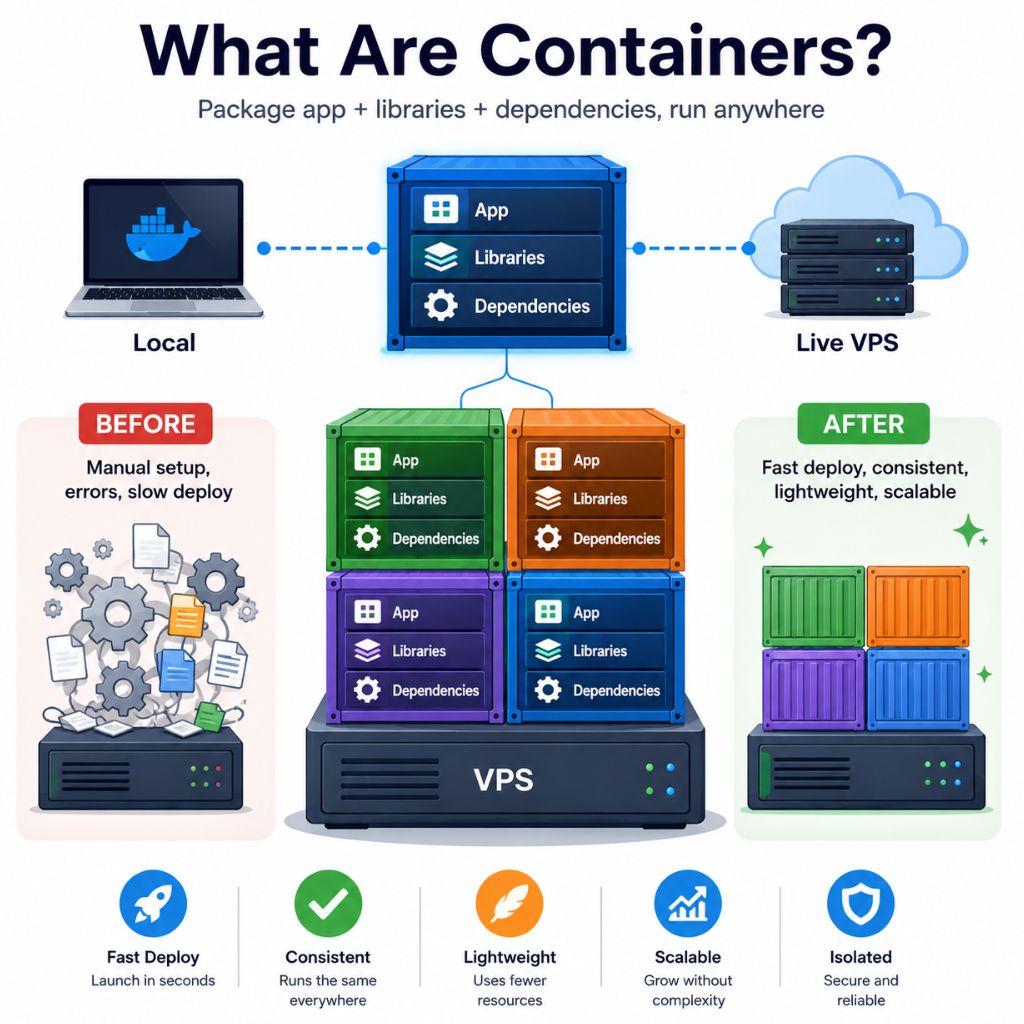
Containers are a simple way to run your application without worrying about setup issues. Instead of installing everything step by step on your VPS, you package your app together with all its required files, libraries, and dependencies.
Once it’s inside a container, it runs the same way everywhere, whether it’s your local system or a live server.
Tools like Docker make this process easy, so you can focus on your project instead of fixing errors.
Why Containers Are Widely Used
Containers are popular because they make application deployment faster and more reliable in real situations.
- Fast deployment: Applications start quickly without long installation steps
- Consistent environment: Your app works the same on every system
- Low resource usage: Containers are lightweight, so your VPS performs better
- Easy scalability: You can handle more traffic by running more containers easily
Because of these benefits, containers have become a practical and widely used solution for running modern applications.
Containers vs Virtual Machines
When you start working with containers, one common confusion is how they are different from virtual machines. Understanding this clearly helps you choose the right setup for your VPS and avoid performance issues.
| Feature | Containers | Virtual Machines |
| Size | Lightweight | Heavy |
| Startup Time | Starts in seconds | Takes minutes |
| Resource Usage | Uses fewer resources | Uses more resources |
| Performance | Faster and efficient | Slower compared to containers |
| OS Dependency | Shares host system kernel | Runs separate full OS |
The main difference is simple: containers share the same system, which makes them fast and efficient, while virtual machines run a full separate operating system, which makes them heavier.
If your goal is speed, flexibility, and running multiple apps smoothly on a VPS, containers are the better choice. Virtual machines are useful when you need complete isolation and separate environments for each system.
Why Run Containers on a VPS?
Running containers on a VPS gives you a strong balance of performance, control, and flexibility. Instead of depending on limited environments like shared hosting, a VPS allows you to run your containers the way you want, without restrictions. You can install tools, configure settings, and manage your applications freely.
Benefits of Running Containers on a VPS
- Full control: You can configure your server, install Docker, and manage containers without limitations
- Better performance: Dedicated resources mean your applications run faster and more smoothly
- Cost effective: You get powerful features without the high cost of dedicated servers
- Easy scalability: As your traffic grows, you can upgrade your VPS and run more containers
- Reliable environment: Containers run consistently without unexpected errors
If you want a stable and smooth experience, choosing a reliable VPS provider like YouStable helps you run containers without performance issues or downtime.
Requirements to Run Containers on a VPS
Before you start running containers, your VPS should be properly set up so everything works smoothly without errors. You don’t need a very powerful server, but having the right basics in place makes a big difference in performance and stability.
| Requirement | Minimum | Recommended | Why It Matters |
| RAM (Memory) | 1 GB | 2 GB or more | Helps run containers smoothly without crashes |
| CPU | 1 Core | 2+ Cores | Better performance when running multiple containers |
| Storage | SSD | NVMe SSD | Faster loading and data processing |
| Operating System | Ubuntu / Debian | Latest LTS Version | Better compatibility with container tools |
| Access | Root / Sudo | Full root access | Needed to install and manage Docker |
| Internet Connection | Basic Stable | High speed Stable | Faster image downloads and updates |
With these requirements ready, your VPS will be capable of handling containers efficiently and without unnecessary issues.
How to Choose the Right VPS for Containers
Choosing the right VPS is important because it directly affects how smoothly your containers will run. If your server is slow or lacks resources, your applications may lag, crash, or fail to handle traffic properly. That’s why you should pick a VPS that not only works for your current setup but can also handle future growth.
Key Factors to Consider
| Factor | What to Check | Recommended | Why It Matters |
| CPU Performance | Type and generation of CPU | 2+ vCPU (latest generation) | Containers share CPU resources, so better CPU improves performance |
| RAM (Memory) | Available memory capacity | 2–4 GB or more | Each container uses memory, low RAM can cause slowdowns or crashes |
| Storage Type | SSD or NVMe storage | NVMe SSD preferred | Faster storage improves loading speed and container performance |
| Bandwidth & Network | Speed and data limits | High speed with no strict limits | Important for handling traffic and API requests smoothly |
| Uptime Guarantee | Server reliability | 99.9% or higher | Ensures your applications stay online without interruption |
| Scalability | Upgrade options | Easy upgrade support | Helps you increase resources without downtime |
| Root Access | Level of control | Full root access | Required to install Docker and manage containers freely |
| Server Location | Data center region | Close to your audience | Reduces latency and improves user experience |
A VPS with at least 2 GB RAM, 2 vCPU, and NVMe storage is a good starting point for most container based setups. As your traffic grows, you can upgrade your VPS and run more containers without changing your overall setup.
If you want stable performance and flexibility, choosing a reliable provider like YouStable helps ensure your containers run smoothly without unnecessary issues.
Step-by-Step Guide to Running Containers on a VPS
Now you’re ready to actually set things up and run containers on your VPS. Just follow these steps carefully, and you’ll have your container running without confusion. Make sure your VPS is active and you have login access. If you’re using a stable VPS from YouStable, the setup will be smooth and fast.
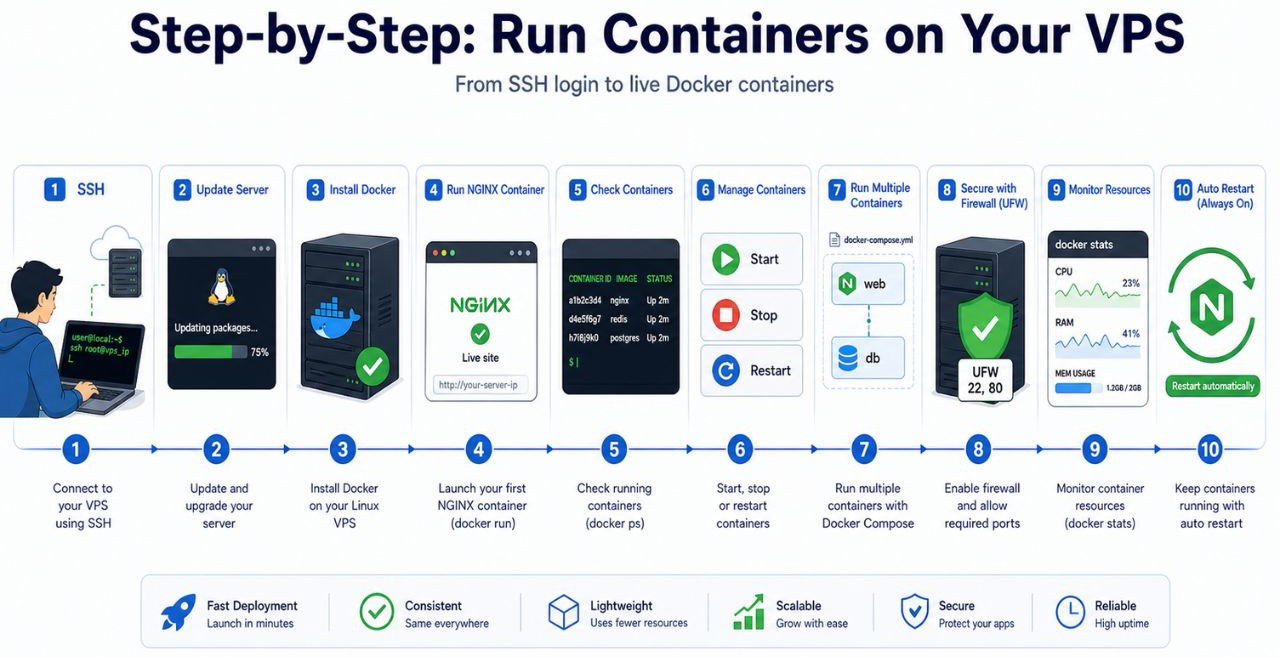
Step 1 – Connect to Your VPS Using SSH
First, you need to access your server.
ssh username@your_server_ip- Replace username with your VPS username (usually root)
- Replace your_server_ip with your server IP
Tips:
- Use SSH keys instead of passwords for better security
- Change default SSH port to avoid attacks
Once connected, you’ll see your VPS terminal.
Step 2 – Update Your VPS System
Before installing anything, update your server.
sudo apt update && sudo apt upgrade -yThis ensures:
- Latest security patches
- No compatibility issues
- Smooth Docker installation
Step 3 – Install Docker on VPS
Now install Docker, which is required to run containers.
sudo apt install docker.io -yStart and enable Docker:
sudo systemctl start docker
sudo systemctl enable docker
Check if Docker is installed:
docker --versionIf you see a version output, Docker is ready.
Step 4 – Run Your First Container
Let’s run a simple container using NGINX.
docker run -d -p 80:80 nginxWhat happens here:
- -d → Runs container in background
- -p 80:80 → Connects your VPS port to container
- nginx → Downloads and runs NGINX image
Now open your VPS IP in browser → your website is live.
Step 5 – Check Running Containers
To see your active containers:
docker psThis shows:
- Container ID
- Running status
- Ports
Step 6 – Manage Containers
You can control your containers easily:
docker stop <container_id>
docker start <container_id>
docker restart <container_id>
docker rm <container_id>
View logs:
docker logs <container_id>Step 7 – Run Multiple Containers (Docker Compose)
If you want to run multiple services like website + database, use Docker Compose.
Install it:
sudo apt install docker-compose -yCreate a file:
nano docker-compose.ymlAdd this:
version: '3'
services:
 web:
   image: nginx
   ports:
     - "80:80"
 db:
   image: mysql
   environment:
     MYSQL_ROOT_PASSWORD: password
Run it:
docker-compose up -dNow both containers will run together.
Step 8 – Enable Firewall (Important for Security)
sudo ufw allow 22
sudo ufw allow 80
sudo ufw enable
This protects your VPS from unwanted access.
Step 9 – Check Resource Usage
To monitor containers:
docker statsThis helps you:
- Track CPU usage
- Monitor RAM usage
- Avoid overload
Step 10 – Restart Containers Automatically
To keep containers running after reboot:
docker run -d --restart unless-stopped -p 80:80 nginxFinal Setup Result
After completing these steps:
- Your VPS is fully ready
- Docker is installed
- Your first container is running
- You can manage and scale easily
Now you can run websites, apps, APIs, or full systems using containers on your VPS without any issues.
Security Best Practices for Running Containers on VPS
Running containers on a VPS is simple, but security should never be ignored. A small mistake like exposing unnecessary ports or using untrusted container images can create serious problems later.
That’s why it’s important to secure both your VPS and your containers properly from the beginning. If you plan to host applications in containers for a long time, choosing a secure and reliable managed VPS server also plays a big role in overall stability and protection.
Important Security Practices to Follow
| Security Practice | What You Should Do | Why It Matters |
| Use Trusted Images | Download images only from official or verified sources | Reduces the risk of malware or insecure software |
| Keep Docker Updated | Regularly update Docker and your VPS system | Helps fix security vulnerabilities and bugs |
| Avoid Root Usage | Run containers with limited permissions whenever possible | Prevents full server access if a container is compromised |
| Enable Firewall | Allow only necessary ports using UFW or firewall rules | Protects your VPS from unwanted connections |
| Use Strong Authentication | Use SSH keys and strong passwords | Improves server access security |
| Limit Open Ports | Expose only ports your application actually needs | Reduces attack surface |
| Take Regular Backups | Backup important data and configurations | Helps recover quickly if something goes wrong |
| Monitor Container Activity | Check logs and resource usage regularly | Helps detect unusual behavior early |
A secure setup not only protects your applications but also improves stability and reliability over time. Using a high-performance Linux VPS hosting solution from YouStable can make container management smoother while helping your applications stay secure and responsive.
Performance Optimization Tips
Running containers on a VPS is not only about deployment, it’s also important to keep them optimized for better speed and stability. If containers are not managed properly, they can consume too many resources and slow down your server. A well optimized setup helps your applications run smoothly even when traffic increases.
Tips to Improve Container Performance
- Use lightweight images: Smaller images like Alpine based containers use fewer resources and start faster
- Set CPU and RAM limits: This prevents one container from consuming all VPS resources
- Use fast NVMe storage: Faster storage improves application loading speed and data processing
- Monitor resource usage: Tools like docker stats help you track CPU and memory usage
- Remove unused containers and images: Cleaning unused files regularly frees up storage space
- Enable caching: Caching reduces server load and improves response times
- Keep Docker updated: Updated versions improve both performance and security
- Choose reliable infrastructure: Using high-performance SSD VPS hosting helps containers run smoothly without lag or downtime
With proper optimization, your containers can handle websites, APIs, and applications more efficiently while maintaining stable performance on your VPS.
Common Mistakes to Avoid
When running containers on a VPS, many beginners make small mistakes that later cause performance issues, downtime, or security problems. Avoiding these common mistakes from the beginning helps your container setup stay stable, secure, and easier to manage.
Mistakes You Should Avoid
- Skipping system updates: Outdated systems and Docker versions can create security and compatibility issues
- Using untrusted container images: Random images from unknown sources may contain malware or vulnerabilities
- Exposing unnecessary ports: Opening too many ports increases security risks on your VPS
- Ignoring resource limits: Without CPU or RAM limits, one container can slow down the entire server
- Running everything as root: Containers running with full root permissions can become dangerous if compromised
- Not monitoring containers: Ignoring logs and resource usage makes it harder to detect problems early
- Forgetting backups: Without backups, recovering your applications and data becomes difficult after failures
- Choosing low quality hosting: Unstable or overloaded servers can affect container performance and uptime, which is why using reliable NVMe VPS hosting is important for smoother operation
Avoiding these mistakes will help you maintain a faster, safer, and more reliable container environment on your VPS.
Also Read: Best VPS for Docker
FAQs
Can I Run Containers on a Low End VPS?
Yes, you can run containers on a low end VPS if your applications are lightweight. Many beginners start with a small VPS and upgrade later as traffic grows.
A basic VPS setup usually works well for:
• Small websites
• Test environments
• Personal projects
• Lightweight APIs
For smoother performance, using reliable entry level VPS hosting from YouStable is a better option than using overloaded shared hosting.
Which Operating System Is Best for Running Containers on a VPS?
Ubuntu and Debian are the most commonly used operating systems for containers because they offer strong compatibility with Docker and other container tools. Ubuntu LTS versions are especially popular due to long term support, regular updates, and a large community.
If you are just starting, Ubuntu Server is usually the easiest option to manage and configure for container based setups.
Can I Run Multiple Containers on One VPS?
Yes, a single VPS can run multiple containers at the same time as long as your server has enough resources available.
You can use multiple containers for things like:
• Website and database together
• Backend APIs and caching systems
• Development and testing environments
• Monitoring and logging tools
This is one of the biggest advantages of containers because they allow different applications to run independently on the same VPS.
Do Containers Improve VPS Performance?
Containers themselves do not magically increase VPS power, but they help use server resources more efficiently compared to traditional virtual machines. Since containers are lightweight and share the host system kernel, applications start faster and consume less memory.
This allows your VPS to handle workloads more smoothly, especially when running modern web applications or APIs.
Is Docker Necessary for Running Containers on a VPS?
Docker is not the only container platform available, but it is the most widely used and beginner friendly option today. It simplifies container creation, deployment, management, and scaling.
Why Docker is commonly preferred:
• Easy to install and manage
• Huge library of ready to use images
• Strong community support
• Works well with modern VPS environments
Because of its simplicity and reliability, Docker is usually the best choice for most users who want to run containers on a VPS efficiently.
Conclusion
Running containers on a VPS is one of the easiest and most efficient ways to deploy modern applications. Containers help improve performance, simplify deployment, reduce resource usage, and make it easier to manage websites, APIs, and development environments without dealing with complicated server configurations.
A properly configured VPS and secure container setup can help your applications run smoothly as your workload grows. Choosing reliable infrastructure like YouStable also improves stability, uptime, and overall performance, making container management easier for both beginners and advanced users.