


Are you trying to run an LLM but feeling confused about what kind of system you actually need? Maybe your setup is slow, crashing, or not working the way you expected. The truth is, most of these problems happen because the hardware and configuration are not matched properly with the model you are using.
So how do you figure out what’s enough and what’s not? That’s exactly what this guide will help you with. You will clearly understand what resources are required for different model sizes, how to choose the right setup, and how to avoid common mistakes. By the end, you will know exactly what your system needs to run LLMs smoothly and reliably.
What Are LLM Server Requirements?
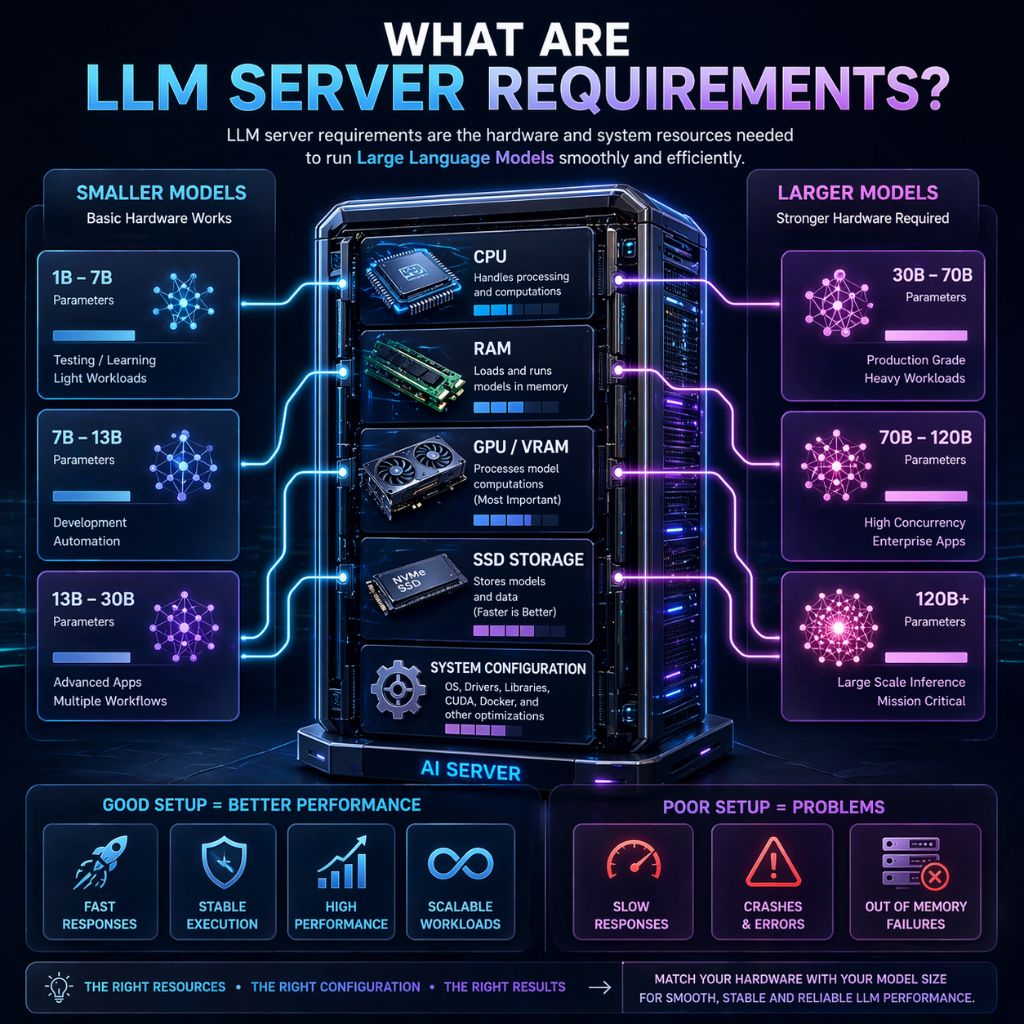
LLM server requirements refer to the hardware and software resources needed to run large language models efficiently. These requirements include CPU, RAM, GPU (VRAM), storage, and system configuration, all of which directly impact how fast and smoothly the model performs.
The exact requirements depend on the model size and your use case. Smaller models can run on basic systems, while larger models need high RAM and powerful GPUs.
If the setup is not properly configured, you may face slow responses, crashes, or failed executions, especially during heavy workloads.
Minimum Server Requirements for LLM (Small Models)
For small LLMs (around 1B–7B parameters), you can run them on a basic system, making this setup suitable for testing, learning, and light workloads. These models are less resource intensive but still require a stable environment to avoid slowdowns or crashes during execution.
Basic Requirements:
- CPU: 4–8 cores (modern processor for stable performance)
- RAM: 8–16 GB (minimum to load and run models smoothly)
- Storage: 20–50 GB SSD (faster load times compared to HDD)
- GPU (optional): 4–8 GB VRAM (improves response speed significantly)
This setup works well for beginners, but performance may be slower without a GPU. For consistent usage or multiple workflows, upgrading resources or moving to a server environment is a better option.
Recommended Server Requirements (Medium Models)
For medium sized LLMs (around 7B–13B parameters), a more balanced and powerful setup is required to ensure smooth performance. This level is ideal for developers, automation workflows, and real world applications where stability and speed matter.
Recommended Requirements:
- CPU: 8–16 cores (handles background tasks and processing efficiently)
- RAM: 16–32 GB (ensures models load and run without memory issues)
- Storage: 50–100 GB SSD/NVMe (faster data access and model loading)
- GPU: 12–24 GB VRAM (essential for fast inference and better performance)
With this configuration, you can run LLMs more reliably, handle multiple workflows, and reduce latency. It provides a strong balance between cost and performance, making it suitable for most practical use cases.
High End Server Requirements (Large Models)
For large LLMs (30B+ parameters), you need a powerful and well optimized server because these models require high memory, strong GPUs, and stable processing to run smoothly. This type of setup is mainly used for production level applications, AI tools, and heavy workloads where performance and reliability are essential.
High End Requirements:
- CPU: 16–32+ cores (for handling parallel tasks and system operations efficiently)
- RAM: 64–128 GB+ (to load and run large models without memory issues)
- Storage: 200+ GB NVMe SSD (fast loading and better data processing speed)
- GPU: 24–80 GB VRAM (or multi GPU setup for large scale inference)
This level of configuration provides stable performance, faster response times, and the ability to handle multiple requests without crashes. It is best suited for users who need consistent output, scalability, and smooth execution of large AI models.
GPU vs CPU: What Matters More for LLMs?
When running LLMs, both CPU and GPU are important, but their roles are different. The CPU manages system level tasks like handling processes and requests, while the GPU performs the heavy computations required for model inference and response generation. Because LLMs rely on parallel processing, GPU power has a much greater impact on overall performance.
A system without a GPU can still run small models, but it will be significantly slower and less efficient. For better speed, stability, and the ability to run larger models, GPU (especially VRAM) becomes the most important factor.
Comparison Table
| Component | Role in LLM | Performance Impact |
| CPU | Handles system operations and background tasks | Medium |
| GPU | Processes model computations and generates output | High |
| VRAM | Stores model during runtime and affects size support | Very High |
RAM and Storage Requirements Explained
RAM plays a critical role in running LLMs because it is used to load and process the model during execution. If your system does not have enough RAM, the model may fail to start, crash during use, or become extremely slow. Larger models require more memory, which is why RAM directly affects stability and performance.
Storage is equally important, especially for handling large model files. SSD or NVMe storage ensures faster loading times and smoother data access compared to traditional HDDs. While storage does not impact inference speed directly, slow storage can delay model loading and reduce overall efficiency.
Key Breakdown
| Component | Role in LLM | Impact |
| RAM | Loads and runs models in memory | High (affects stability & execution) |
| SSD/NVMe | Stores models and data | Medium (affects loading speed) |
| Storage Size | Determines how many models you can store | Important for scalability |
A balanced combination of sufficient RAM and fast storage ensures that your LLM runs smoothly without delays or unexpected failures.
Software Requirements for Running LLMs
Running LLMs is not just about hardware; the right software environment is equally important for stable and efficient performance. A properly configured system ensures that models load correctly, run smoothly, and avoid common errors related to dependencies or compatibility issues.
Most LLM setups rely on a combination of operating system support, runtime tools, and required libraries. Choosing the right software stack helps improve performance, simplifies deployment, and makes it easier to manage models and workflows.
Core Software Requirements:
- Operating System: Linux (recommended for stability and performance), Windows and macOS also supported
- Runtime Environment: Python (for most LLM frameworks and tools)
- Containerization: Docker (for easy deployment and environment consistency)
- LLM Tools: Ollama, Hugging Face Transformers, or similar frameworks
- GPU Support: CUDA and drivers (required for GPU acceleration)
With the correct software setup, you can avoid compatibility issues, improve execution speed, and run LLMs reliably across different environments.
Local Setup vs VPS Hosting for LLM
When running LLMs, a local system is suitable for testing and small tasks but is limited by hardware and uptime, whereas a VPS provides stronger performance, reliability, and continuous operation for demanding workloads.
Comparison Table
| Setup | Best For | Limitations |
| Local System | Testing, learning, small models | Limited resources, no 24/7 uptime |
| VPS / Server | Automation, production, scaling | Higher cost but better performance |
Choosing the right setup depends on your needs, but for stable performance and long term use, a VPS is generally the more practical option.
Best Server Setup for LLM (Practical Configurations)
Choosing the right server setup depends on your workload, model size, and performance expectations. A well balanced configuration ensures smooth execution, avoids crashes, and provides consistent results without unnecessary costs. Instead of using random specs, it is better to follow practical setups based on real use cases.
Entry Level Setup (Testing & Learning):
- CPU: 4–8 cores
- RAM: 8–16 GB
- Storage: 50 GB SSD
- GPU: Optional (basic or none)
This setup is suitable for small models and basic experimentation, but performance will be limited.
Mid Range Setup (Development & Automation):
- CPU: 8–16 cores
- RAM: 16–32 GB
- Storage: 100 GB SSD/NVMe
- GPU: 12–24 GB VRAM
Ideal for developers, APIs, and automation workflows, offering a good balance between performance and cost.
High End Setup (Production & Heavy Workloads):
- CPU: 16+ cores
- RAM: 64 GB+
- Storage: 200+ GB NVMe
- GPU: 24–80 GB VRAM or multi GPU
Best for large models, AI applications, and handling multiple requests with stable performance.
Selecting the right configuration ensures your LLM runs efficiently without slowdowns, making it easier to scale as your workload grows.
Common Mistakes to Avoid When Setting Up LLM Servers
Setting up an LLM server can seem simple, but small mistakes in configuration or hardware selection can lead to poor performance, crashes, or failed model execution. Most issues are not caused by the model itself, but by incorrect setup decisions that limit efficiency and stability.
Common Mistakes:
- Choosing low RAM systems: Insufficient memory prevents models from loading properly and causes crashes
- Ignoring GPU requirements: Running LLMs without proper VRAM leads to slow performance and limitations
- Using large models on weak hardware: This results in failed execution or extremely slow responses
- Poor environment configuration: Missing variables, incorrect Docker setup, or dependency issues can break the system
- Not optimizing models: Skipping quantization or optimization increases resource usage unnecessarily
- Ignoring storage speed: Using HDD instead of SSD/NVMe slows down model loading and performance
Avoiding these mistakes ensures your LLM setup runs smoothly, performs efficiently, and remains stable even under heavier workloads.
How to Optimize LLM Performance
Optimizing LLM performance is essential if you want faster responses, stable execution, and efficient resource usage. Even with good hardware, poor configuration or inefficient workflows can slow down your system and cause failures. The goal is to reduce load, manage resources properly, and ensure the model runs smoothly under different conditions.
The most effective improvements come from combining hardware optimization, software tuning, and workflow design. By making small but practical changes, you can significantly improve speed, reduce latency, and avoid common performance bottlenecks.
Key Optimization Methods (Explained):
- Use Quantized Models (4-bit / 8-bit):
Quantization reduces the size of the model and lowers memory usage. This allows you to run larger models on limited hardware while also improving response speed. - Choose the Right Model Size: Avoid running unnecessarily large models for simple tasks. Smaller models are faster and more efficient, especially for automation or basic use cases.
- Optimize GPU Usage: Ensure your GPU VRAM is sufficient for the model. Running models that exceed VRAM causes crashes or fallback to slower CPU execution.
- Limit Concurrent Executions: Running too many requests at once can overload your system. Control concurrency to maintain stable performance and prevent slowdowns.
- Use Faster Storage (NVMe SSD): NVMe storage reduces model loading time and improves data access speed, which helps in faster execution, especially for large models.
- Enable Queue System (Advanced Setup): Using a queue based system helps manage multiple requests efficiently instead of overloading the server at once.
- Use External Database (PostgreSQL): For production setups, using PostgreSQL instead of default storage improves performance, especially with high workloads and multiple executions.
- Keep Environment Clean and Updated: Update your LLM tools, dependencies, and drivers regularly to avoid bugs, compatibility issues, and performance drops.
- Monitor Logs and Performance Metrics: Logs help identify slow nodes, failed processes, or bottlenecks, allowing you to fix issues before they affect performance.
- Optimize Workflow Design:: Break complex workflows into smaller parts and remove unnecessary steps. This reduces load and improves execution speed.
Quick Optimization Overview
| Area | Common Issue | Optimization |
| Model Size | Too large for system | Use smaller or quantized models |
| GPU Usage | Insufficient VRAM | Match model size with GPU capacity |
| Execution Load | Too many requests | Limit concurrency or use queue |
| Storage | Slow data access | Use NVMe SSD |
| Workflow | Complex logic | Simplify and split workflows |
| Environment | Outdated setup | Keep software updated |
By applying these strategies, you can significantly improve LLM performance, making your system faster, more stable, and capable of handling real world workloads without interruptions.
When Should You Upgrade Your LLM Server?
If your LLM setup starts showing consistent performance issues like slow responses, crashes, or difficulty handling multiple tasks, it usually means your current hardware is no longer sufficient. As model size, usage, or workload increases, upgrading your server becomes necessary to maintain stability, speed, and reliable execution without interruptions.
Upgrade Indicators Table
| Issue | What It Means | Upgrade Action |
| Frequent crashes | Not enough RAM or VRAM | Increase RAM / upgrade GPU |
| Slow response time | Weak CPU or GPU | Upgrade GPU or CPU |
| Cannot run larger models | Hardware limitation | Use higher VRAM GPU |
| System overload with multiple tasks | Low resources | Increase cores and RAM |
| High CPU usage, low GPU use | No proper GPU acceleration | Add or upgrade GPU |
| Storage issues | Slow or insufficient storage | Switch to NVMe SSD |
Upgrading at the right time ensures your LLM runs smoothly, handles larger workloads, and delivers consistent performance without failures.
FAQs
Can I run an LLM without a GPU?
u003cstrongu003eYesu003c/strongu003e, you can run small LLMs on CPU only, but performance will be much slower. Tasks like response generation take significantly more time, and larger models may not run at all. For better speed and stability, a GPU is highly recommended.
How much RAM is enough for running LLMs?
It depends on the model size. Small models can run on 8–16 GB RAM, medium models require 16–32 GB, and large models need 64 GB or more. Insufficient RAM often leads to crashes or failed model loading.
Which is more important for LLM performance, GPU or CPU?
Both are important, but GPU plays a bigger role in performance. The CPU handles system operations, while the GPU processes model computations. A powerful GPU with enough VRAM significantly improves speed and efficiency.
Should I use a local system or VPS for running LLMs?
A local system is fine for testing and learning, but it has limitations in performance and uptime. For continuous usage, automation, or production workloads, a VPS or u003cstrongu003eu003ca href=u0022https://www.youstable.com/dedicated-servers/u0022u003ededicated serveru003c/au003eu003c/strongu003e provides better stability, scalability, and reliability.
Conclusion
If you’ve reached here, one thing is clear, you now understand that running an LLM is not just about installing a model and expecting it to work perfectly. It’s about choosing the right hardware, setting up the environment correctly, and making sure your system matches your actual workload. Once these pieces are aligned, most of the common problems like slow speed, crashes, or failed executions simply disappear.
The key takeaway is simple: start with what fits your current use case, but think ahead. If you are testing, a basic setup is enough. If you are building real applications or handling continuous workloads, a stronger server or VPS becomes the smarter choice. When your setup is properly optimized, LLMs become fast, stable, and reliable, exactly the way they are meant to work.










