

When OpenClaw stops working, the problem is not always clear. It may not start, the dashboard may not load, or it may run but not respond to commands. These issues usually come from setup mistakes, configuration errors, or system related problems, which can make troubleshooting confusing.
In most cases, users face these problems due to incorrect Docker setup, wrong .env configuration, port conflicts, or API key issues. These are common and happen even when everything looks fine at first, which is why the issue feels harder to understand than it actually is.
Here, you will learn how to identify the exact reason behind the problem and fix it step by step in a simple and practical way. By the end, you will have a clear understanding of what went wrong and how to get OpenClaw running properly again without confusion.
Why OpenClaw Is Not Working (Common Reasons)
Before fixing the issue, it is important to understand what is actually causing it. In most cases, OpenClaw does not stop working randomly, there is usually a specific reason behind it. Once you identify the cause, fixing the problem becomes much easier.
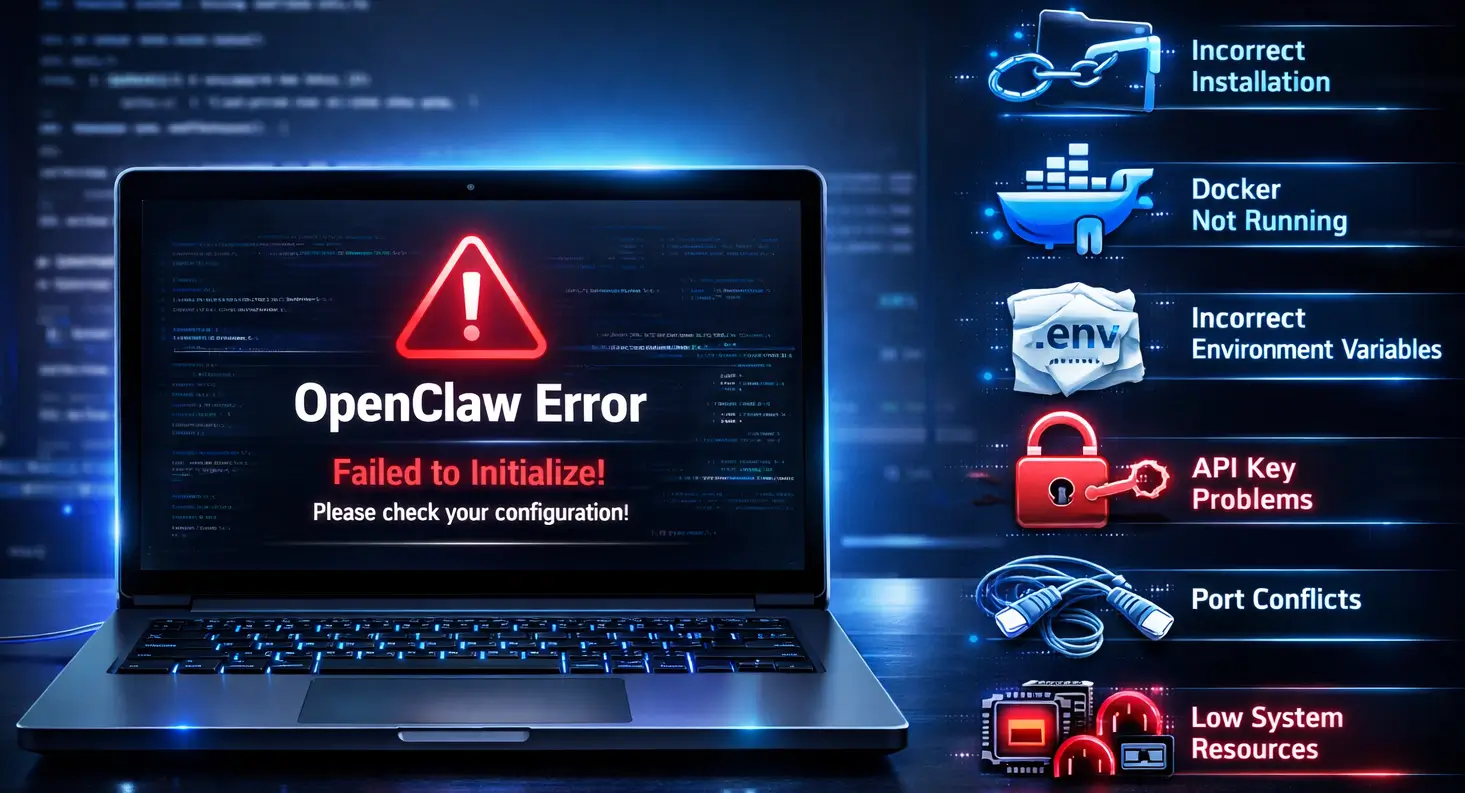
- Incorrect Installation: If OpenClaw was not installed properly or some files are missing, the setup may fail to start. Even a small mistake during installation can create problems later, especially if required steps were skipped.
- Docker Not Running or Misconfigured: OpenClaw depends on Docker to run its services. If Docker is not running, outdated, or not configured correctly, OpenClaw will not start or may behave unexpectedly.
- Incorrect Environment Variables: The .env file contains important configuration details like API keys and port settings. If any value is missing, incorrect, or formatted wrongly, OpenClaw may fail to respond or load properly.
- API Key Problems: API keys are required for OpenClaw to process requests. If the key is invalid, expired, or not added correctly, the system will not work as expected and may stop responding.
- Port Conflicts: If the port assigned to OpenClaw is already being used by another application, it will not be able to start. This usually results in the dashboard not loading or the service failing to run.
- Low System Resources: If your system does not have enough RAM or CPU power, OpenClaw containers may crash, freeze, or run very slowly. This can directly affect performance and stability.
Quick Checklist Before Fixing
Before you start fixing the issue in detail, it is better to check a few basic things first. In many cases, OpenClaw problems are caused by small setup mistakes, and these can be solved quickly without going through all troubleshooting steps.
- Docker is installed and running properly on your system
- Docker Compose is available and working without errors
- Your internet connection is stable and not interrupting requests
- All project files are downloaded correctly without missing files
- The .env file is properly configured with correct values
- API keys are valid, active, and added correctly
- The required ports are not being used by any other application
- Your system meets the minimum requirements for running OpenClaw
If everything in this checklist is correct, you can move forward with the step by step fixes to identify and solve the issue more precisely.
Step-by-Step Fix for OpenClaw Not Working
To fix OpenClaw properly, it is important to follow a structured approach. Many users try random solutions, but that often creates more confusion. The steps below are arranged in the correct order, so each part of the system is checked and fixed step by step.
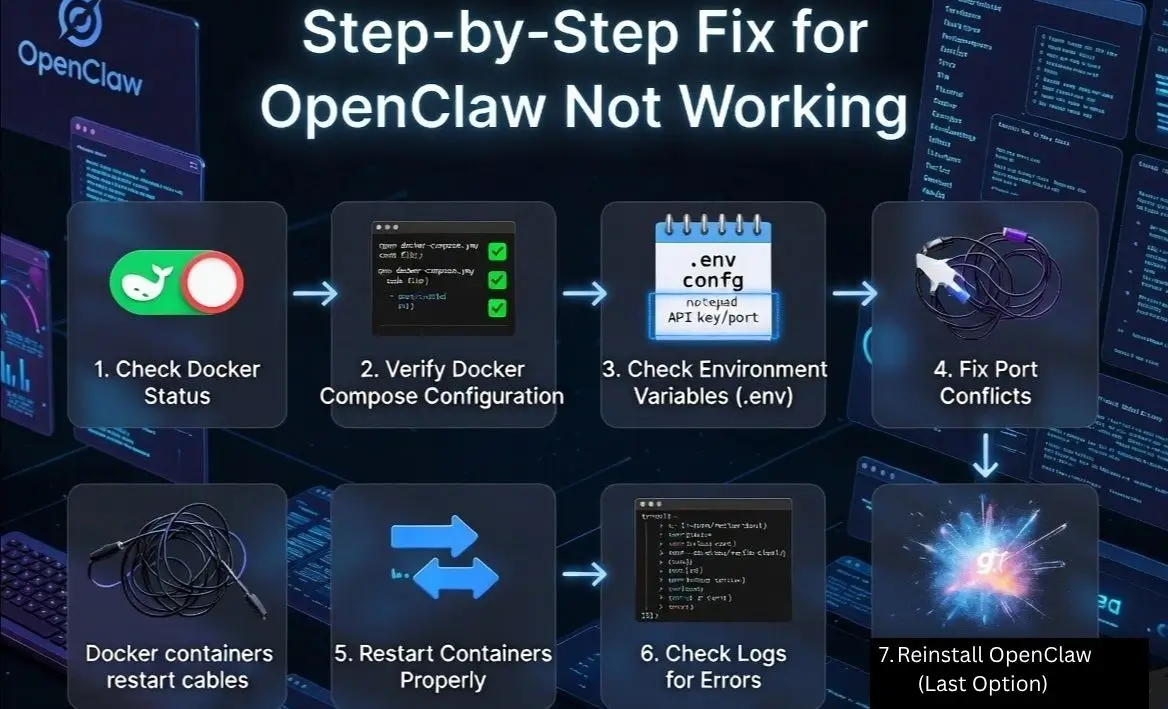
Step 1: Check Docker Status
Start by confirming that Docker is running correctly on your system. OpenClaw depends completely on Docker, so if Docker is not active, the application will not start.
- Open Docker and check if it is running
- Restart Docker to clear temporary issues
- Make sure there are no permission or startup errors
If Docker is not working properly, OpenClaw will not run at all.
Step 2: Verify Docker Compose Configuration
Next, check your docker compose.yml file carefully. This file controls how all services are started and connected.
- Ensure all required services are properly defined
- Check for any syntax errors in the file
- Verify correct image names and port mappings
Even a small mistake in this file can prevent containers from starting.
Step 3: Check Environment Variables (.env)
The .env file is a critical part of the setup because it contains all important configuration details.
Carefully verify the following:
- API keys are correct and active
- Port number is properly defined
- No required values are missing
- No extra spaces or incorrect formatting
Most OpenClaw issues are caused by incorrect .env configuration, so this step is very important.
Step 4: Fix Port Conflicts
If OpenClaw is not starting or the dashboard is not loading, the port may already be in use by another application.
- Check if the selected port is already occupied
- Change the port number in the .env file
- Restart the containers after updating the port
Resolving port conflicts often fixes startup and access issues.
Step 5: Restart Containers Properly
Sometimes the issue is temporary and can be fixed by restarting the containers.
- Stop all running containers
- Rebuild containers if required
- Start them again
This process refreshes the environment and clears temporary errors.
Step 6: Check Logs for Errors
Logs provide the exact reason behind the issue. Instead of guessing, you should always check logs to understand what is going wrong.
- Open container logs
- Look for specific error messages
- Identify the problem (API issue, configuration error, missing file, etc.)
Fixing issues based on logs is the most accurate and reliable method.
Step 7: Reinstall OpenClaw (Last Option)
If none of the above steps solve the problem, perform a clean reinstall.
- Remove existing containers
- Delete the old project folder
- Clone fresh project files
- Configure everything again from scratch
A clean reinstall removes hidden errors and ensures a fresh, working setup.
How to Check If OpenClaw Is Working Properly?
After applying all fixes, it is important to confirm that OpenClaw is working correctly. This helps ensure that your setup is stable and ready for actual use without hidden issues.
- Open the dashboard in your browser and make sure it loads without errors
- Run a simple command and check if you get a proper response
- Observe the response speed to ensure it is not slow or delayed
- Verify integrations if you are using external tools or services
If everything works as expected, it means your OpenClaw setup is stable and running properly.
Common Errors and Their Fixes
While using OpenClaw, you may face some common issues. The good thing is that most of them can be fixed quickly once you understand the cause.
- OpenClaw Not Starting: This usually happens when Docker is not running or the setup is not configured correctly. Start or restart Docker and check your configuration files to make sure everything is set properly.
- Dashboard Not Loading: If the dashboard is not opening in your browser, it is often related to port issues. Make sure the correct port is set and the service is running on that port without conflicts.
- API Not Responding: When OpenClaw does not respond to commands, the problem is usually with the API. Check if your API key is correct, active, and properly added in the .env file. Also ensure your internet connection is stable.
- Containers Crashing: If containers are stopping or crashing, it may be due to low system resources or configuration errors. Check logs to identify the issue and make sure your system has enough RAM and CPU to handle the workload.
OpenClaw Not Working on VPS
If you are running OpenClaw on a VPS, server level issues can directly affect how it performs. Unlike local setups, VPS environments depend on proper configuration, resource allocation, and network settings, so even small misconfigurations can lead to problems like crashes, slow performance, or access issues.
Many users also check whether OpenClaw is safe to host on a VPS when configuring firewall rules, Docker environments, and long term automation setups.
- Firewall Blocking Ports: If the required port is blocked by your server firewall, OpenClaw will not be accessible in the browser. Make sure the correct port is allowed in your firewall settings (such as UFW or firewalld), otherwise the dashboard will fail to load.
- Incorrect Server IP or Port: Using the wrong server IP address or port is a common mistake. Always verify that you are accessing the correct public IP and the exact port defined in your configuration. Even a small mismatch can prevent access.
- Low Server Resources: OpenClaw requires sufficient RAM and CPU to run smoothly. If your VPS has limited resources, containers may crash, freeze, or respond slowly. Upgrading your server resources can significantly improve stability and performance.
- Docker Not Running Properly: Since OpenClaw depends on Docker, any issue with Docker will stop it from working. Make sure Docker is installed correctly, running without errors, and properly configured on your VPS.
If you continue facing issues like slow performance, frequent crashes, or setup instability, the problem may not be your configuration but your hosting environment. In such cases, using a reliable VPS optimized for OpenClaw can make a noticeable difference.
For example, YouStable’s OpenClaw VPS hosting provides better resource allocation, stable uptime, and a smoother environment, which helps reduce common issues and ensures consistent performance over time.
Best Practices to Avoid Issues
To keep OpenClaw running smoothly and avoid common problems, it is important to follow some basic best practices. These help maintain a stable setup and reduce the chances of errors in the future.
- Always double check your configuration before starting OpenClaw to avoid small mistakes
- Keep Docker and your system updated to ensure better performance and compatibility
- Use correct port settings and make sure there are no conflicts with other applications
- Monitor logs regularly so you can quickly detect and fix issues
- Use a VPS if you want stable, continuous performance without depending on your local system
Following these practices will help you maintain a reliable and error free OpenClaw setup over time.
Read Also: Learn How to Setup OpenClaw On VPS
FAQs
Why is OpenClaw not connecting to the server?
This usually happens due to incorrect IP address, wrong port, or firewall restrictions. Make sure you are using the correct server details and that the required port is open.
How do I know if Docker is causing the issue?
If OpenClaw is not starting or containers are not running, Docker is likely the issue. You can check Docker status and logs to confirm if containers are failing or not starting properly.
What should I do if OpenClaw is very slow?
Slow performance is often caused by low system resources or heavy tasks. Check your RAM and CPU usage, and consider upgrading resources or reducing workload.
Can a wrong .env file stop OpenClaw from working?
u003cstrongu003eYesu003c/strongu003e, incorrect values in the .env file are one of the most common reasons for OpenClaw issues. Even a small mistake in API keys or port settings can prevent it from starting or responding properly.
Conclusion
Fixing OpenClaw not working issues becomes much easier when you follow a clear step by step approach. In most cases, the problem is not complex and is usually related to Docker, configuration files, API keys, or port settings. Once you check each part properly, the exact cause becomes clear and can be fixed without confusion.
By applying the methods explained above, you can quickly get OpenClaw back to a working state and avoid repeating the same issues in the future. Keeping your setup properly configured, monitoring logs, and following best practices will help you maintain a stable and reliable system for long term use.










