

To create a mass email list in Gmail, build a label in Google Contacts, add or import recipients into that label, then compose an email in Gmail and address it to the label name. Use BCC to protect privacy, follow Gmail’s sending limits, and consider Multi Send or Google Groups if you need scaling and unsubscribes.
If you’re wondering how to create a mass email list in Gmail, the most reliable method is to use Google Contacts labels as your “mailing list.” In this step by step guide, you’ll learn how to set up labels, import a CSV, send to large groups without exposing addresses, and improve deliverability, plus when to use Multi Send, Google Groups, or a mail merge add-on.
What to know before you start (Limits, Privacy, Compliance)
Before building a Gmail mailing list, align your plan with Gmail’s rules and best practices so you don’t hit blocks or spam folders.
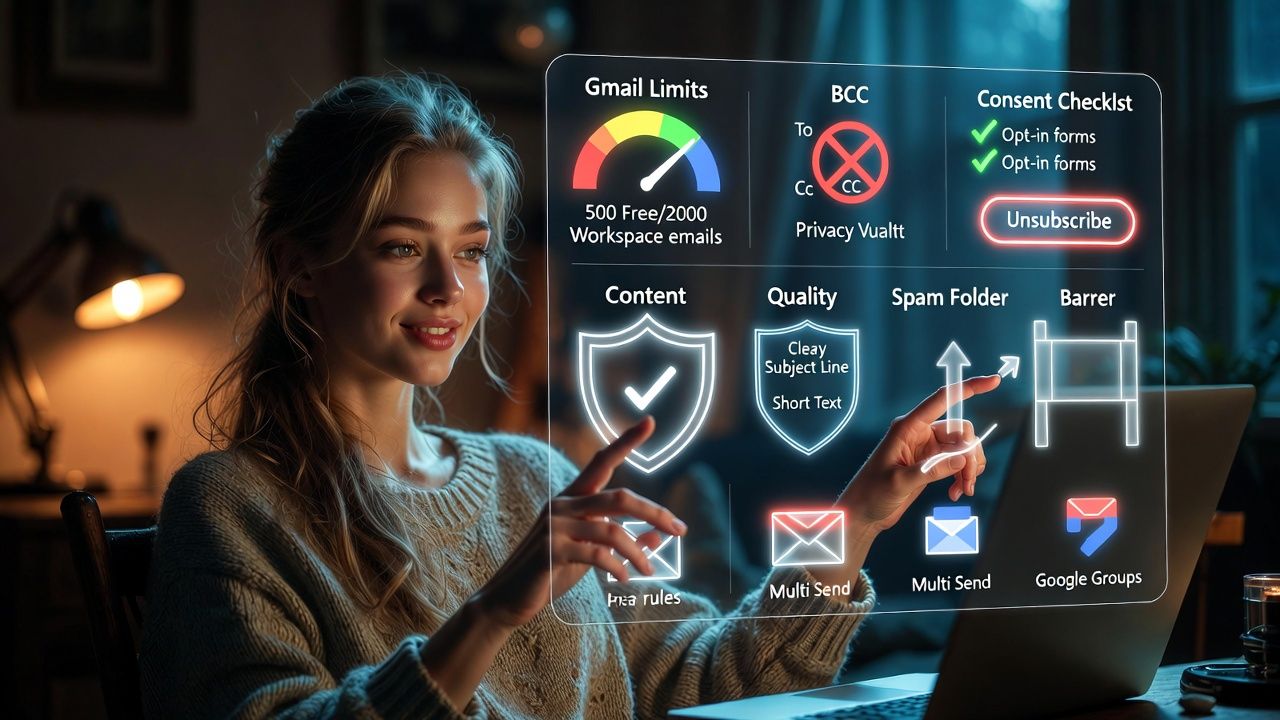
- Sending limits: Free Gmail typically allows around 500 emails/day. Google Workspace often allows up to ~2,000/day. Per message recipient caps also apply. Check the latest Google limits if you’re near the ceiling.
- Privacy: If recipients don’t know each other, use BCC. Never expose addresses in To/Cc.
- Consent: Only email people who opted in. Add an easy way to opt out (Multi Send has a one click unsubscribe; otherwise include a manual unsubscribe line).
- Content quality: Short, clear subjects, helpful content, and low spam wording improve inbox placement.
- Scaling: For frequent or larger sends, consider Multi Send, Google Groups, or a dedicated email marketing platform.
Method 1: Create a Gmail mailing list with Google Contacts labels
This is the simplest, native method for anyone using Gmail or Google Workspace. You’ll create a label (your “list”) in Google Contacts and add people to it. Then you email that label from Gmail.
Step 1: Create a label in Google Contacts
- Go to contacts.google.com and sign in.
- On the left, click “Labels” > “Create label.”
- Name it (e.g., “Newsletter” or “VIP Clients”). Keep it short and searchable.
Step 2: Add contacts to your label (manually or via CSV import)
- Manually: Open a contact > “Edit” > click “Label” icon > select your label.
- Bulk: Import a CSV, then apply your label to all imported contacts.
Use Google’s recommended column headers for a clean import. Here’s a minimal CSV you can adapt:
Given Name,Family Name,E-mail 1 - Value
Alex,Lee,[email protected]
Sam,Rossi,[email protected]- In Google Contacts: Click “Import” > upload your CSV.
- After import, select the new contacts > click “Label” icon > add them to your label.
Step 3: Send an email to the label in Gmail
- Open Gmail and click “Compose.”
- In the “To” field, type your label name. Gmail will auto suggest the label. Select it.
- Move the label to BCC if recipients shouldn’t see each other.
- Write a clear subject (e.g., “October Update: New Releases + Tips”). Keep body text short and useful.
- Add an unsubscribe line if you’re not using Multi Send, e.g., “To opt out of these updates, reply with ‘unsubscribe.’”
Step 4: Maintain and grow your list
- Keep it clean: Remove bounces and anyone who unsubscribes.
- Segment with more labels (e.g., “Clients,” “Leads,” “Press”).
- Document consent (where each signup came from) to protect deliverability.
Pros: Free, native, quick to set up. Cons: No automatic unsubscribe, limited personalization, capped sending volume.
Method 2: Use Gmail Multi Send or Google Groups for larger lists
Option A: Gmail Multi Send (Workspace)
Multi Send is available on select Google Workspace plans. It adds an unsubscribe link and lets you personalize with variables like first name.
- Click “Compose” in Gmail, then the multi send icon (looks like a stacked envelope).
- Add recipients (labels or individual addresses). Multi Send sends separate copies to each recipient.
- Use variables (if available) to personalize greetings.
- Send a test to yourself and review the unsubscribe footer.
Best for: Professional announcements, small newsletters under Workspace limits. Not ideal for very large or complex campaigns.
Option B: Google Groups (collaborative lists)
- Create a Group at groups.google.com (e.g., [email protected]).
- Choose “Email list” as the Group type and set posting permissions.
- Add members (manually or invite link). Members can unsubscribe themselves.
- Send to the Group email address to reach everyone.
Best for: Clubs, teams, and communities where members manage their own subscription. Less suited for polished marketing campaigns, but great for opt in communications.
Method 3: Mail merge with Google Sheets add‑ons
If you need personalization at scale without leaving Gmail, mail merge add-ons (such as YAMM, Mailmeteor, GMass) connect a Google Sheet of contacts to Gmail and send individual, personalized messages.
- Build a Google Sheet with columns like First Name, Email, Last Order, etc.
- Install a reputable mail merge add-on from Google Workspace Marketplace.
- Write your template in Gmail, insert variables, then run the merge from the add-on.
- Monitor sends, opens, and unsubscribes (if supported by the add-on).
Pros: Personalization and analytics. Cons: Third party limits, potential costs, and relying on Gmail’s broader sending caps and reputation.
Which method should you choose?
- Google Contacts label: Best for simple, occasional announcements (e.g., client updates, appointment reminders).
- Gmail Multi Send: Best for professional broadcasts that need unsubscribes built in and a polished footer.
- Google Groups: Best for membermanaged communities and discussions.
- Mail merge add-ons: Best for personalized outreach and light CRM style campaigns.
- Dedicated email platforms (Mailchimp, Brevo/Sendinblue, ConvertKit): Best for large/recurring newsletters, automation, and strict compliance at scale.
Deliverability and compliance best practices
- Get permission: Use opt in forms and confirm consent where possible. Avoid purchased lists.
- Use BCC for privacy when emailing a label from Gmail. Or use Multi Send for automatic individual sends.
- Keep it clean: Remove bouncing/invalid emails; remove anyone who opts out.
- Warm up gradually: If your domain is new, start with small batches and grow volume over time.
- Write like a human: Clear subject lines, minimal links, and avoid spammy trigger words and all caps.
- Consistency: Send at predictable intervals. Irregular bursts can look suspicious.
- Authentication (Workspace): Set up SPF, DKIM, and DMARC on your domain via your DNS to improve trust.
- Legal: Include a physical mailing address and unsubscribe instructions for marketing emails when required (CAN SPAM, GDPR, CASL, etc.).
Troubleshooting common Gmail mass email issues
- You’ve reached a limit: Pause sends for 24 hours. Reduce recipients per message and overall daily volume. Consider Workspace or an email platform if volume is routine.
- Spam folder placements: Improve list quality, simplify formatting, reduce links, and send from a custom domain with SPF/DKIM/DMARC.
- Bounced or blocked messages: Remove invalid addresses. Check for typos, and avoid attachments with executable files or very large sizes.
- Formatting broken on mobile: Use short paragraphs, bullet points, and web safe fonts. Always send yourself a test first.
- High unsubscribes/complaints: Tighten targeting, set expectations at sign up, and send less often but more value packed messages.
Real world example: A creator’s monthly update
Say you’re a content creator or small business owner sending a monthly update. Build a “Newsletter” label, import your CSV of opted in subscribers, and send via BCC. Include a clear subject, a short intro, your main update, one call to action, and a plain text unsubscribe line. As the list grows, switch to Multi Send or a newsletter platform.
FAQs
How do I create a mailing list in Gmail without exposing addresses?
Create a label in Google Contacts, add recipients to it, then compose in Gmail and move the label from To to BCC. This hides all addresses. If you’re on Workspace, Multi Send also sends individual copies with an unsubscribe link.
What are Gmail’s mass email limits?
Free Gmail commonly allows about 500 emails per day; Google Workspace often allows around 2,000 per day. Per message recipient caps also apply. Limits change and can vary by account reputation, so confirm current numbers in Google’s documentation if you’re near the threshold.
Can I import a CSV to build my Gmail list?
Yes. In Google Contacts, click Import and upload a CSV with columns like “Given Name,” “Family Name,” and “E‑mail 1 ‑ Value.” After import, select the new contacts and add them to your mailing label. Always import only opted in addresses.
Is Multi Send available on free Gmail?
No. Multi Send is a Google Workspace feature. Free Gmail users can still email labels and include a manual unsubscribe line, but they won’t get built in unsubscribe or advanced personalization without add-ons.
When should I switch to an email marketing platform?
Switch when you send regularly, need automation (welcome series, segmentation), detailed analytics, reliable unsubscribe management, and inbox placement at scale. Platforms like Mailchimp, Brevo/Sendinblue, and ConvertKit are built for compliant, high volume campaigns.










