

The chmod command in Linux changes file and directory permissions. It controls who can read, write, or execute using symbolic (u,g,o,+,-,=) or numeric (octal) modes like 644, 755, or 600. Use chmod for secure defaults (files 644, directories 755), add executable rights to scripts, and avoid 777 except in rare, controlled cases.
If you work with Linux servers, the chmod command in Linux is one of the first tools you should master. It governs access to files and directories and directly impacts security, especially on production systems and WordPress sites. This guide explains chmod clearly, with practical examples, best practices, and troubleshooting tips from real hosting environments.
What is chmod and How Linux Permissions Work
chmod (change mode) modifies permission bits on files and directories.
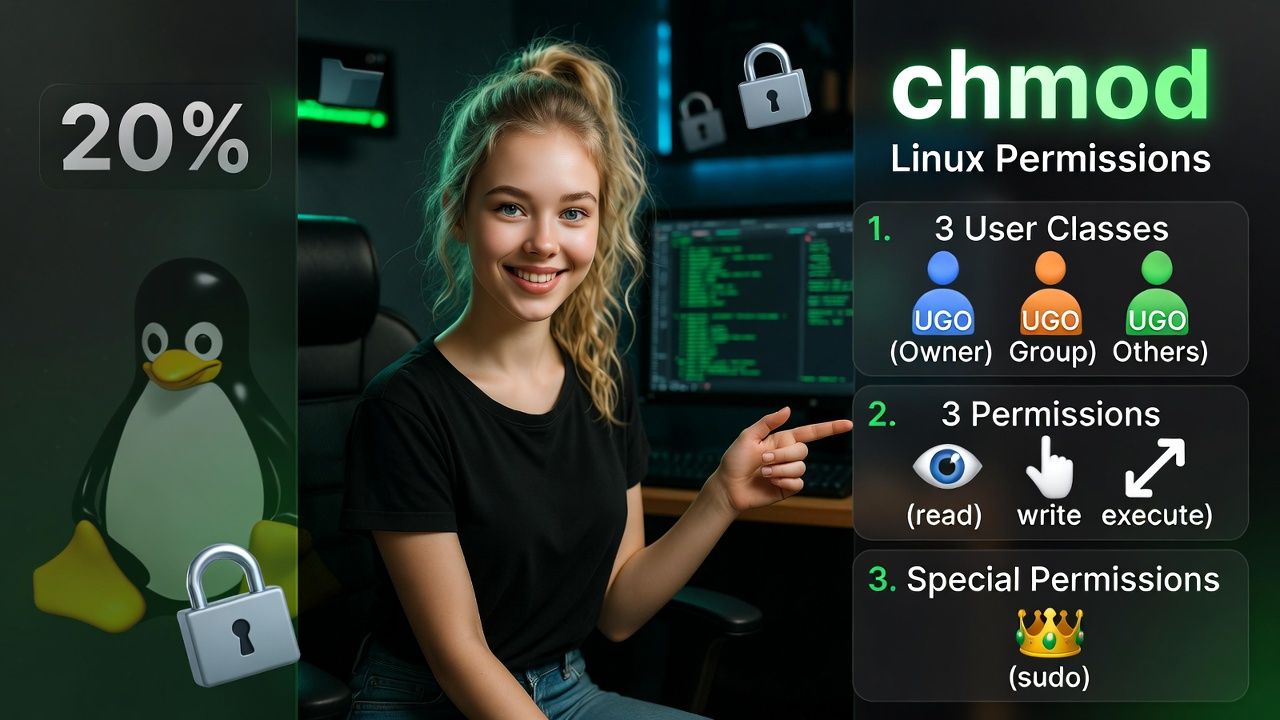
Linux evaluates permissions for three classes of users:
- Owner (u) – the file’s user
- Group (g) – users in the file’s group
- Others (o) – everyone else
Each class can have three permissions:
- Read (r) – view file contents or list directory
- Write (w) – modify file or create/delete items in a directory
- Execute (x) – run a file as a program or access/enter a directory
Important difference: execute on a directory doesn’t “run” it; it allows entering the directory and traversing into its subpaths. Without execute on a directory, read alone won’t let you access files inside.
Permission Notation: Symbolic vs Numeric (Octal)
Symbolic mode
Symbolic mode expresses changes using letters for classes and operations:
- Classes: u (owner), g (group), o (others), a (all)
- Operators: + add, – remove, = set exactly
- Permissions: r, w, x
# Give execute to owner
chmod u+x script.sh

# Remove write from group and others
chmod go-w file.txt

# Set exact permissions for all: rwx for owner, rx for group/others
chmod a=rX file_or_dir # Note: 'X' adds execute only to directories or if already executable
Numeric (octal) mode
Numeric mode uses base-8 values. Add the bits for each class: read=4, write=2, execute=1.
- 7 = 4+2+1 = rwx
- 6 = 4+2 = rw-
- 5 = 4+1 = r-x
- 4 = 4 = r–
- 0 = —
Common octal values:
- 644 – owner read/write, group read, others read (typical files)
- 600 – owner read/write only (secrets like SSH keys, wp-config.php)
- 755 – owner rwx, group rx, others rx (typical directories and executables)
- 700 – private scripts/directories
# Files readable by everyone, writable by owner
chmod 644 index.html

# Directories with enter/list access for all, write for owner
chmod 755 /var/www/html

# Private key must be 600 or stricter
chmod 600 ~/.ssh/id_rsa
Practical chmod Examples
Set safe permissions for a website
On web servers, a common baseline is files at 644 and directories at 755. Apply recursively but treat directories differently:
# Set all files to 644
find /var/www/site -type f -exec chmod 644 {} ;

# Set all directories to 755
find /var/www/site -type d -exec chmod 755 {} ;
Make a shell script executable
chmod u+x backup.sh
./backup.sh
Allow group collaboration
Give the group write access when collaborating within a shared directory:
# Add write for group
chmod g+w report.docx

# Or set exact mode for shared dir (rwx for owner and group, rx for others)
chmod 775 /srv/project
Lock down a sensitive file
# Only owner can read/write
chmod 600 secrets.txt
Add execute only to directories (not files)
The X flag in symbolic mode applies execute only if the target is a directory or already executable:
chmod -R a+rX /opt/dataFix “Permission denied”: permissions vs ownership
If you own the file, chmod works. If not, you may need sudo or to change ownership:
# If the web server should own the site
sudo chown -R www-data:www-data /var/www/site
sudo find /var/www/site -type f -exec chmod 644 {} ;
sudo find /var/www/site -type d -exec chmod 755 {} ;
Special Permission Bits: SUID, SGID, Sticky
Beyond rwx, Linux supports special bits. They modify execution and deletion behavior and are represented by a leading octal digit or special letters (s, t).
SUID (Set User ID) – 4xxx
When a file with SUID is executed, it runs with the file owner’s privileges (commonly root for system utilities). Use sparingly due to privilege escalation risks.
# Example: 4755 = SUID + 755
chmod 4755 /usr/local/bin/somesetuidtool
SGID (Set Group ID) – 2xxx
On files, SGID makes the process run with the file group’s privileges. On directories, new files inherit the directory’s group useful for shared project folders.
# Make a shared directory group-sticky
chmod 2775 /srv/shared/team
Sticky bit – 1xxx
On directories, sticky restricts deletions: only the owner of a file (or root) can delete it, even if others have write access. Used on /tmp and multi user upload folders.
# World-writable upload directory where users cannot delete others' files
chmod 1777 /var/www/site/uploads
chmod Best Practices and Security Tips
- Follow least privilege: Grant only the minimal rights required for the task.
- Avoid 777: World writable and executable files are a major risk on multi tenant servers.
- Separate ownership and permissions: Use chown for the right owner/group, then chmod to set access.
- Use 644 for files: 755 for directories on most web content. Tighten sensitive files to 600.
- Use SGID on shared project directories to keep group consistency (chmod 2775 dir).
- Use sticky on public upload dirs (chmod 1777) only when necessary and monitored.
- For scripts, prefer 750/700 and run via a dedicated service account.
- Check umask for default creation permissions: Typical umask 022 results in files 644 and directories 755.
- Audit with find to spot risky files: find /var/www -perm -o=w -type f -print.
WordPress safe permissions (quick recipe)
These settings work well on most single tenant Linux hosts. Adjust user/group for your web server (www data, apache, or nginx):
# Set ownership to web server user
sudo chown -R www-data:www-data /var/www/wordpress

# Directories 755, files 644
find /var/www/wordpress -type d -exec chmod 755 {} ;
find /var/www/wordpress -type f -exec chmod 644 {} ;

# Lock configuration
chmod 600 /var/www/wordpress/wp-config.php
If you host WordPress with YouStable’s managed Linux hosting, we pre-harden permissions, disable risky defaults, and provide SSH/SFTP access so you keep security and convenience in balance.
chmod vs chown vs chgrp
chmod changes permissions. chown changes the file’s owner (user) and optionally group. chgrp changes only the group. Often you need both correct ownership and permissions to resolve access issues.
# Give web server ownership and set collaborative permissions
sudo chown -R www-data:devs /srv/app
find /srv/app -type d -exec chmod 2775 {} ;   # SGID for shared group
find /srv/app -type f -exec chmod 664 {} ;
Troubleshooting Common chmod Issues
- Operation not permitted: You’re not the owner or lack privileges. Use sudo or adjust ownership with chown.
- Immutable files: Files with the immutable attribute ignore chmod. Check with lsattr and remove with sudo chattr -i file.
- Mount options: noexec prevents execution regardless of chmod; nosuid disables SUID; nodev disables device files. Inspect with mount or /etc/fstab.
- ACLs overriding mode bits: If using Access Control Lists, ACLs can grant or restrict access beyond chmod. View with getfacl and modify with setfacl.
- Umask surprises: Newly created files inherit umask restrictions. Confirm with umask and adjust in shell profiles or service configs.
Real World Scenarios and Examples
Deploying a PHP app
Set the app owned by a deployment user and group to the web server. Allow the web server read/execute, but restrict write to specific storage paths (cache, uploads) to reduce risk.
# Code is read-only to web server
sudo chown -R deploy:www-data /var/www/app
find /var/www/app -type d -exec chmod 755 {} ;
find /var/www/app -type f -exec chmod 644 {} ;

# Writable storage paths only
sudo chown -R www-data:www-data /var/www/app/storage /var/www/app/uploads
chmod -R 775 /var/www/app/storage /var/www/app/uploads
Securing SSH keys
chmod 700 ~/.ssh
chmod 600 ~/.ssh/id_rsa ~/.ssh/authorized_keys
Making a compiled binary runnable
gcc tool.c -o tool
chmod 755 tool
./tool
Key Takeaways
- Use chmod to set who can read, write, or execute files and directories.
- Symbolic mode is great for incremental changes; numeric mode is precise and repeatable.
- Common safe defaults: files 644, directories 755; secrets 600.
- Avoid 777. Use SGID for shared dirs and sticky for public temp/upload areas.
- Check ownership (chown, chgrp), umask, mount options, and ACLs when troubleshooting.
FAQ’s
1. What does chmod 755 mean?
chmod 755 sets permissions to rwx for the owner and r-x for group and others. It’s commonly used for directories (so they’re accessible) and for executables intended to be runnable by all users on the system.
2. Is chmod 777 ever safe to use?
Generally no. 777 grants write and execute to everyone and is risky on multi user servers and web hosts. If you must use it temporarily for debugging, revert to stricter permissions immediately and consider a better ownership or ACL approach instead.
3. What’s the difference between 644 and 664?
644 allows only the owner to write; group and others can read. 664 also allows the group to write. Use 664 when collaborating within a trusted group; otherwise, prefer 644 for tighter control.
4. How do I apply different permissions to files and directories recursively?
u003cstrongu003eUse find to target file types:u003cbru003eu003c/strongu003eu003ccodeu003efind /path -type f -exec chmod 644 {} u005c;u003cbru003efind /path -type d -exec chmod 755 {} u005c;u003c/codeu003e
5. Why does chmod not work even with sudo?
Possible causes include immutable attributes (chattr +i), restrictive mount options (noexec, nosuid), or ACLs overriding mode bits. Check with lsattr, mount, and getfacl. Remove or adjust the blocking configuration before retrying chmod.u003cbru003eu003cbru003eNeed help applying these best practices on your server or WordPress site? u003ca href=u0022https://www.youstable.com/u0022u003eYouStable’s managed hostingu003c/au003e teams set secure permissions, harden your stack, and keep your applications fast and safe—so you can focus on growth.










