

To fix CSF Firewall on a Linux server, start by confirming access (whitelist your IP), stop conflicting firewalls (firewalld/ufw), switch to the correct iptables backend, enable required kernel modules, open correct ports, disable testing mode, restart CSF/LFD, review logs for errors, and apply permanent configuration changes in csf.conf.
If you’re troubleshooting how to fix CSF Firewall on a Linux server, this guide gives you a proven, step by step workflow that resolves most CSF and LFD issues fast. I’ll cover common errors, safe recovery steps to avoid lockouts, essential commands, and real world fixes drawn from years of managing production servers.
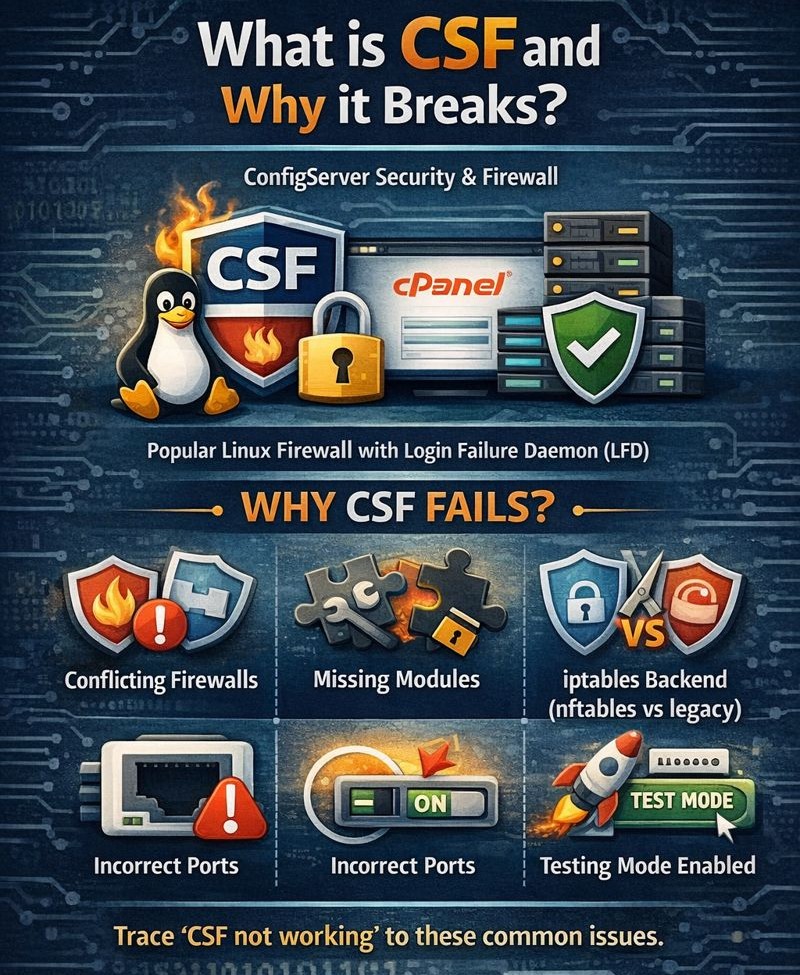
What is CSF and Why it Breaks?
CSF (ConfigServer Security & Firewall) is a popular iptables based firewall with a login failure daemon (LFD). It integrates well with cPanel/WHM and general Linux servers.
Most “CSF not working” cases trace to conflicting firewalls, missing kernel modules, wrong iptables backend (nftables vs legacy), incorrect ports, or testing mode left enabled.
Quick Diagnosis Checklist (Before You Change Anything)
- Ensure you won’t lock yourself out: confirm the SSH port and whitelist your IP.
- Stop/disable conflicting firewalls (firewalld or ufw).
- Check whether your distro uses nftables; switch to iptables legacy if required.
- Restart CSF and LFD; read the logs for exact errors.
- Confirm TESTING is disabled and required ports are open.
Step 1: Secure Your Access (Avoid Lockouts)
Always start by allowing your current IP and confirming the SSH port in CSF. If you can, use a recovery/KVM console from your provider as a safety net.
# Whitelist your public IP (replace 203.0.113.10)
csf -a 203.0.113.10

# Check current rules and status
csf -l

# Verify SSH port is allowed in CSF config
grep -E "^TCP_IN|^TCP6_IN|^PORTS_sshd" /etc/csf/csf.conf
If you’re unsure of the SSH port, check sshd_config:
grep -i ^port /etc/ssh/sshd_config
Step 2: Stop Firewall Conflicts (firewalld and ufw)
CSF manages iptables directly. Running it alongside firewalld or ufw causes conflicts and unpredictable rules. Disable and mask the other firewall.
# RHEL/CentOS/AlmaLinux/Rocky
systemctl stop firewalld
systemctl disable firewalld
systemctl mask firewalld

# Ubuntu/Debian with ufw
ufw disable
systemctl stop ufw
systemctl disable ufw
Step 3: Fix iptables vs nftables Backend
On newer Debian/Ubuntu and some RHEL based systems, iptables may be an nftables wrapper. CSF prefers legacy iptables. If CSF logs mention unknown tables/targets or rules failing to apply, switch to legacy.
# Ubuntu/Debian: install legacy tools and switch
apt-get update
apt-get install -y iptables iptables-legacy
update-alternatives --set iptables /usr/sbin/iptables-legacy
update-alternatives --set ip6tables /usr/sbin/ip6tables-legacy

# RHEL family: ensure iptables-services present (if needed)
yum install -y iptables iptables-services
After switching, restart CSF/LFD and test again.
Step 4: Load Required Kernel Modules (and VPS Caveats)
CSF needs iptables related modules. On bare metal and KVM/Xen, load them directly. On OpenVZ/LXC, the host must provide these modules.
# Common modules
modprobe ip_tables
modprobe iptable_filter
modprobe ip_conntrack 2>/dev/null || modprobe nf_conntrack
modprobe ip6_tables

# Verify they exist
lsmod | egrep "ip_tables|iptable_filter|nf_conntrack|ip6_tables"
If modules are missing on container based VPS, contact your provider to enable them. Without proper modules, CSF cannot function.
Step 5: Open Required Ports and Match SSH
Misconfigured port lists are a top reason for lockouts. Edit csf.conf to include your services, especially your actual SSH port.
vi /etc/csf/csf.conf
# Ensure the following contain the correct ports (examples):
TCP_IN = "22,80,443,25,110,143,465,587,993,995"
TCP_OUT = "20,21,22,25,53,80,443,587,993,995"
UDP_IN = "53,123"
UDP_OUT = "53,123,443"
# If you changed SSH to 2222, include 2222 in TCP_IN and set:
PORTS_sshd = "2222"
For cPanel/WHM servers, also include the panel ports (2083, 2087, 2086, 2096) if applicable.
Step 6: Disable Testing Mode and Restart
CSF’s TESTING mode auto flushes rules every 5 minutes. If security rules keep disappearing, you probably left TESTING enabled from installation.
vi /etc/csf/csf.conf
TESTING = "0"

# Restart CSF and LFD
csf -r
systemctl restart lfd
Step 7: Review Logs, Bans, and Ignore Lists
Logs reveal why CSF/LFD is failing or blocking you. Clear temporary bans and add safe ignores for legitimate services.
# Key logs
tail -n 200 /var/log/lfd.log
tail -n 200 /var/log/messages 2>/dev/null || tail -n 200 /var/log/syslog

# List/clear temporary bans
csf -t
csf -tf

# Allow/deny/ignore
csf -a 203.0.113.10     # allow
csf -d 198.51.100.20    # deny
echo "127.0.0.1" >> /etc/csf/csf.ignore
Step 8: Run CSF Diagnostics and Update/Repair
CSF includes a diagnostic mode. Also ensure required Perl modules are installed for LFD to run smoothly.
# Diagnostics
csf --diag
csf -v

# Install common prerequisites
# RHEL family
yum install -y perl-libwww-perl perl-Time-HiRes

# Debian/Ubuntu
apt-get install -y libwww-perl libio-socket-ssl-perl

# Update or reinstall CSF (safe)
cd /usr/src
rm -f csf.tgz
wget https://download.configserver.com/csf.tgz
tar -xzf csf.tgz
cd csf
sh install.sh
csf -r && systemctl restart lfd
Step 9: Reset Rules if Things Are Messy
If rules are corrupted or you need a clean slate:
# Temporarily disable to avoid conflict while resetting
csf -x

# Flush iptables and ip6tables
iptables -F
iptables -X
ip6tables -F
ip6tables -X

# Re-enable and reload CSF
csf -e
csf -r
systemctl restart lfd
WHM/cPanel Specific Fixes
- Use WHM > Plugins > ConfigServer Security & Firewall to toggle “Enable Firewall,” open ports, and view deny/allow lists.
- Open panel ports: 2083, 2087, 2086, 2096, and FTP/Exim/Dovecot ports as required.
- If LFD shows “failed to start,” check Perl modules and /var/log/lfd.log for exact missing dependencies.
- After cPanel updates, re-check testing mode and iptables backend; some updates switch dependencies.
Common Error Messages and How to Fix Them
- “ERROR: Unable to load iptables module”: Load kernel modules or ask your VPS provider (OpenVZ/LXC) to enable them.
- “Problem with iptables: iptables: No chain/target/match by that name”: Switch to iptables legacy; ensure modules are loaded.
- “lfd is not running”: Install Perl deps, check lfd.log, then systemctl restart lfd.
- Rules keep flushing every 5 minutes: Set TESTING = “0” and csf -r.
- No inbound traffic on ports you opened: Confirm they’re in TCP_IN/UDP_IN, app service is listening, and no upstream firewall or security group blocks them.
Security Hardening After You Fix CSF
- Change SSH to a non default port and use key based auth.
- Enable LF_TRIGGER/LFD login failure thresholds that fit your traffic.
- Whitelist your office/VPN IPs and use Country/ASN blocks only if needed to avoid false positives.
- Enable connection tracking limits for brute force mitigation.
- Regularly review /var/log/lfd.log and automate alerts.
YouStable Tip: Managed CSF and Proactive Monitoring
If you’d rather not wrestle with kernel modules, nftables quirks, or emergency lockouts, managed servers from YouStable include CSF pre-hardened, 24/7 monitoring, and prompt remediation. That keeps your stack secure and performant while you focus on your applications.
Command Quick Reference
# Core CSF commands
csf -e             # Enable
csf -x             # Disable
csf -r             # Restart (reload rules)
csf -s             # Start firewall rules
csf -l             # List rules
csf -t             # List temporary bans
csf -tf            # Flush temporary bans
csf -a IP          # Allow IP
csf -d IP          # Deny IP
csf --diag         # Diagnostics

# Services
systemctl restart lfd
systemctl status lfd

# Logs
tail -n 200 /var/log/lfd.log
tail -n 200 /var/log/messages 2>/dev/null || tail -n 200 /var/log/syslog
FAQs
Why is CSF not starting after reboot?
Conflicting firewalls, missing iptables modules, or TESTING mode commonly cause this. Disable firewalld/ufw, switch to iptables legacy if needed, set TESTING=“0”, then run csf -r and systemctl restart lfd. Check /var/log/lfd.log for precise errors.
How do I stop CSF from blocking my own IP?
Whitelist your IP with csf -a YOUR.IP. Review /etc/csf/csf.ignore and add your trusted IPs. Reduce aggressive triggers or exclude legitimate services from login tracking if they generate false positives.
Does CSF work with nftables?
CSF is built around iptables. While iptables-nft wrappers exist, they often break advanced rules. For reliability, switch to iptables legacy on Debian/Ubuntu, or install iptables services on RHEL based systems and ensure required modules are present.
Where are the CSF and LFD logs?
LFD logs to /var/log/lfd.log. System level messages appear in /var/log/messages (RHEL family) or /var/log/syslog (Debian/Ubuntu). Reviewing both usually pinpoints the root cause quickly.
Can I reinstall CSF without losing connectivity?
Yes. Whitelist your IP first, ensure your SSH port is open in csf.conf, then reinstall from the official package. After sh install.sh, run csf -r and systemctl restart lfd. Keep a console session open in case of mistakes.u003cbru003eu003cbru003eFollow the steps above systematically and you’ll resolve most CSF firewall issues on Linux servers, safely and permanently. If you want worry free firewall management, YouStable’s managed hosting includes proactive CSF/LFD tuning, monitoring, and rapid incident response.










