

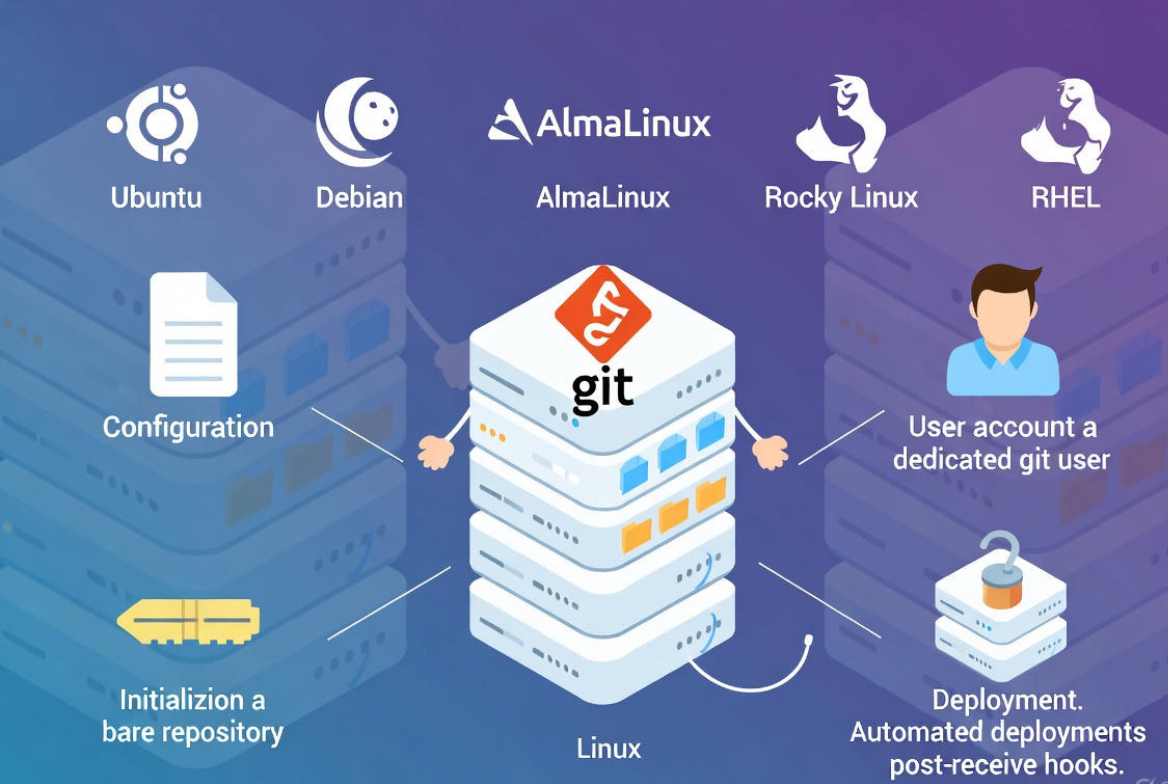
To use Git on a Linux server, install Git via your package manager, configure your identity, create a dedicated git user with SSH keys, initialize a bare repository, and push from your local machine. Optionally add a post-receive hook to deploy code. This setup enables secure, collaborative version control and automated deployments.
Learning how to use Git on Linux server unlocks reliable version control, collaboration, and automated deployments for your applications. In this guide, I’ll walk you through installing Git, configuring secure SSH access, creating a central bare repository, and setting up simple CI/CD with hooks—using clear, production-tested steps you can follow on any modern Linux distribution.
What is Git and Why Use it on a Linux Server?
Git is a distributed version control system that tracks file changes and enables teams to collaborate safely. Hosting Git on a Linux server gives you control over access, storage, and automation. It’s ideal for in-house repositories, private projects, and zero-downtime deployments—without relying on third-party platforms if you don’t want to.
Search Intent and What You’ll Learn
This tutorial focuses on practical setup: installing Git, securing SSH, creating a shared “bare” repository, pushing from local, and deploying code via hooks. You’ll also see common workflows, troubleshooting, and best practices used on real servers at scale.
Prerequisites
- A Linux server (Ubuntu, Debian, AlmaLinux, Rocky Linux, or RHEL)
- Root or sudo access
- Basic command line familiarity
- OpenSSH server installed and reachable via SSH
- Git installed locally on your workstation
Install Git on Linux
Use your distro’s package manager for a stable, secure install.
Ubuntu / Debian
sudo apt update
sudo apt install -y git
git --version
AlmaLinux / Rocky Linux / RHEL
sudo dnf install -y git
git --version
If you need a newer Git than your repo provides, consider using the official backports or trusted software collections. Avoid compiling from source unless required for policy or features.
Configure Git (Global Settings)
Set your identity once per server user and choose defaults that fit your workflow.
git config --global user.name "Your Name"
git config --global user.email "[email protected]"
git config --global init.defaultBranch main
git config --global core.editor "nano"   # or "vim"
git config --global pull.rebase false    # safe default for beginners

# Useful aliases
git config --global alias.st "status -sb"
git config --global alias.last "log -1 --stat"
git config --global alias.co checkout
git config --global alias.br branch
Create a Dedicated Git User and Enable SSH Access
Separate the Git service user from your personal account for security and clean permissions.
# On the server
sudo adduser --system --shell /usr/bin/git-shell --group --home /home/git git
sudo mkdir -p /home/git/.ssh
sudo touch /home/git/.ssh/authorized_keys
sudo chown -R git:git /home/git/.ssh
sudo chmod 700 /home/git/.ssh
sudo chmod 600 /home/git/.ssh/authorized_keys
By setting the shell to git-shell, the user can run Git but not obtain an interactive shell—an extra safety layer for a Git server.
Generate and Add Your SSH Key
# On your local machine
ssh-keygen -t ed25519 -C "[email protected]"
ssh-copy-id -i ~/.ssh/id_ed25519.pub git@your-server-ip

# Or manually copy the public key to:
# /home/git/.ssh/authorized_keys (on the server)
After adding your key, test login:
ssh -T git@your-server-ipCreate a Central “Bare” Repository
A bare repository stores Git data without a working directory. This is the canonical source you push to and pull from.
# On the server (as root/sudo), prepare a repos directory
sudo mkdir -p /srv/git
sudo chown -R git:git /srv/git

# Switch to git user
sudo -u git -H bash -lc 'cd /srv/git && mkdir myapp.git && cd myapp.git && git init --bare'
Clone and Push from Your Local Machine
# If you already have a local repo:
cd /path/to/your/local/myapp
git remote add origin ssh://git@your-server-ip/srv/git/myapp.git
git push -u origin main

# If starting fresh:
mkdir myapp && cd myapp
git init
echo "# My App" > README.md
git add README.md
git commit -m "Initial commit"
git branch -M main
git remote add origin ssh://git@your-server-ip/srv/git/myapp.git
git push -u origin main
Team members granted keys can now clone:
git clone ssh://git@your-server-ip/srv/git/myapp.gitDeploy Automatically with a post-receive Hook
For simple CI/CD, use Git hooks to deploy after a push to main. This is a common pattern for staging or small production sites.
# On the server, create a deployment path owned by a deploy user
sudo useradd -m -s /bin/bash deploy
sudo mkdir -p /var/www/myapp
sudo chown -R deploy:deploy /var/www/myapp

# Add a post-receive hook to the bare repo
sudo -u git -H bash -lc 'cat >/srv/git/myapp.git/hooks/post-receive' <<'EOF'
#!/usr/bin/env bash
set -e
read oldrev newrev ref
branch=$(echo "$ref" | sed "s,refs/heads/,,")

if [ "$branch" = "main" ]; then
  GIT_WORK_TREE=/var/www/myapp git --git-dir=/srv/git/myapp.git checkout -f main
  chown -R deploy:deploy /var/www/myapp
  # Optional: build steps, e.g., npm ci && npm run build
  # Optional: systemctl reload nginx
fi
EOF
sudo chmod +x /srv/git/myapp.git/hooks/post-receive
Now, every push to main updates the working tree at /var/www/myapp. Keep build tooling and secrets secure, and consider separate staging and production branches.
Common Git Workflows on a Linux Server
- Feature branching: create topic branches locally, push, and merge into main.
- Release tags: tag stable releases and deploy only tags to production.
- Hotfix branches: branch off the current release, fix, tag, and merge back.
- Protected branches: restrict write access to main on the server (via permissions or tooling like Gitolite/Gitea).
# Typical flow
git checkout -b feature/login
git commit -m "Add login form"
git push -u origin feature/login
# Review/merge, then:
git checkout main
git merge --no-ff feature/login
git push
Manage Users and Access
- SSH keys: add each user’s public key to /home/git/.ssh/authorized_keys.
- Per-repo permissions: create group-per-repo and use filesystem permissions if you want read-only vs read-write separation.
- git-shell: limits users to Git operations only, reducing risk.
- Advanced: consider Gitolite (fine-grained ACLs), Gitea or GitLab (web UI, issues, CI/CD).
Security Best Practices
- Disable password SSH logins; allow keys only (sshd_config: PasswordAuthentication no).
- Use fail2ban and a firewall (ufw or firewalld) to limit SSH attempts.
- Back up /srv/git and /home/git/.ssh regularly and test restores.
- Keep Git, OpenSSH, and the OS patched.
- Use separate deploy keys with limited scope.
Backup and Maintenance
- Simple backup: archive the bare repositories directory and keys.
- Health: run git gc periodically to optimize storage.
- Monitoring: watch disk I/O and inode usage if hosting many repos.
# Backup all repos
sudo tar -czf /backup/git-$(date +%F).tar.gz /srv/git /home/git/.ssh

# Optimize a repo
sudo -u git -H bash -lc 'git --git-dir=/srv/git/myapp.git gc --aggressive --prune=now'
Troubleshooting Common Errors
Permission denied (publickey)
- Ensure your public key is present in /home/git/.ssh/authorized_keys.
- Fix permissions: .ssh (700), authorized_keys (600), home dir not group-writable.
- Test with ssh -v git@server to see key negotiation.
non-fast-forward updates were rejected
This means the remote has new commits. Pull and merge or rebase, then push.
git pull --rebase origin main
git push origin main
Detached HEAD or wrong branch deployed
- Ensure your post-receive hook checks out a specific branch (main).
- Verify GIT_WORK_TREE is set correctly in the hook.
Best Practices for Teams
- Adopt a branching model (Git Flow or trunk-based) and stick to it.
- Write atomic commits with clear messages and meaningful PR descriptions.
- Use .gitignore to avoid committing secrets, build artifacts, and OS files.
- Store secrets outside Git; use environment variables or a secrets manager.
- Automate tests and linting pre-deploy; start with simple hooks and grow into CI/CD.
Self-Hosted Git vs. Managed Platforms
- Self-hosted (this guide): full control, simple, private, minimal dependencies.
- Gitea/GitLab: adds web UI, permissions, issues, CI/CD, code review.
- GitHub/Bitbucket/GitLab.com: zero maintenance, global availability, integrations.
If you want a fast, secure VPS tailored for Git and deployment, YouStable offers SSD-powered Linux servers with root access, dedicated IPv4, and data center choices. You can spin up a clean instance, follow this guide, and be production-ready in minutes.
Keyword-Focused Recap
- Install Git on Linux with apt or dnf and configure your identity.
- Create a git user, secure SSH keys, and initialize a bare repository.
- Push from local, pull to servers, and automate deployment with hooks.
- Follow security, backup, and maintenance best practices to keep Git stable.
FAQs
u003cstrongu003eHow do I install Git on Ubuntu or Debian server?u003c/strongu003e
Run sudo apt update u0026amp;u0026amp; sudo apt install -y git, then verify with git u002du002dversion. Configure your identity with git config u002du002dglobal user.name and user.email. For newer versions, consider official backports or trusted PPAs.
u003cstrongu003eWhat is a bare repository and when should I use it?u003c/strongu003e
A bare repository contains Git data only (no working tree) and acts as the central source of truth on your server. Teams push to this repo and clone from it. Use it whenever multiple developers collaborate via a server-hosted Git remote.
u003cstrongu003eHow can I deploy code automatically after a git push?u003c/strongu003e
Add a post-receive hook in the bare repo to checkout a branch into your web root (via GIT_WORK_TREE) and run build or reload commands. This creates a lightweight u003ca href=u0022https://www.youstable.com/blog/what-is-ci-cd-on-linux-server/u0022u003eCI/CD pipelineu003c/au003e without extra tools.
u003cstrongu003eHow do I fix “Permission denied (publickey)” when pushing?u003c/strongu003e
Ensure your public key is in /home/git/.ssh/authorized_keys, permissions are correct (700 for .ssh, 600 for authorized_keys), and that you’re using the right user and host. Test with ssh -v git@server for detailed logs.
u003cstrongu003eShould I self-host Git or use GitHub/GitLab?u003c/strongu003e
Self-hosting offers privacy and control with minimal dependencies—great for teams comfortable with Linux. Managed platforms provide rich features, integrations, and no server maintenance. Many teams start simple on a VPS and graduate to Gitea or GitLab as needs grow.










