

To install FTP on a Linux server, install the vsftpd package, enable and start the service, configure /etc/vsftpd.conf for local users, chroot, passive ports, and TLS, open firewall ports (21 and a passive range), create a restricted FTP user, and test with an FTP client. The steps below cover Ubuntu/Debian and RHEL-based systems.
Installing an FTP server on Linux is straightforward when you follow industry best practices. In this guide, you’ll learn how to install FTP on a Linux server using vsftpd, configure secure access with TLS, set passive mode correctly, open firewall ports, handle SELinux, and troubleshoot common errors—so your uploads work reliably from day one.
What is FTP and When Should You Use it?
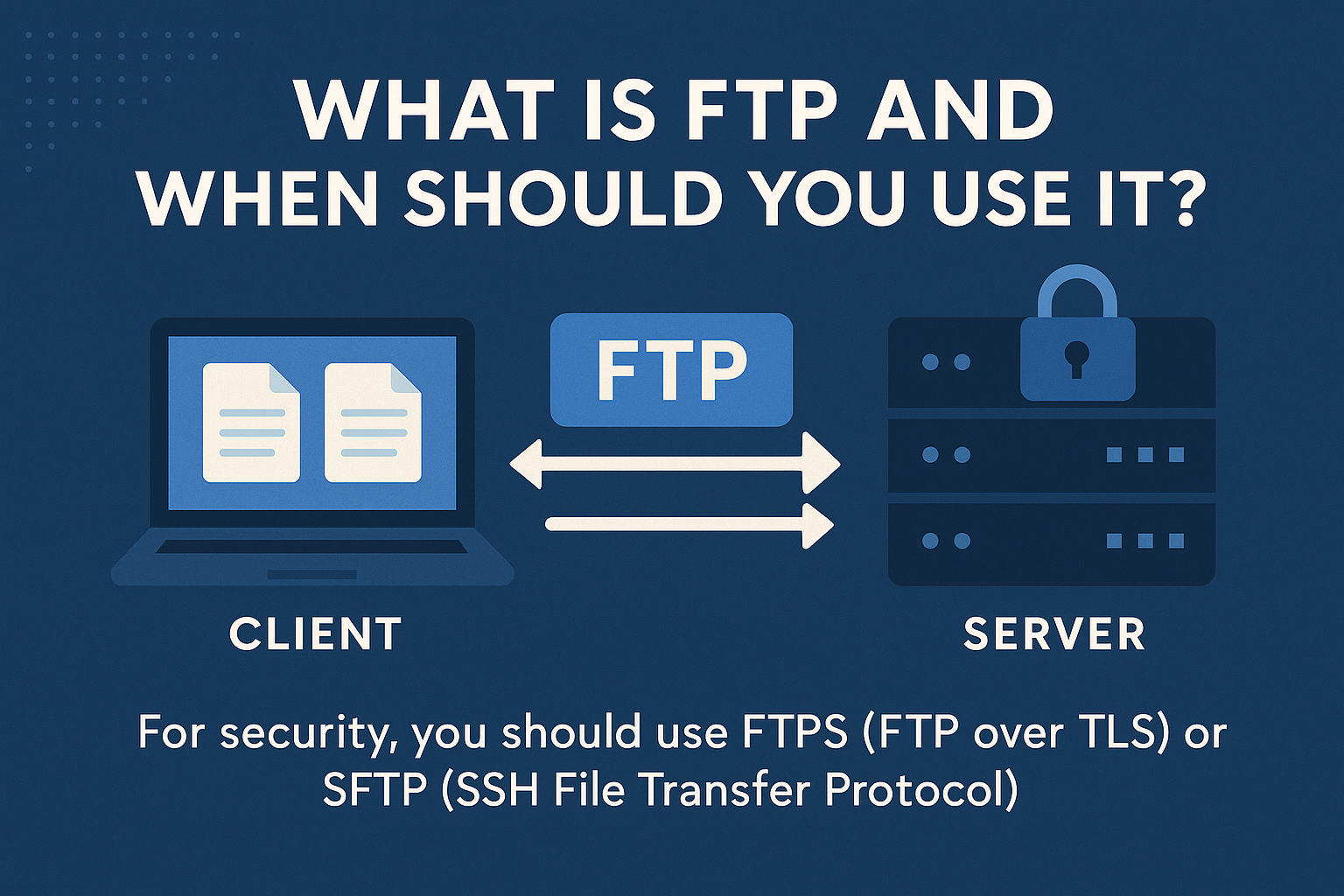
FTP (File Transfer Protocol) moves files between a client and server over TCP/IP. It’s widely supported by hosting panels, CI tools, and desktop clients. For security, you should use FTPS (FTP over TLS) or SFTP (SSH File Transfer Protocol). SFTP runs over SSH; FTPS is FTP with encryption.
FTP vs FTPS vs SFTP (Quick Comparison)
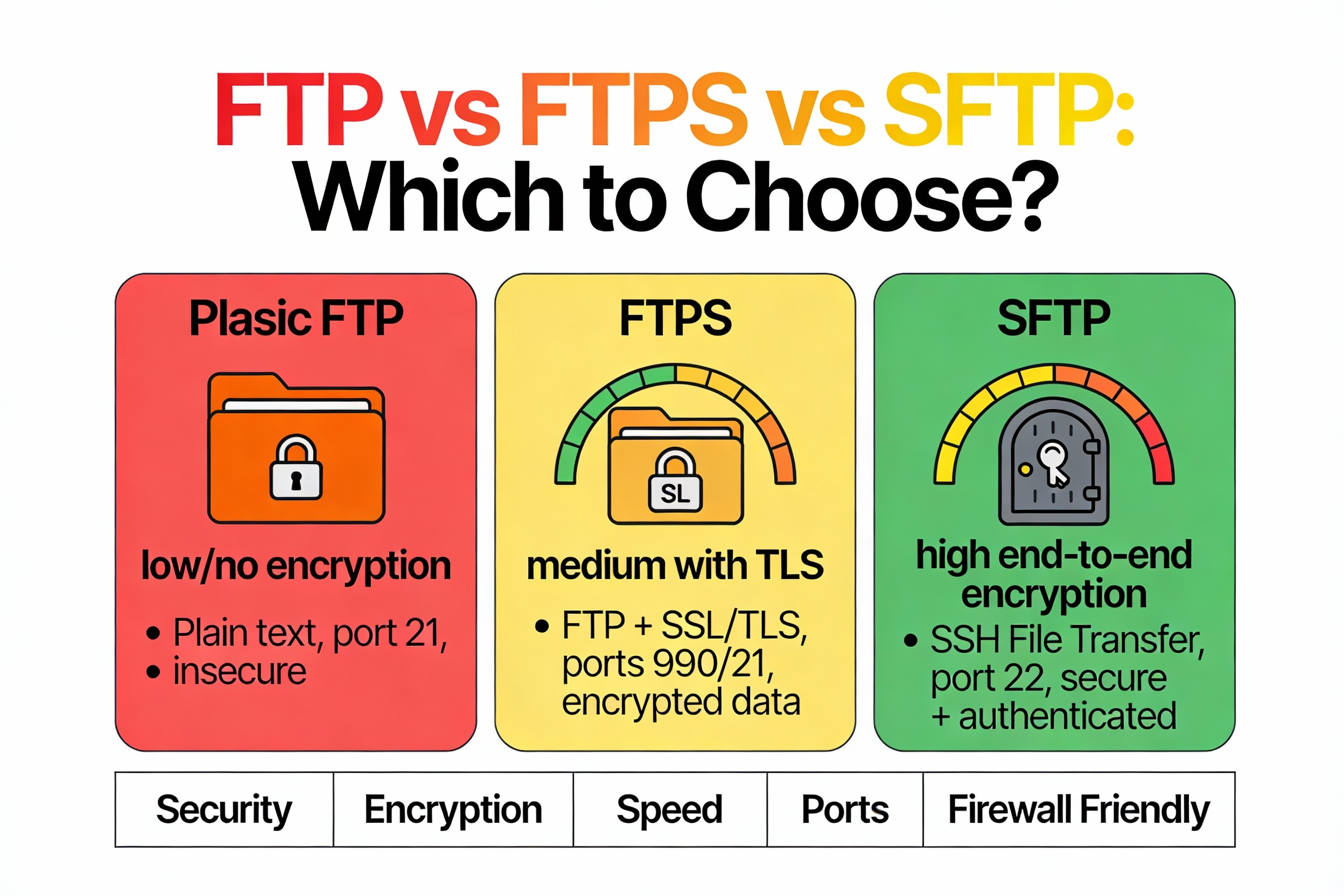
- FTP: Plain-text credentials and data; only use in trusted, isolated networks.
- FTPS: Adds TLS encryption to FTP (ports 21 + passive range); compliant with many enterprise workflows.
- SFTP: Uses SSH on port 22; simpler firewalling, strong security; recommended if clients support it.
Prerequisites
- Linux server (Ubuntu/Debian or RHEL/CentOS/AlmaLinux/Rocky)
- Root or sudo access
- Firewall access (UFW, firewalld, or iptables)
- Public IP and DNS (optional but recommended)
- FTP client (FileZilla, WinSCP, or lftp) for testing
If you’re on a managed VPS or dedicated server from YouStable, you can request pre-hardened vsftpd or SFTP setup to save time and reduce misconfigurations.
Install vsftpd on Linux
Ubuntu/Debian
sudo apt update
sudo apt install -y vsftpd
sudo systemctl enable --now vsftpd
sudo systemctl status vsftpd
RHEL/CentOS/AlmaLinux/Rocky
sudo dnf install -y vsftpd
# On older CentOS:
# sudo yum install -y vsftpd
sudo systemctl enable --now vsftpd
sudo systemctl status vsftpd
vsftpd is chosen for its performance and strong security defaults. It’s battle-tested on high-traffic servers and plays nicely with chroot jails.
Back Up and Edit the vsftpd Configuration
Before changes, back up your config file. Then apply safe, production-ready defaults.
sudo cp /etc/vsftpd.conf /etc/vsftpd.conf.bakRecommended Base Configuration
Edit /etc/vsftpd.conf and use the following baseline. It enables local users, chroot, passive mode, and prepares for TLS.
# Core settings
listen=YES
listen_ipv6=NO

# Authentication & access
anonymous_enable=NO
local_enable=YES
write_enable=YES

# Security & isolation
chroot_local_user=YES
allow_writeable_chroot=YES

# Permissions & umask
local_umask=022
file_open_mode=0644
dirlist_enable=YES
xferlog_enable=YES
xferlog_std_format=YES

# Passive mode (adjust to your server's public IP and port range)
pasv_enable=YES
pasv_min_port=40000
pasv_max_port=40100
pasv_address=YOUR.PUBLIC.IP.ADDRESS

# Performance
use_localtime=YES
max_clients=30
max_per_ip=10

# TLS (FTPS) - enable after creating certs
ssl_enable=YES
allow_anon_ssl=NO
force_local_logins_ssl=YES
force_local_data_ssl=YES
ssl_tlsv1_2=YES
rsa_cert_file=/etc/ssl/private/vsftpd.pem
rsa_private_key_file=/etc/ssl/private/vsftpd.pem

# Logging
dual_log_enable=YES
xferlog_file=/var/log/vsftpd.log
Replace YOUR.PUBLIC.IP.ADDRESS with the server’s public IP or DNS name. On cloud instances with NAT (e.g., behind a load balancer or firewall appliance), set pasv_address to the external IP.
Create a Restricted FTP User
For security, create a dedicated system user for FTP uploads and limit shell access.
# Create a user with home directory
sudo adduser ftpuser
# Or on RHEL-based:
# sudo adduser ftpuser && sudo passwd ftpuser

# Optionally, prevent SSH shell login
sudo usermod -s /usr/sbin/nologin ftpuser  # Debian/Ubuntu
# sudo usermod -s /sbin/nologin ftpuser    # RHEL-based

# Create an upload directory and set permissions
sudo mkdir -p /home/ftpuser/uploads
sudo chown -R ftpuser:ftpuser /home/ftpuser
sudo chmod -R 755 /home/ftpuser
sudo chmod 755 /home/ftpuser/uploads
Because chroot locks users into their home, avoid making the home directory group-writable without allow_writeable_chroot=YES. Keep upload directories writable and the home directory itself readable.
Open Firewall Ports for FTP and Passive Mode
UFW (Ubuntu/Debian)
sudo ufw allow 21/tcp
sudo ufw allow 40000:40100/tcp
sudo ufw reload
sudo ufw status
firewalld (RHEL/AlmaLinux/Rocky)
sudo firewall-cmd --permanent --add-port=21/tcp
sudo firewall-cmd --permanent --add-port=40000-40100/tcp
sudo firewall-cmd --reload
sudo firewall-cmd --list-all
iptables (legacy)
sudo iptables -A INPUT -p tcp --dport 21 -j ACCEPT
sudo iptables -A INPUT -p tcp --dport 40000:40100 -j ACCEPT
sudo service iptables save  # or iptables-save > /etc/iptables.rules
Passive mode is essential when clients are behind NAT or strict firewalls. Always match the passive port range in both vsftpd.conf and your firewall rules.
Handle SELinux (RHEL-based)
If SELinux is enforcing, allow FTP to read/write home directories and use passive ports.
# Install policy utilities if missing
sudo dnf install -y policycoreutils-python-utils

# Allow FTP to read/write user home dirs
sudo setsebool -P ftp_home_dir on

# Allow passive mode ports (adjust range as needed)
sudo semanage port -a -t ftp_port_t -p tcp 40000-40100  # add
# If already exists, use -m to modify:
# sudo semanage port -m -t ftp_port_t -p tcp 40000-40100
Enable TLS (FTPS) for Secure Transfers
Encrypt credentials and data in transit with TLS. Use a self-signed certificate for internal use or a CA-signed certificate for production.
sudo mkdir -p /etc/ssl/private
sudo openssl req -x509 -nodes -days 3650 -newkey rsa:2048
  -keyout /etc/ssl/private/vsftpd.pem
  -out /etc/ssl/private/vsftpd.pem
sudo chmod 600 /etc/ssl/private/vsftpd.pem
Confirm the TLS directives in /etc/vsftpd.conf point to /etc/ssl/private/vsftpd.pem. Then restart vsftpd.
sudo systemctl restart vsftpdIn your FTP client, use FTPS (explicit TLS) on port 21. This keeps compatibility while encrypting sessions.
Start, Enable, and Test the FTP Server
Ensure vsftpd is running and listening on port 21. Then test from a remote machine with an FTP client.
sudo systemctl status vsftpd
sudo ss -tulpn | grep :21  # or: sudo netstat -tulpn | grep :21
In FileZilla, set:
- Host: your-server-ip or domain
- Protocol: FTP – File Transfer Protocol
- Encryption: Require Explicit FTP over TLS
- Logon Type: Normal
- User: ftpuser / Password: your password
If the connection stalls on “Entering Passive Mode”, re-check passive port rules and pasv_address. If authentication fails, verify the user exists and that local_enable=YES.
Optional: Use SFTP (SSH) Instead of FTP
SFTP is often simpler and more secure, using port 22 with fewer firewall concerns. It’s ideal if your tools and clients support it.
# Ensure OpenSSH server is installed and running
sudo apt install -y openssh-server   # Ubuntu/Debian
# sudo dnf install -y openssh-server # RHEL-based
sudo systemctl enable --now ssh

# Create an SFTP-only group and chrooted user
sudo groupadd sftpusers
sudo useradd -m -G sftpusers -s /usr/sbin/nologin sftpuser
sudo passwd sftpuser
sudo mkdir -p /home/sftpuser/uploads
sudo chown root:root /home/sftpuser
sudo chmod 755 /home/sftpuser
sudo chown sftpuser:sftpusers /home/sftpuser/uploads

# Configure SSHD
sudo bash -c 'cat >> /etc/ssh/sshd_config <<EOF

Match Group sftpusers
    ChrootDirectory %h
    ForceCommand internal-sftp
    X11Forwarding no
    AllowTcpForwarding no
EOF'
sudo systemctl restart ssh
Connect using sftp sftpuser@your-server-ip or an SFTP-capable client. This is the recommended choice for modern deployments.
Security Hardening Checklist
- Use FTPS (explicit TLS) or switch to SFTP.
- Disable anonymous access (anonymous_enable=NO).
- Chroot users (chroot_local_user=YES) and keep home non-writable.
- Limit login attempts with Fail2ban for vsftpd logs.
- Restrict passive ports to a narrow range and open only those ports.
- Use strong passwords or SSH keys (for SFTP).
- Audit logs at /var/log/vsftpd.log and system journal.
- Disable shell access for FTP-only users (nologin).
- Regularly update vsftpd and rotate TLS certificates.
Troubleshooting Common FTP Errors
530 Login incorrect
- Confirm user exists and password is correct.
- Ensure local_enable=YES in vsftpd.conf.
- Check /etc/ftpusers or /etc/vsftpd/ user deny files (user may be banned).
500 OOPS: vsftpd: refusing to run with writable root inside chroot
- Set allow_writeable_chroot=YES or make the user’s home non-writable (755) and create a separate writable subdirectory like uploads.
Connection times out or stalls on Passive Mode
- Open passive ports in firewall and set pasv_min_port/pasv_max_port.
- Set pasv_address to the public IP or DNS, especially behind NAT.
- Check upstream firewalls or provider security groups.
TLS handshake failures
- Verify rsa_cert_file path and file permissions (600).
- Ensure ssl_enable=YES and your client uses “Require Explicit FTP over TLS”.
- Confirm TLS versions allowed match client support (ssl_tlsv1_2=YES).
SELinux denials (RHEL-based)
- Enable ftp_home_dir boolean and add passive ports with semanage.
- Review audit logs: sudo ausearch -m avc -ts recent.
Real-World Use Cases and Best Practices
- Web deployments: Grant a single FTP user access to a site directory and deploy using FTPS from a CI pipeline.
- Client file intake: Create per-client chrooted users with unique credentials and directories.
- Backup workflows: Use FTPS or SFTP to push nightly database/file archives from remote systems.
- Hosting environments: Prefer SFTP by default; keep FTPS available for legacy integrations.
If you need a secure, ready-to-use environment, YouStable’s VPS and Dedicated Servers come with root access, modern Linux distributions, and optional managed support. Our team can set up FTPS/SFTP with hardened configs, firewall rules, and monitoring tailored to your stack.
FAQs: Install FTP on Linux Server
u003cstrongu003eWhich FTP server is best for Linux?u003c/strongu003e
vsftpd is a top choice for most Linux servers due to its speed, security features, and simplicity. ProFTPD and Pure-FTPd are also solid, especially in hosting panels, but vsftpd’s defaults make it ideal for modern VPS and dedicated servers.
u003cstrongu003eHow do I enable FTPS (TLS) on vsftpd?u003c/strongu003e
Create or install a certificate at /etc/ssl/private/vsftpd.pem, set ssl_enable=YES in /etc/vsftpd.conf, and restart vsftpd. In your client, choose “Explicit FTP over TLS”. Open port 21 and your passive port range in the firewall.
u003cstrongu003eWhat ports should I open for FTP?u003c/strongu003e
Open TCP port 21 for control and a narrow passive range (e.g., 40000–40100) for data. Match the passive range in both vsftpd.conf and your firewall rules. For SFTP, only port 22 is required.
u003cstrongu003eWhy does FTP fail behind NAT or a cloud firewall?u003c/strongu003e
FTP uses separate data connections. Without passive mode and a defined passive port range that’s open and mapped to your public IP, FTP stalls. Set pasv_address to your public IP and allow the passive ports in any upstream firewalls or security groups.
u003cstrongu003eIs SFTP more secure than FTPS?u003c/strongu003e
Both are secure when configured properly. SFTP runs over SSH and is simpler to firewall and automate. FTPS can be preferable for strict compliance or legacy workflows. For new setups, SFTP is often the easiest secure choice.
u003cstrongu003eHow do I restrict FTP users to a single directory?u003c/strongu003e
Enable chroot_local_user=YES and assign the user a dedicated home directory. Keep the home non-writable (755) and create a writable subdirectory like uploads with 755 or 775 permissions.
u003cstrongu003eCan I create virtual users for vsftpd?u003c/strongu003e
Yes. vsftpd supports virtual users via PAM and a backend like Berkeley DB or libpam-pwdfile. This lets you manage FTP-only accounts without system users. It’s more advanced—use when you need many accounts or panel integration.
Conclusion
Now you can install FTP on a Linux server using vsftpd, secure it with TLS, configure passive mode, open the right firewall ports, and troubleshoot common issues. If you want a fast, secure, and supported setup, consider a YouStable VPS or Dedicated Server and let our experts pre-harden your FTPS or SFTP environment.










