


A file containing code written in Structured Query Language (SQL), is called a ‘SQL file.’ A SQL file ends with a ‘.sql’ extension. SQL is used to communicate with relational database systems.
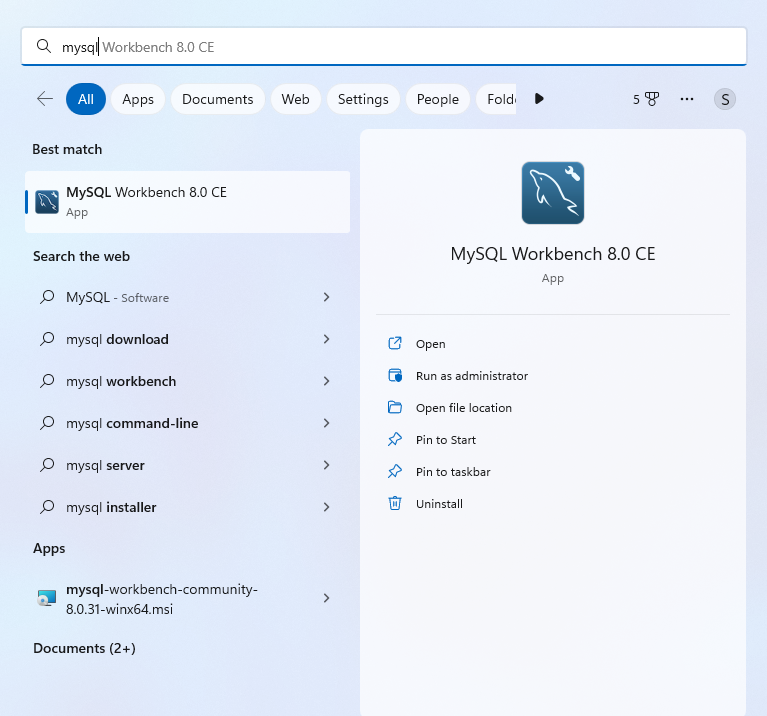
In this tutorial, I will explain how to open a SQL file in Microsoft Windows operating system using two programs (a) MySQL Workbench 8.0 CE for Windows and (b) Windows Notepad.
MySQL Workbench
- To open an SQL file in MySQL workbench, open Mysql Workbench. If you haven’t already installed MySQL Workbench on your pc you can get it from here. https://dev.mysql.com/downloads/workbench/, you also need to install Microsoft Visual C++ 2019 as a dependency for MySQL workbench which can be availed from here. https://learn.microsoft.com/en-us/cpp/windows/latest-supported-vc-redist?view=msvc-170
- Go to files in the top left corner and select ‘Open SQL Script.’
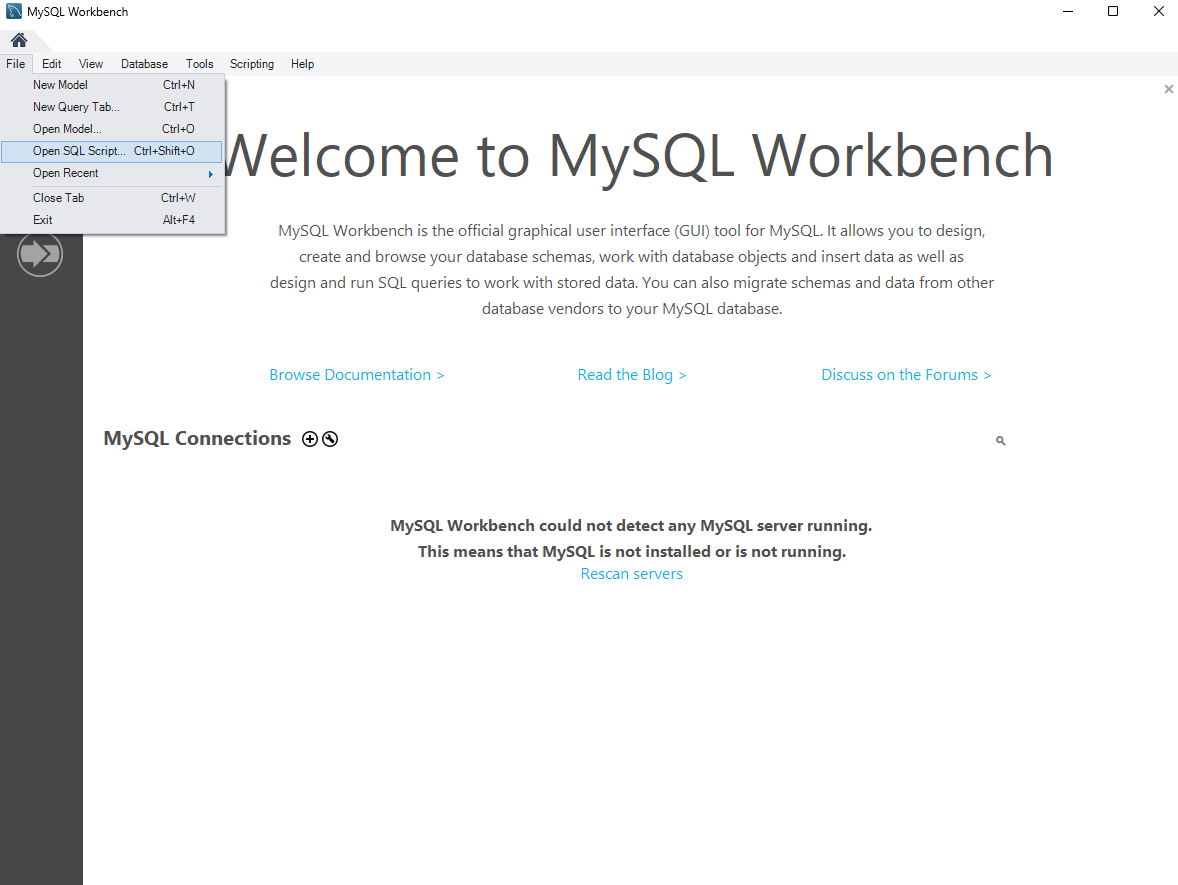
Alternatively, press the CTRL+SHIFT+O combination from your keyboard.
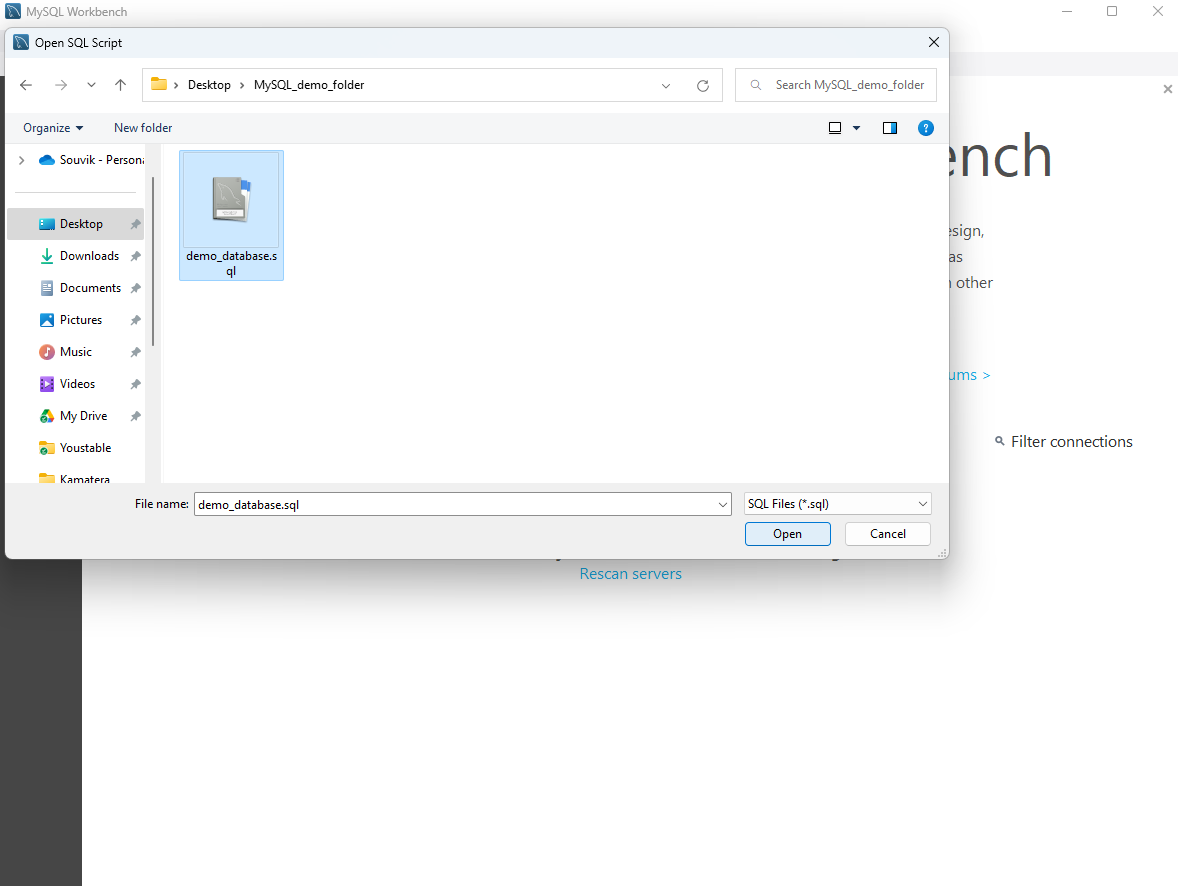
- Browse and select the ‘.sql’ file you wish to open and click on open.
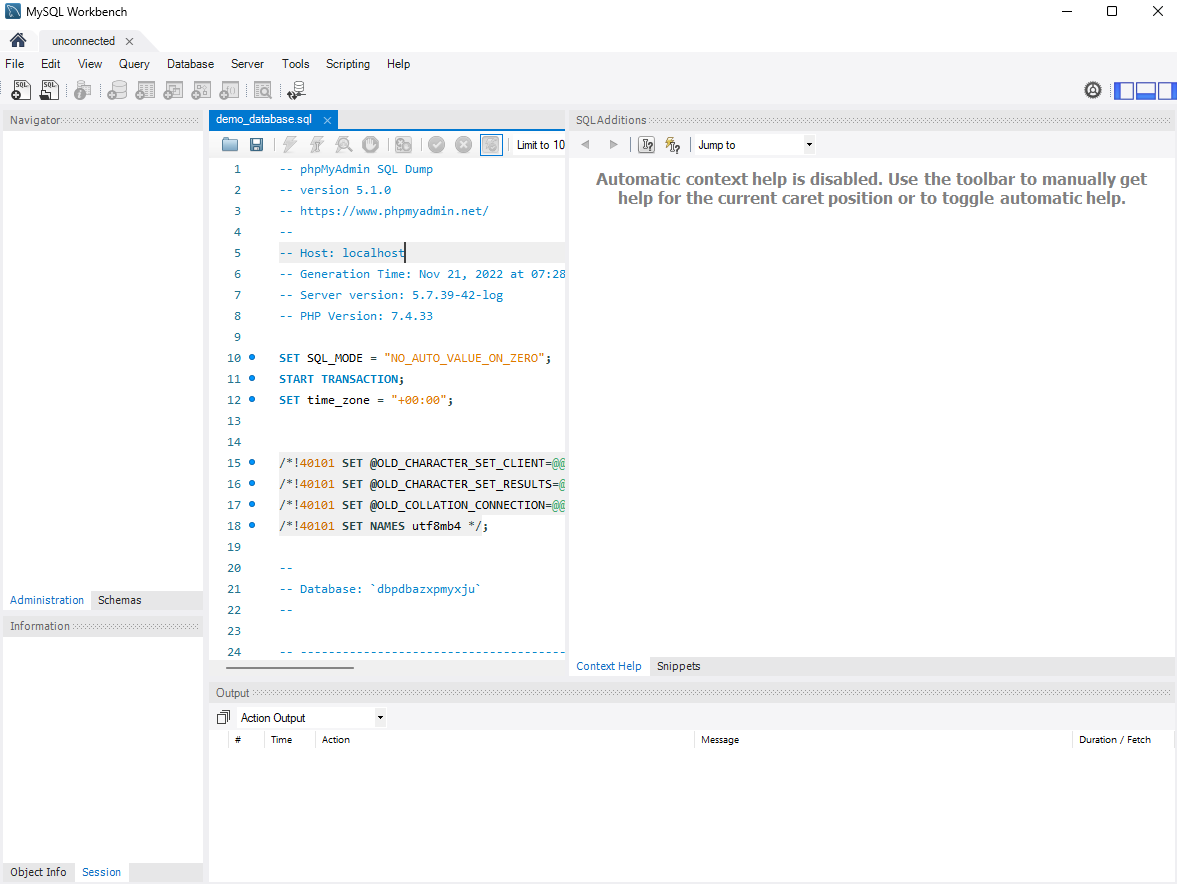
Here you can view and make necessary changes to the file.
- To save changes, press CTRL+S or close the window
- Another way is, to right-click over the file and click open or select the file and press Enter.
Windows Notepad
- To open in Windows Notepad right click over the file, select ‘Open with’ and choose Notepad.
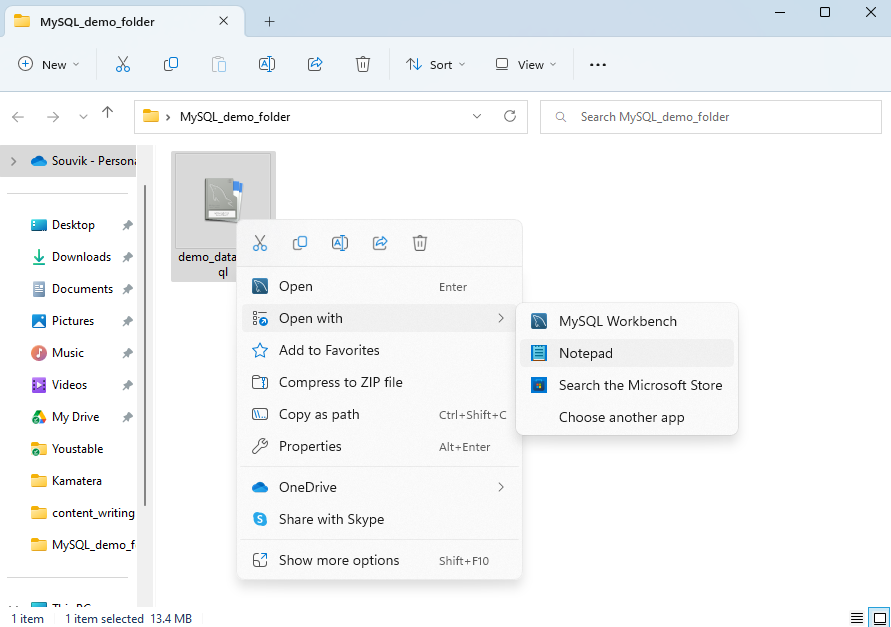
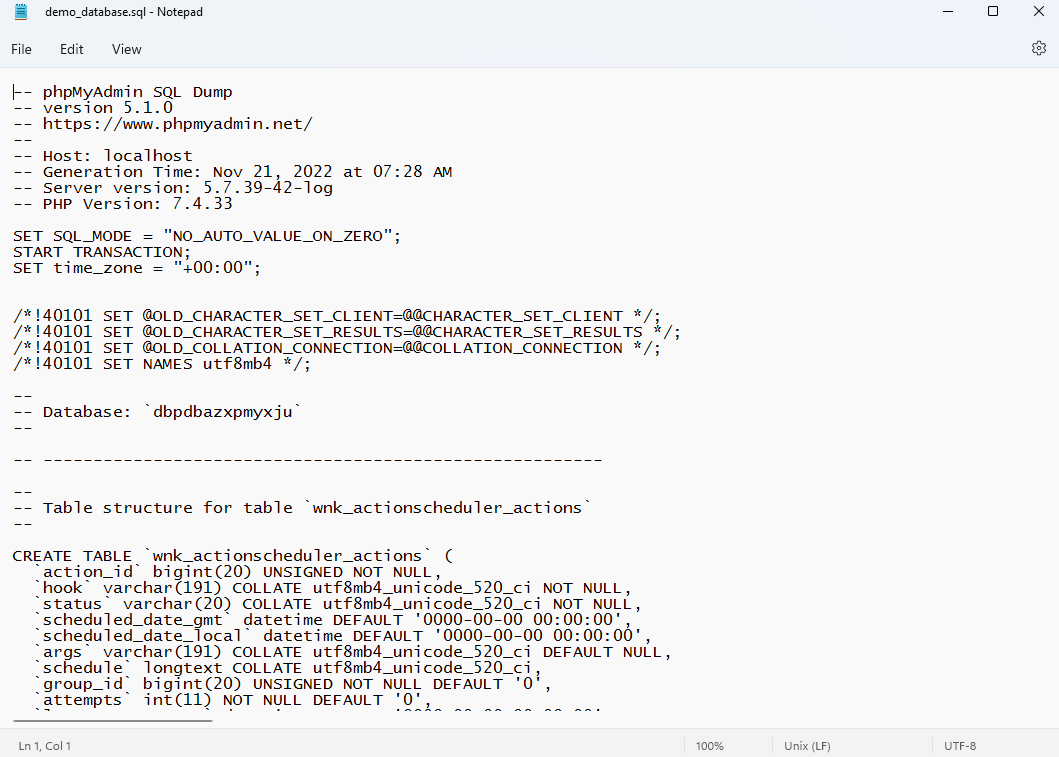
- Here you can view it in a clear text format. Edit as per your need and press CTRL+S to save it.
Similarly, you can use MySQL Workbench to open SQL files on MacOS.










